apple patient
  • Home
  • News
  • Rumors
  • Tips & Tricks
  • Reviews
  • Insights
No Result
View All Result
  • iPhone 18
  • iOS 27
  • iPadOS 27
  • macOS
  • MacBook Neo
  • iPhone 17e
  • AirTags
  • iOS 26
  • iPhone 17
  • MacBook Pro
  • iPadOS
  • iMac
  • Mac mini
  • HomePod
  • Apple TV
  • iPad Pro
  • iPhone Air
  • Apple Vision Pro
  • iPhone 16
  • AirPods 4
  • Apple Watch Ultra
  • HomePod Mini
  • MacBook Air
  • iPad
  • AirPods Max
  • AirPods Pro 3
  • Apple Watch Series 3
  • Mac Studio
  • Studio Display
  • iPad Air
  • iPad mini
  • watchOS 27
  • Apple CarPlay
  • Apple Pay
  • watchOS 26
  • Home
  • News
  • Rumors
  • Tips & Tricks
  • Reviews
  • Insights
No Result
View All Result
apple patient
No Result
View All Result

Create Macbook Memoji with stickers – here's how

Milan Jovicic by Milan Jovicic
May 14, 2020 - 6:45 PM CEST
in Apple Tips & Tricks
0
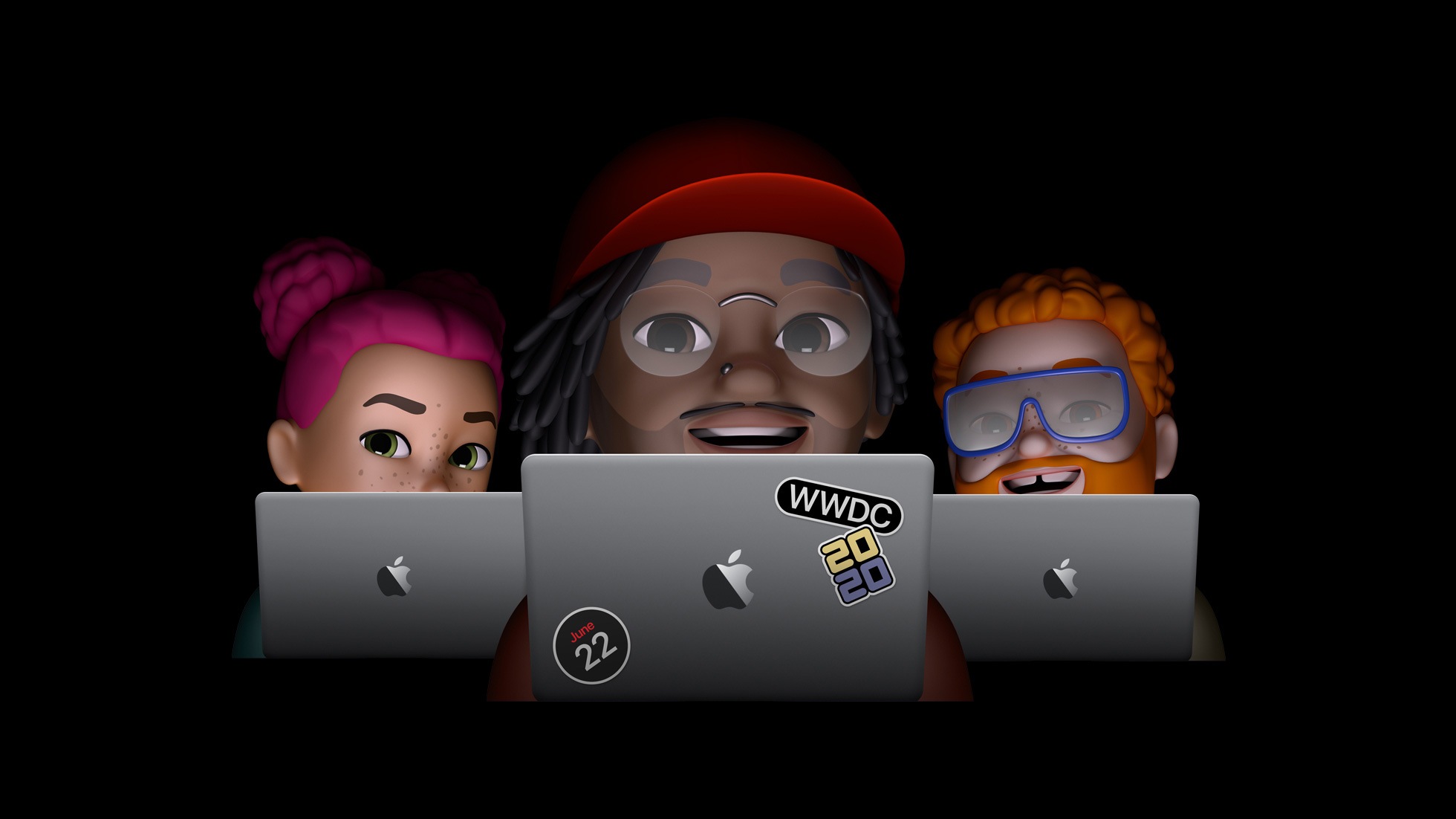
Image: Apple

Image: Apple

WhatsAppFacebookEmail
Threads

The cover image of this year's WWDC 2020 hit like a bomb. The question quickly arose: how exactly does it work? A YouTuber shows how. 

YouTuber The Tech Rabbi explained it in a nearly six-minute video. The whole thing was discovered by our colleagues at Macwelt. Essentially, anyone can edit and personalize their Memoji. All you need is the Memoji, selected stickers from Clean PNG, and the free app Adobe Spark Post. First, we need the Memoji sticker on our MacBook. 

The way via the Notes app

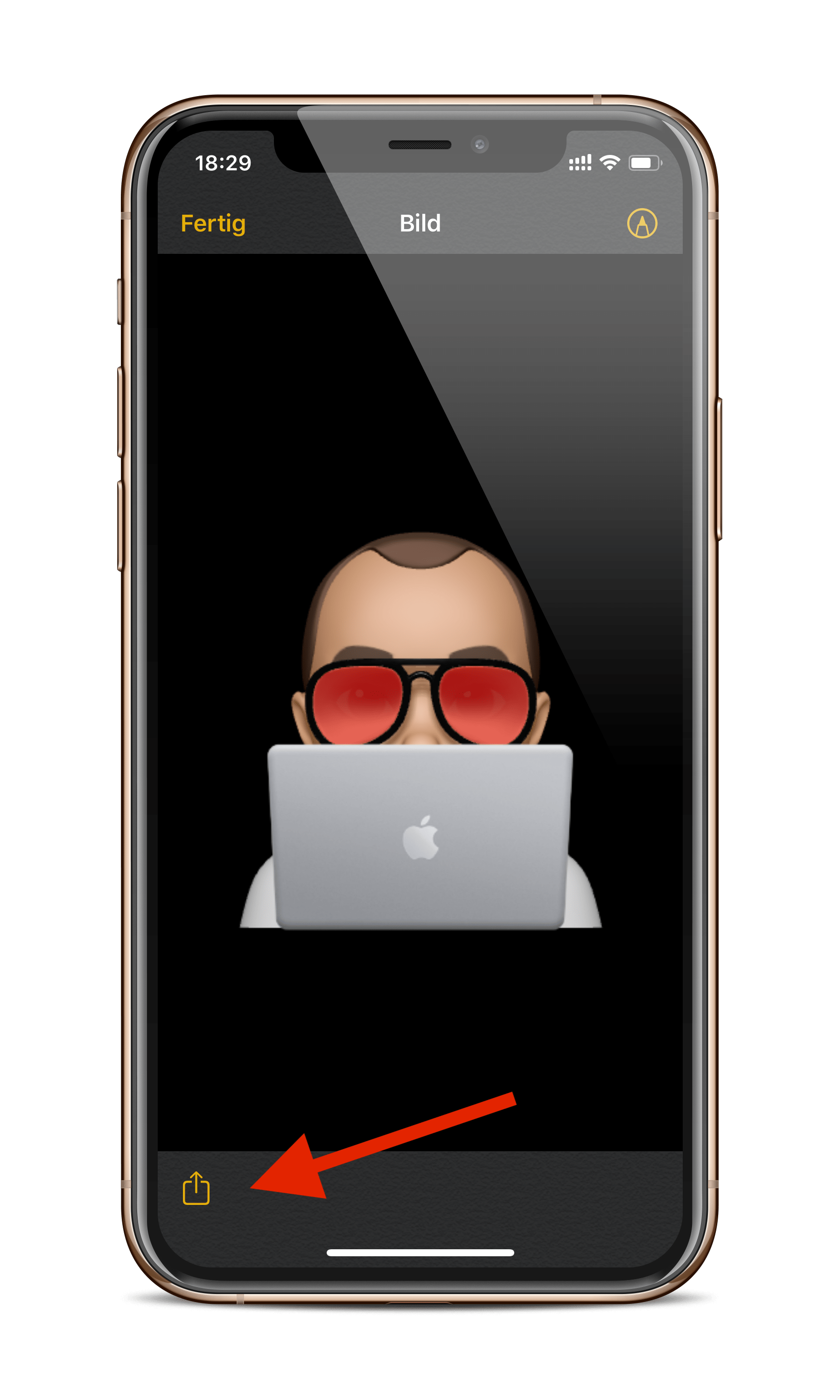
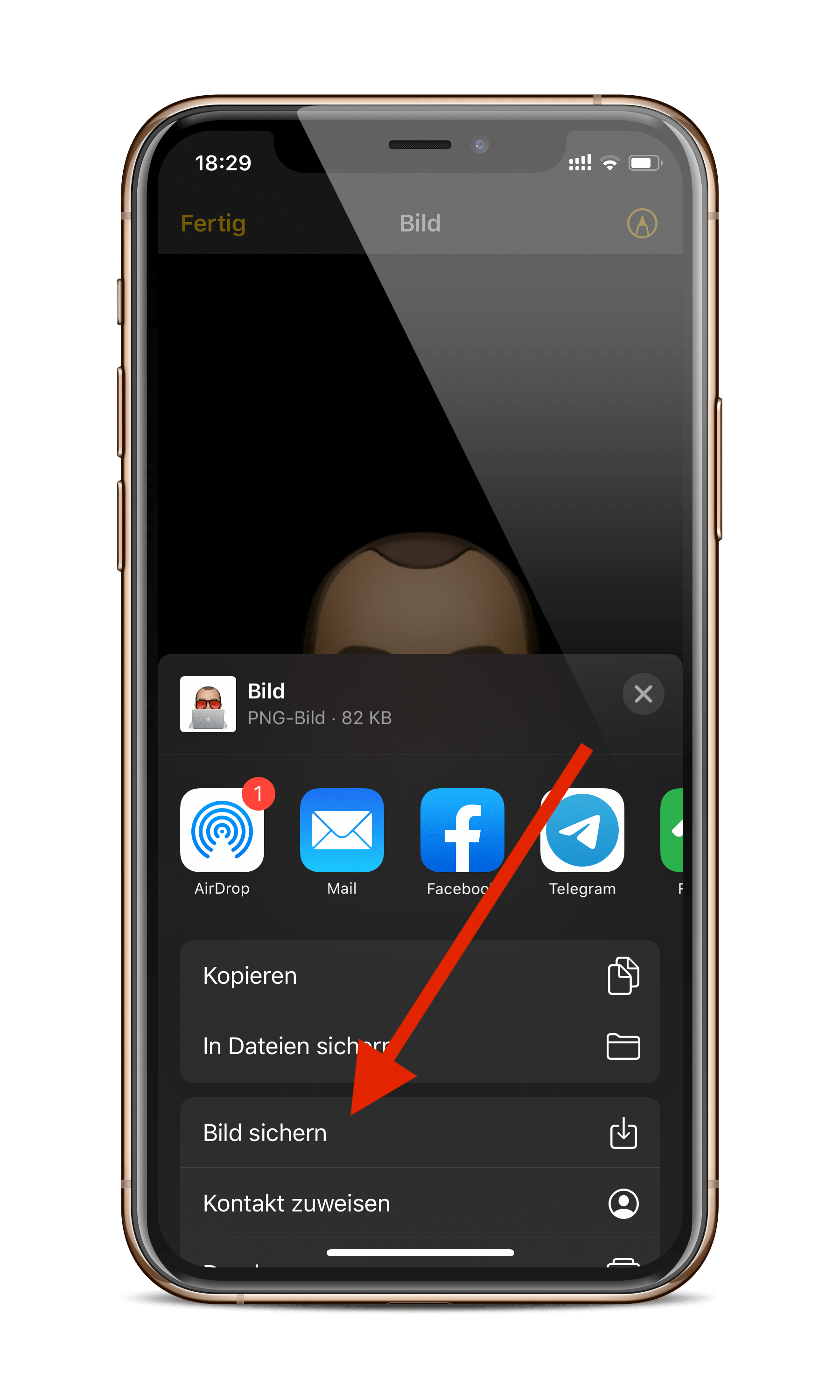
Unlike in the video, I recommend going through the notes to extract the Memoji sticker as a PNG file with a transparent background. So open the Notes app and use your keyboard to select the respective Memoji symbol with the MacBook. (Of course, access to the stickers via the keyboard must be allowed for this - so, Settings - General - Keyboards - turn on Memoji stickers at the bottom.) As soon as you have entered the sticker into your note, click on it to enlarge it. Now open the Share Sheet menu in the bottom left corner and save the image - it will be saved as a PNG file with a transparent background in the "Photos" folder. 
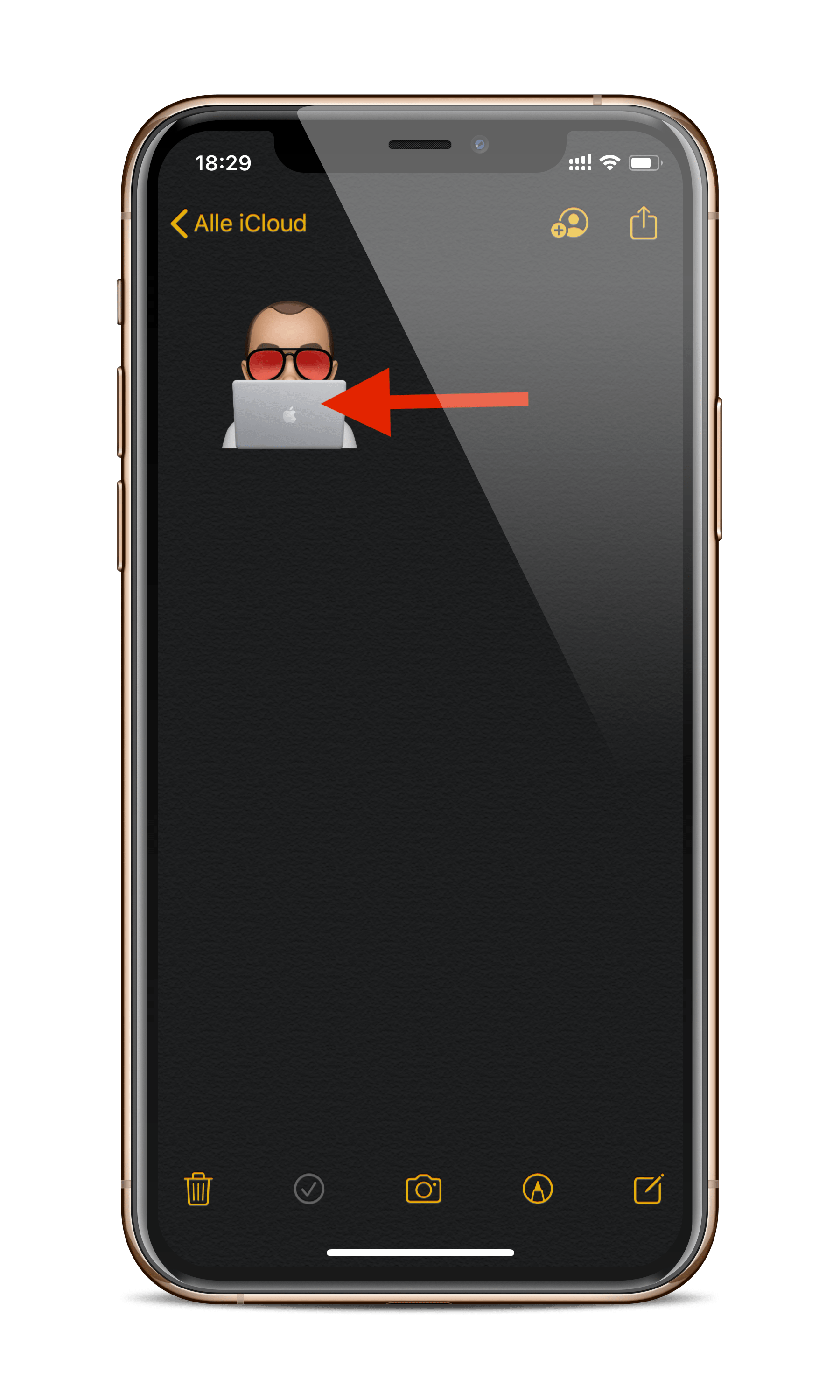
Screenshot: Apfelpatient
Screenshots: Apfelpatient

The Youtuber suggests sending the sticker via iMessage and then saving it as a screenshot. Since it is a pixel graphic, I recommend saving the Memoji sticker via the notes to change the size once more, otherwise it will look too pixelated. Once this part is completed, you can cleanpng.com look for your desired stickers. As a native of Munich and in honor of the Oktoberfest, I decided on appropriate symbols. 

Ready for the “Dub Dub” in just a few steps

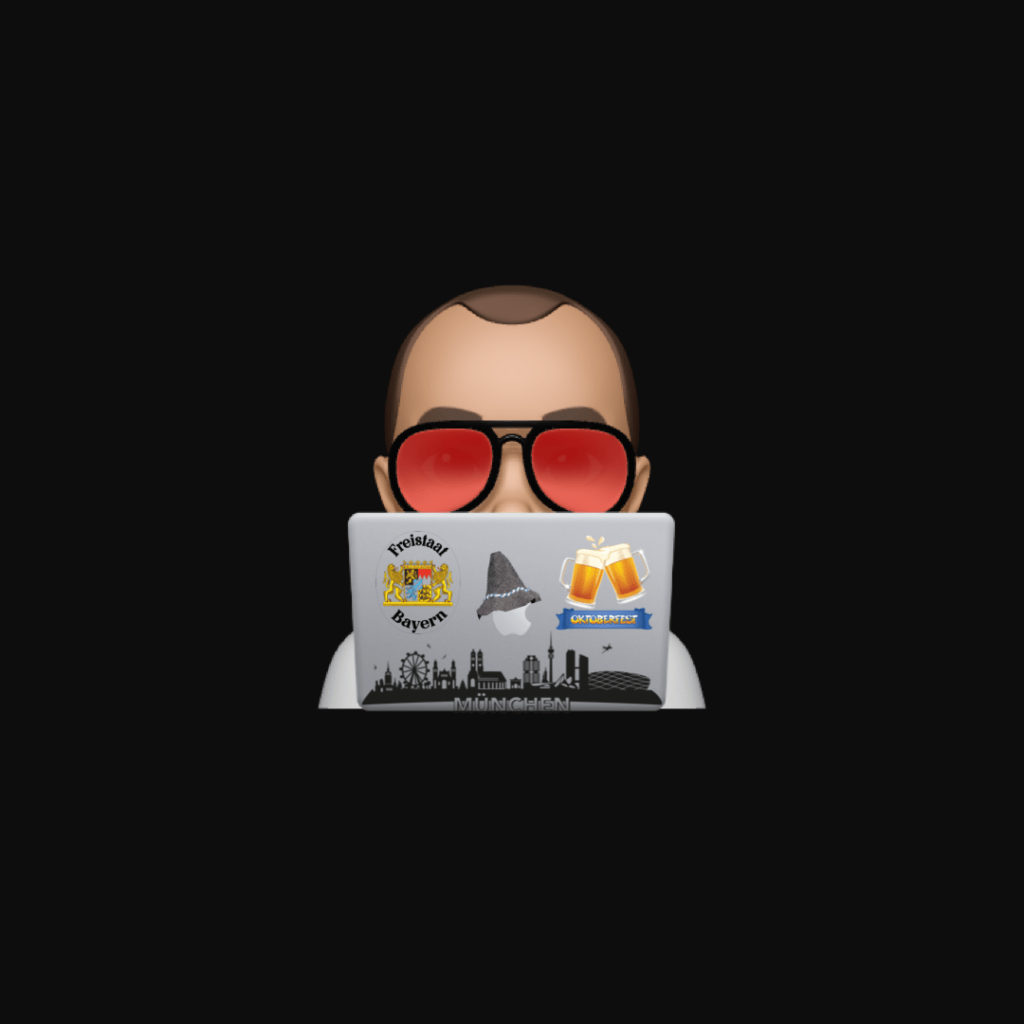
Once you have made your selection, you must Adobe Spark Post Download the application from the App Store. Registration is very easy and can be completed via "Sign in with Apple". Next, upload your Memoji sticker and adjust the size as desired - only possible if you follow the path via notes. Then upload your chosen symbols. Now reduce the size and position them as desired on the back of the MacBook. The result is of course not the same as Apple's, the reason is that Apple's version was vectorized. But that shouldn't stop us from letting our imagination run wild. Accordingly, the "Dub Dub“ finally come. “Dub Dub”? Apple internally refers to the WWDC (World Wide Developer Conference) as “Dub Dub”. The name is derived from “double-u”. But shhh, you didn’t get that from me. ?

Image: Apfelpatient
Image: Apfelpatient

You are currently viewing a placeholder content from YouTube. To access the actual content, click the button below. Please note that doing so will share data with third-party providers.

More Information
Unblock content Accept required service and unblock content
re
Make Apfelpatient a preferred source One click – and you'll see us more often on Google
Was this article helpful?
YesNo
Tags: iOSiPadOSWWDCWWDC 2020
SendShareSend
Share

Our Amazon Storefront

A handpicked selection of products for iPhone, Mac and more – sorted by topic and updated regularly.

Shop Now

This post contains affiliate links (including Amazon). We earn a small commission on qualifying purchases – at no extra cost to you. Learn more on our Partner Program page.

Previous Post

iPadOS: Facebook gets Split View and more

Next Post

Apple AR headset reportedly coming in 2022

Milan Jovicic

Milan Jovicic

Milan founded Apfelpatient in 2016 and has been responsible for all editorial content since 2018 — news, rumors, guides, and product reviews. Apple devices here are not test units on loan for two weeks but everyday tools: from the iPhone through MacBook Pro, MacBook Air, and iMac to the Apple Vision Pro, at least one device from nearly every product category is in daily use, many of them replaced annually. Every menu path in a guide is verified on the device before it is published.

Key art for the Apple TV series Pluribus showing a screaming woman against a yellow background, with Pluribus season 2 about to begin filming

Pluribus: Gilligan plans at least three seasons

August 12, 2026 - 8:27 PM CEST
The iPhone 17 lineup in five colors seen from the back, whose successor is expected to adopt the smaller iPhone 18 Dynamic Island from the Pro models

iPhone 18: Smaller Dynamic Island already in the base model

August 12, 2026 - 8:13 PM CEST
Drawn outline of the folded iPhone Ultra with square corners on the hinge side and rounded corners opposite, matching the leaked iPhone Ultra screen protectors

iPhone Ultra: Screen protectors reveal the camera position

August 12, 2026 - 3:58 PM CEST

About APFELPATIENT

APFELPATIENT brings you the latest Apple news, product updates, guides, reviews and tips across the entire Apple ecosystem — from the iPhone to the Mac to the Apple Vision Pro. From the first rumors to confirmed news: researched responsibly.

Follow Apfelpatient

Facebook Instagram YouTube Threads Threads

Company

  • About Apfelpatient
  • Contact
  • Author Profiles

Community

  • Netiquette
  • Push Notifications
  • RSS feed

Legal

  • Legal Notice
  • Privacy Policy
  • Terms of Use
  • Cookie Settings
  • Affiliate Program

Resources

  • Sitemap

© 2026 Apfelpatient. All rights reserved.

No Result
View All Result
  • Home
  • News
  • Rumors
  • Tips & Tricks
  • Reviews
  • Insights

© 2026 Apfelpatient. All rights reserved. Page Directory

Change language to Deutsch