

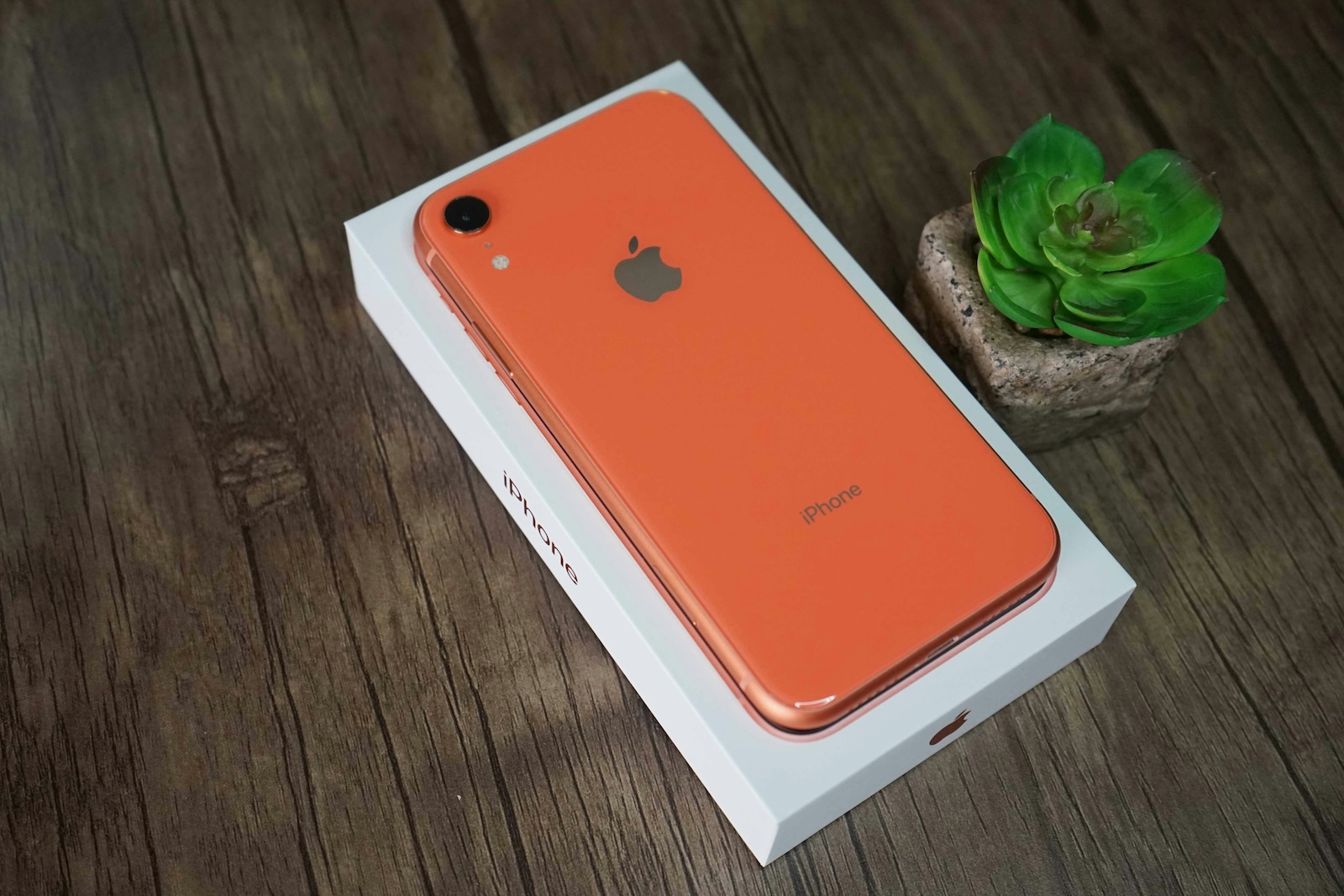
The battery life of an iPhone is a frequently discussed topic among users. Especially after iOS updates, many notice that their device's battery runs out faster than usual. To counteract this, Apple has published numerous tips that can help you optimize the battery life of your iPhone. Below you will find out how you can extend the performance of your battery and which settings you should check to save energy.
You may have noticed that your iPhone consumes more power after an update. This is not a new phenomenon and is usually only temporary. However, there are some steps you can take to ensure that your battery lasts longer - not only after updates but also in everyday use. Apple has a detailed support article on this publishedthat shows you how to get the most out of your battery.
Check settings: The battery check
A first and important step to improve battery life is to look at the iPhone settings. To do this, simply go to the "Battery" section. There you will not only find an overview of your energy consumption but also helpful suggestions that your iPhone automatically generates to optimize the runtime. The display brightness is particularly important here. A bright display uses a lot of energy, so Apple recommends reducing the brightness and activating automatic adjustment. You can easily set this under "Settings" > "Display & brightness".
Enable automatic lock
Another tip to extend battery life is to enable auto-lock. If you forget to lock your iPhone, the screen will stay on and use unnecessary power. Make sure your device locks automatically after a short period of inactivity. You can find this setting under Settings > Display & Brightness > Auto-Lock.
location services and Wi-Fi
Make sure that no app is constantly querying your location in the background, as this will also drain the battery quickly. You can manage location services for individual apps under "Settings" > "Privacy" > "Location Services". Apple also recommends using a Wi-Fi connection wherever possible, as surfing using mobile data requires significantly more energy.
Flight mode in case of poor network coverage
If you are in an area with poor network coverage, your iPhone will use a lot of energy searching for a signal. Apple recommends activating Airplane Mode in such situations. This will save power until you are in a better reception area again. You can easily turn on Airplane Mode via the Control Center on your iPhone.
5G Auto: Intelligent use of 5G
With the iPhone 12 and newer models, Apple offers the "5G Auto" option. This feature allows your iPhone to automatically switch to LTE when 5G does not provide a significant improvement in network speed. This reduces power consumption, as 5G requires more energy in some cases. You can find this setting under "Settings" > "Cellular" > "Data Options" > "Voice & Data".
Check battery status
If, despite all the optimizations, you still feel that your battery is draining too quickly, it could be that your iPhone's battery has exceeded its maximum capacity. You can check the status of your battery in the settings under "Battery" > "Battery Health". If the battery health has deteriorated significantly, you will receive a "Service" message, which means it is time to replace the battery.
Tips for a longer battery life of your iPhone
The battery life of an iPhone is crucial for daily use. With the right settings and a few simple tricks, you can significantly extend the life of your battery. Check your battery usage regularly and use the measures suggested by Apple to get the most out of your device. This will ensure that your iPhone lasts longer - whether after an iOS update or in everyday use. If you notice that the battery is aging, your iPhone will tell you in good time when a replacement is necessary. With these tips, you will be able to significantly improve the battery life of your iPhone and at the same time extend the life of your device. Do you need new accessories? In our Amazon Storefront you will find top products for HomeKit and more - browse through our range now! (Photo by Unsplash / Anh Nhat)
- Activate eSIM on iPhone: Your Complete Guide
- How to take scrolling screenshots on your iPhone
- How to check the battery status of your iPhone





