


apple patient
  • Home
  • News
  • Rumors
  • Tips & Tricks
  • Reviews
  • Insights
No Result
View All Result
  • iPhone 18
  • iOS 27
  • iPadOS 27
  • macOS
  • MacBook Neo
  • iPhone 17e
  • AirTags
  • iOS 26
  • iPhone 17
  • MacBook Pro
  • iPadOS
  • iMac
  • Mac mini
  • HomePod
  • Apple TV
  • iPad Pro
  • iPhone Air
  • Apple Vision Pro
  • iPhone 16
  • AirPods 4
  • Apple Watch Ultra
  • HomePod Mini
  • MacBook Air
  • iPad
  • AirPods Max
  • AirPods Pro 3
  • Apple Watch Series 3
  • Mac Studio
  • Studio Display
  • iPad Air
  • iPad mini
  • watchOS 27
  • Apple CarPlay
  • Apple Pay
  • watchOS 26
  • Home
  • News
  • Rumors
  • Tips & Tricks
  • Reviews
  • Insights
No Result
View All Result
apple patient
No Result
View All Result
  • iPhone 18
  • iOS 27
  • iPadOS 27
  • macOS
  • MacBook Neo
  • iPhone 17e
  • AirTags
  • iOS 26
  • iPhone 17
  • MacBook Pro
  • iPadOS
  • iMac
  • Mac mini
  • HomePod
  • Apple TV
  • iPad Pro
  • iPhone Air
  • Apple Vision Pro
  • iPhone 16
  • AirPods 4
  • Apple Watch Ultra
  • HomePod Mini
  • MacBook Air
  • iPad
  • AirPods Max
  • AirPods Pro 3
  • Apple Watch Series 3
  • Mac Studio
  • Studio Display
  • iPad Air
  • iPad mini
  • watchOS 27
  • Apple CarPlay
  • Apple Pay
  • watchOS 26

iOS: How to adjust privacy and security settings in Safari

Milan Jovicic by Milan Jovicic
31. December 2019 - 13:41 CET
in Apple Tips & Tricks
0
data stream binary code data on top of the lattice doors of server equipment in a data center

data stream binary code data on top of the lattice doors of server equipment in a data center

WhatsAppFacebookEmail
Threads

Have you ever thought about your privacy and security settings in Safari on your iPhone or iPad? Apple has already set everything up pretty well, but each user is free to customize the configuration. Let's take a look.

Apple offers a variety of security and data protection settings in iOS and iPadOS. But not every user knows about them. In Safari alone, there are four options under privacy and security. We will show and explain these to you. The four points include:

  • Prevent cross-site tracking
  • Block all cookies
  • fraud warning
  • Check Apple Pay

But what exactly do these settings do? Some people will certainly be familiar with this, but others won't. This is how Apple explains the options:

  • Prevent cross-site tracking - Some websites work with third-party content. A third-party content provider can follow you across websites to promote products and services. When this option is enabled, tracking data is deleted periodically unless you visit third-party content.
  • Fraud warning - When Fraud warning is enabled, Safari displays a warning if it suspects that the website you are visiting is a phishing site. Phishing is a fraudulent attempt to steal your personal information, such as usernames, passwords, and other account information. (Apple Safari & Privacy)
  • Verify Apple Pay – When you use an app or website on an iPhone, iPad, or Apple Watch that uses Apple Pay, the app or website can check whether Apple Pay is enabled on the device. (Apple Safari & Privacy)
  • Block all cookies – Last but not least. If you select this option, some websites or third-party providers and advertising companies will not be able to set cookies. But be careful: some websites may not display correctly if you deactivate this function.

What are cookies?

Cookies are basically small text files that are stored on computers or smartphones in the search history of the respective browser. (Of course, cookies can be deleted in any browser at any time) But what is the purpose of these little virtual cookies? Let's say you are surfing a website with an attached shop and put a product in your shopping cart - now the cookie comes into play and remembers this process. If you now close the page and open it again, you will notice that the selected product is still in your shopping cart - thanks to virtual cookies. Of course, cookies can do a lot more, which is why activating the "Block all cookies" option could limit the general user experience in some cases.

How to adjust Safari privacy and security settings for iPhone and iPad

But now let's get to the configuration. As mentioned above, Apple has a standard setting. However, you can adjust it to suit your needs. To do this, open the iOS settings and navigate to Safari further down. Now scroll down until you reach the "Privacy & Security" section. Note for Mac users: Mac users can access this section via the settings within Safari under Privacy.
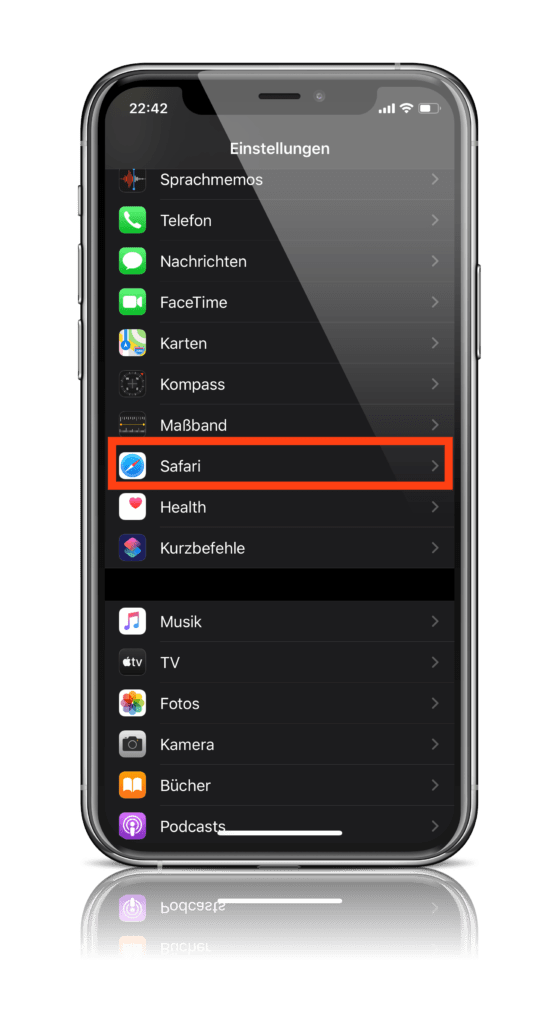
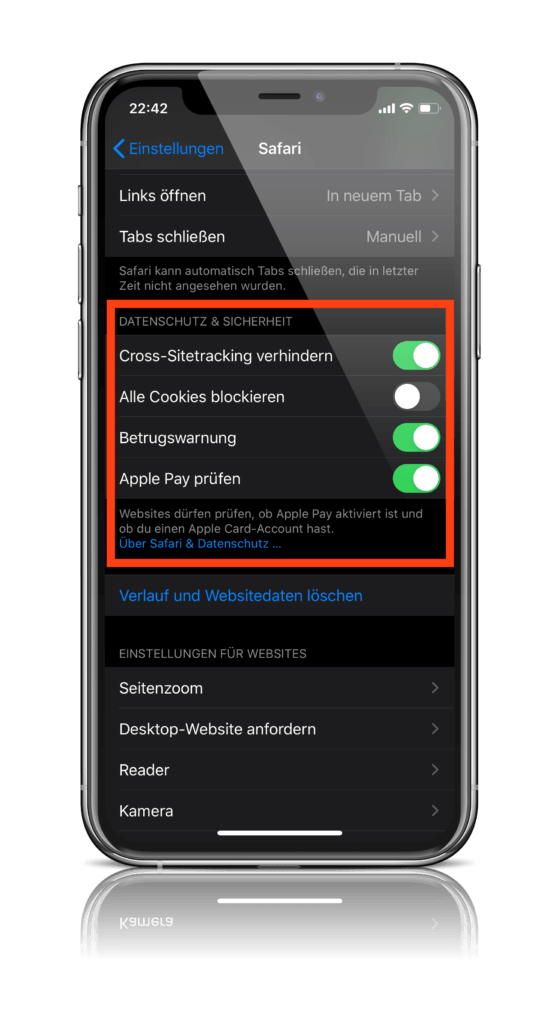
Screenshot: Apfelpatient
Screenshots: Apfelpatient

As you can see, three of the four points have already been activated. The cookie option, on the other hand, is deactivated by default because many websites require it. If you would like to find out more details about Safari and data protection, you can click on the relevant link directly below the section. Enjoy surfing. (Photo by vladimircaribb / Bigstockphoto)
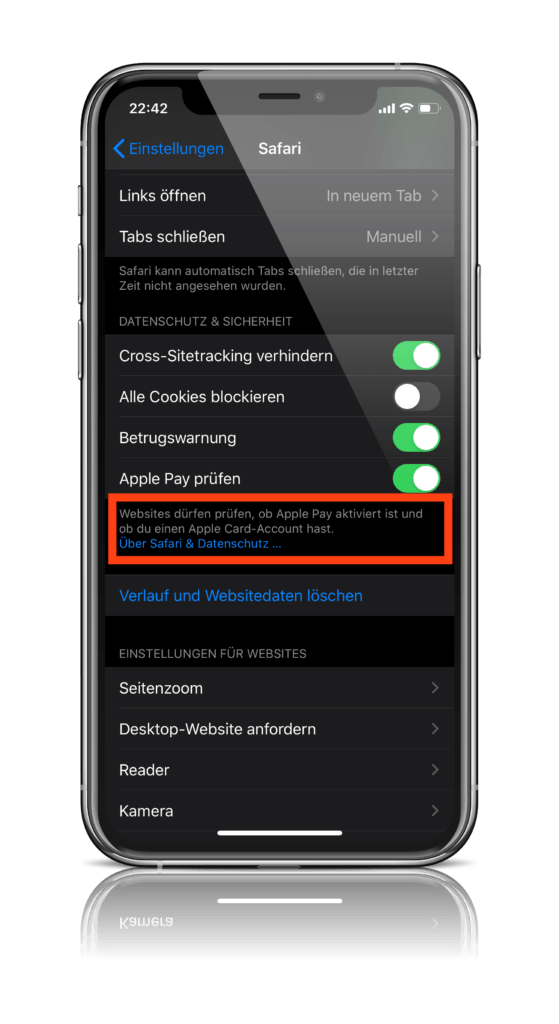
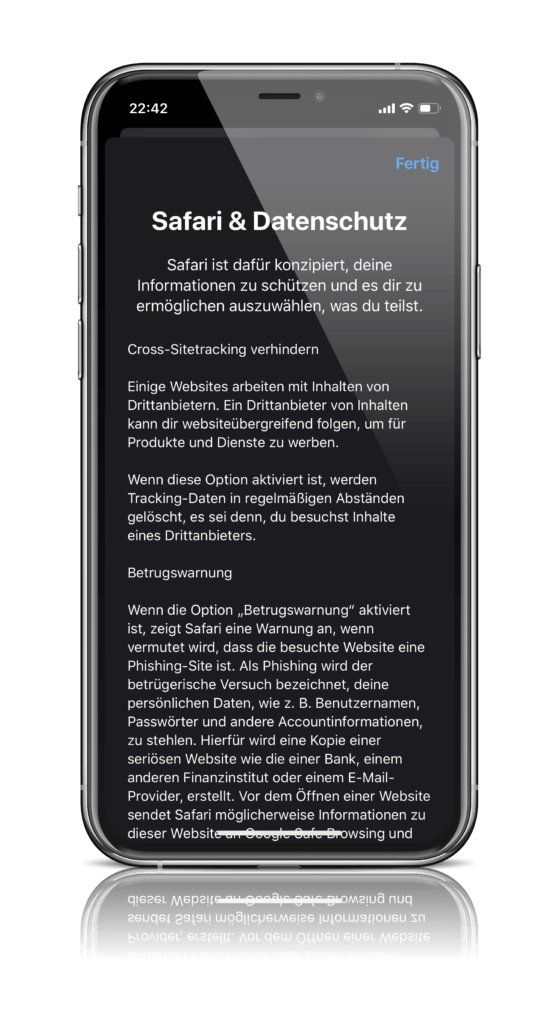
Screenshot: Apfelpatient
Screenshots: Apfelpatient
Make Apfelpatient a preferred source One click – and you'll see us more often on Google
Was this article helpful?
YesNo
Tags: iOSiOS 13
SendShare13Send
Share

Our Amazon Storefront

A handpicked selection of products for iPhone, Mac and more – sorted by topic and updated regularly.

Shop Now

This post contains affiliate links (including Amazon). We earn a small commission on qualifying purchases – at no extra cost to you. Learn more on our Partner Program page.

Previous Post

(PRODUCT)RED Apple Watch could be released soon

Next Post

iPhone 2020: No notch after all with Touch ID 2.0?

Milan Jovicic

Milan Jovicic

Milan founded Apfelpatient in 2016 and has been responsible for all editorial content since 2018 — news, rumors, guides, and product reviews. Apple devices here are not test units on loan for two weeks but everyday tools: from the iPhone through MacBook Pro, MacBook Air, and iMac to the Apple Vision Pro, at least one device from nearly every product category is in daily use, many of them replaced annually. Every menu path in a guide is verified on the device before it is published.

Symbolic image for Siri AI news: illustrated speech bubble with newspaper lines on a golden gradient

Siri AI: Apple will pay publishers for breaking news

August 13, 2026 - 03:07 CEST
Customers crowding an Apple Store as the US smartphone market lost five percent in sales during the second quarter

US smartphone market shrinks, iPhone 18 expected to be more expensive

August 12, 2026 - 23:47 CEST
Ted Lasso standing beside a coach in the empty AFC Richmond stadium while Apple has yet to decide on Ted Lasso season 5

Ted Lasso Season 5: Apple still sees plenty of stories

August 12, 2026 - 10:11 PM CEST

About APFELPATIENT

APFELPATIENT brings you the latest Apple news, product updates, guides, reviews and tips across the entire Apple ecosystem — from the iPhone to the Mac to the Apple Vision Pro. From the first rumors to confirmed news: researched responsibly.

Follow Apfelpatient

Facebook Instagram YouTube Threads Threads

Company

  • About Apfelpatient
  • Contact
  • Author Profiles

Community

  • Netiquette
  • Push Notifications
  • RSS feed

Legal

  • Legal Notice
  • Privacy Policy
  • Terms of Use
  • Cookie Settings
  • Affiliate Program

Resources

  • Sitemap

© 2026 Apfelpatient. All rights reserved.

No Result
View All Result
  • Home
  • News
  • Rumors
  • Tips & Tricks
  • Reviews
  • Insights

© 2026 Apfelpatient. All rights reserved. Page Directory

Change language to Deutsch




