apple patient
  • Home
  • News
  • Rumors
  • Tips & Tricks
  • Reviews
  • Insights
No Result
View All Result
  • iPhone 18
  • iOS 27
  • iPadOS 27
  • macOS
  • MacBook Neo
  • iPhone 17e
  • AirTags
  • iOS 26
  • iPhone 17
  • MacBook Pro
  • iPadOS
  • iMac
  • Mac mini
  • HomePod
  • Apple TV
  • iPad Pro
  • iPhone Air
  • Apple Vision Pro
  • iPhone 16
  • AirPods 4
  • Apple Watch Ultra
  • HomePod Mini
  • MacBook Air
  • iPad
  • AirPods Max
  • AirPods Pro 3
  • Apple Watch Series 3
  • Mac Studio
  • Studio Display
  • iPad Air
  • iPad mini
  • watchOS 27
  • Apple CarPlay
  • Apple Pay
  • watchOS 26
  • Home
  • News
  • Rumors
  • Tips & Tricks
  • Reviews
  • Insights
No Result
View All Result
apple patient
No Result
View All Result

How to put an AirTag into Lost Mode

Milan Jovicic by Milan Jovicic
1. May 2021 - 19:44 CEST
in Apple Tips & Tricks
0
AirTag

Image: Apple

WhatsAppFacebookEmail
Threads

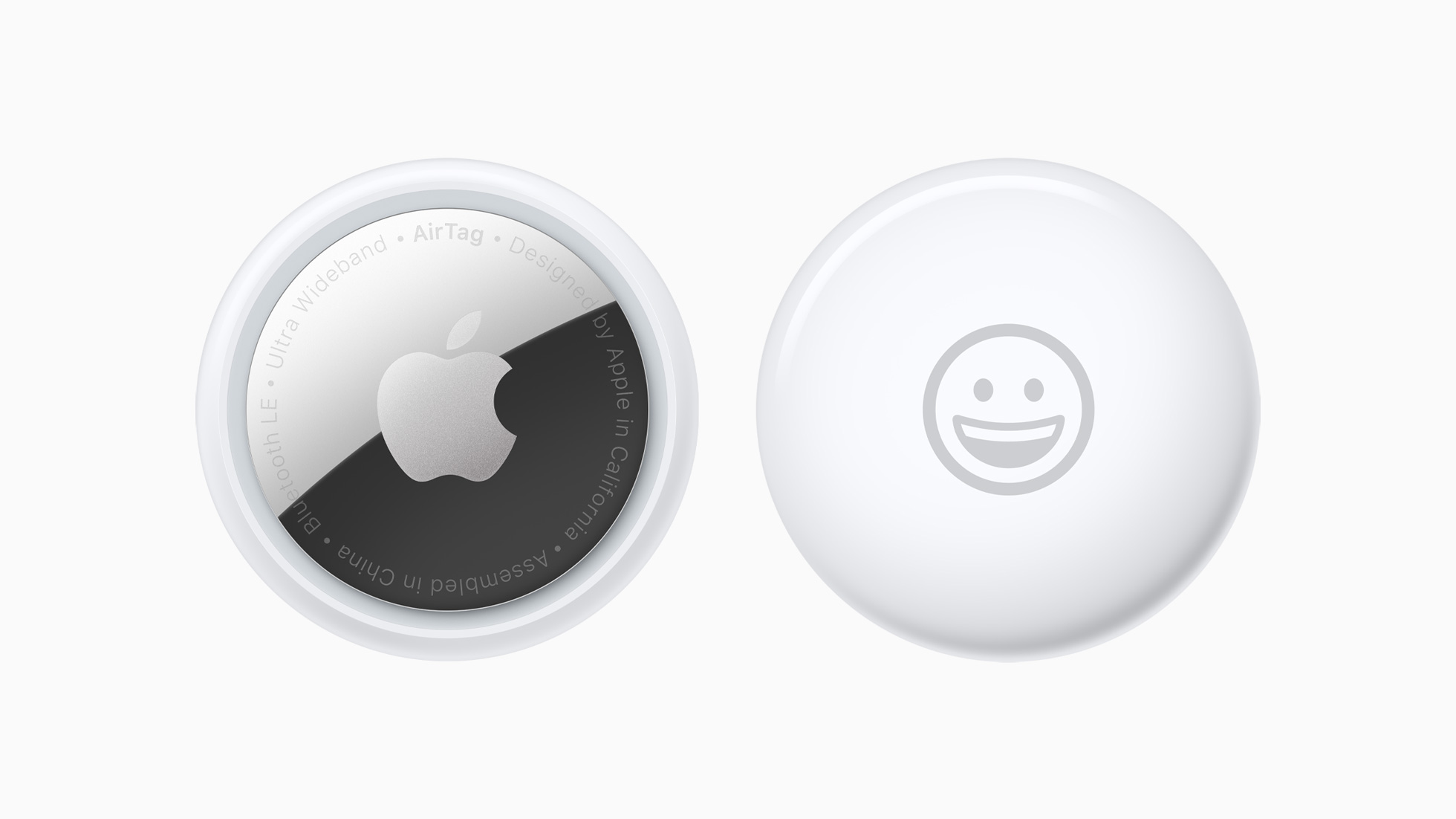
We've already learned a lot about Apple's AirTags. But what happens if an object, such as a bag, gets lost? In such cases, the "Lost" mode comes into play. We'll show you how it all works.

AirTags can be located using the Items section of the Find My app. If an AirTag gets lost, you can put it into Lost Mode just like your other Apple devices. When an AirTag is nearby, it connects to an Apple device via Bluetooth to share its location. There's even a Precision Find feature on the iPhone 11 and 12 that uses the U1 chip to find items that have been misplaced nearby. An AirTag that's out of range can still be located using the Find My app.

NFC is the key

But it doesn't rely on Bluetooth signals from your own device. Instead, the Find My network takes advantage of a billion Apple devices worldwide to locate the lost item. However, if an AirTag isn't nearby and there are no Apple devices in the area it's in, Find My can only tell you where it was last seen on the map. In such cases, you can put the AirTag in Lost Mode. Then, if someone with an iPhone or Android device that has NFC finds the item, it can help you get it back. Below, we'll show you how it all works.

Mark an AirTag as "Lost" - here's how

So if your item is lost, you must proceed as follows.

  • Open the Find My app on your iPhone.
  • Now tap on “Objects”.
  • Next, select the lost AirTag.
  • Now swipe up to open the AirTag submenu.

Here you can now mark the tracker as “Lost”.
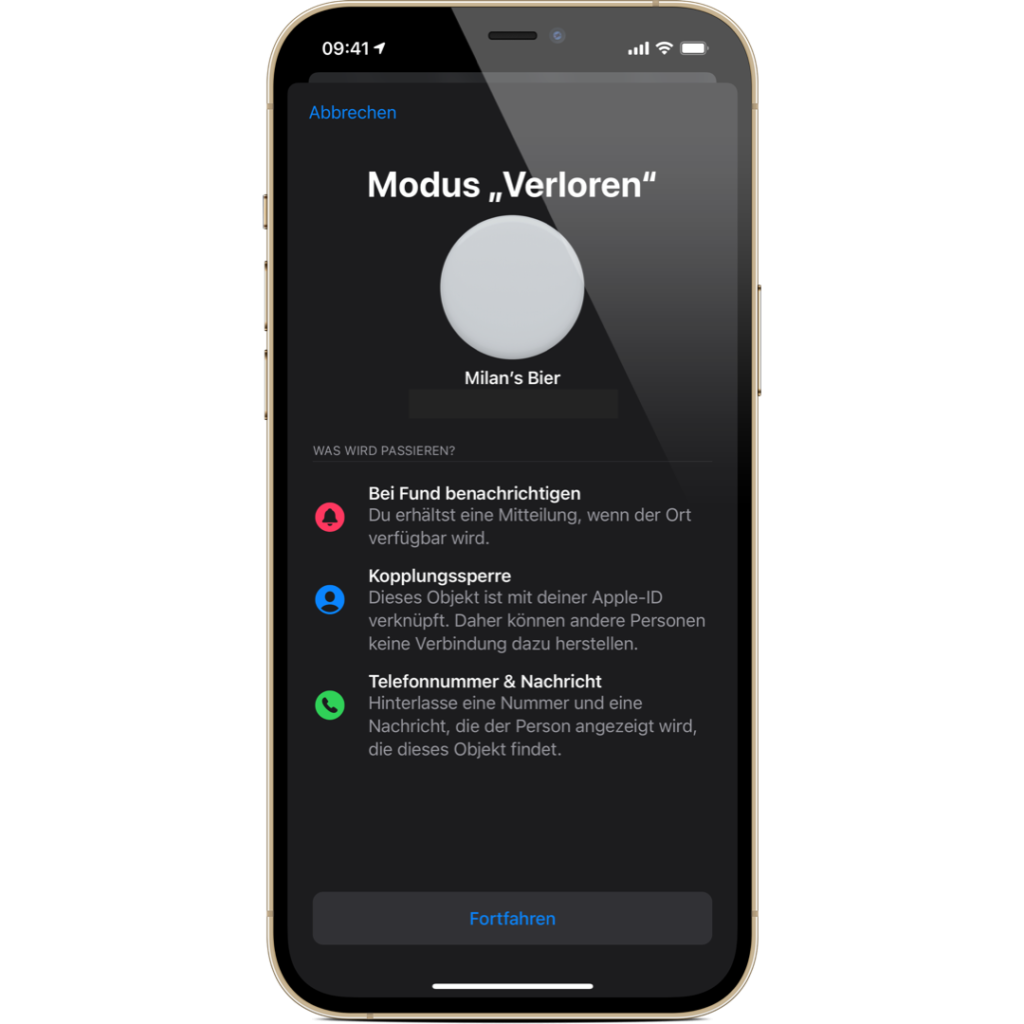
AirTag Lost Mode
Image: Apfelpatient

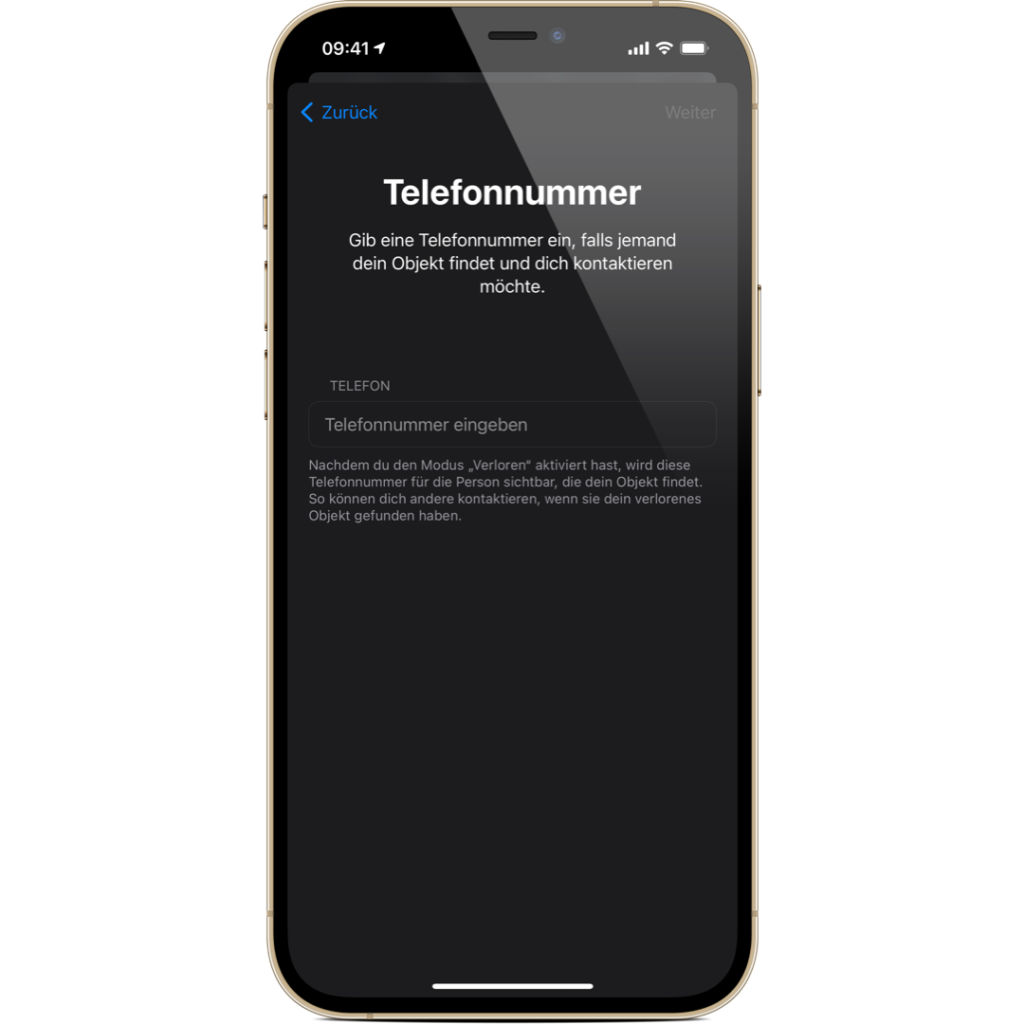
Follow the instructions and enter a valid phone number and tap “Next”.

AirTag Lost Mode
Image: Apfelpatient

Next, turn on "Notify when found" and enter an alternative message. Please note: You can only customize the message and activate the notification when found if the AirTag is out of range of your device. (In my case, I can't do that right now because laziness has won out - but it's the thought that counts, right?!)
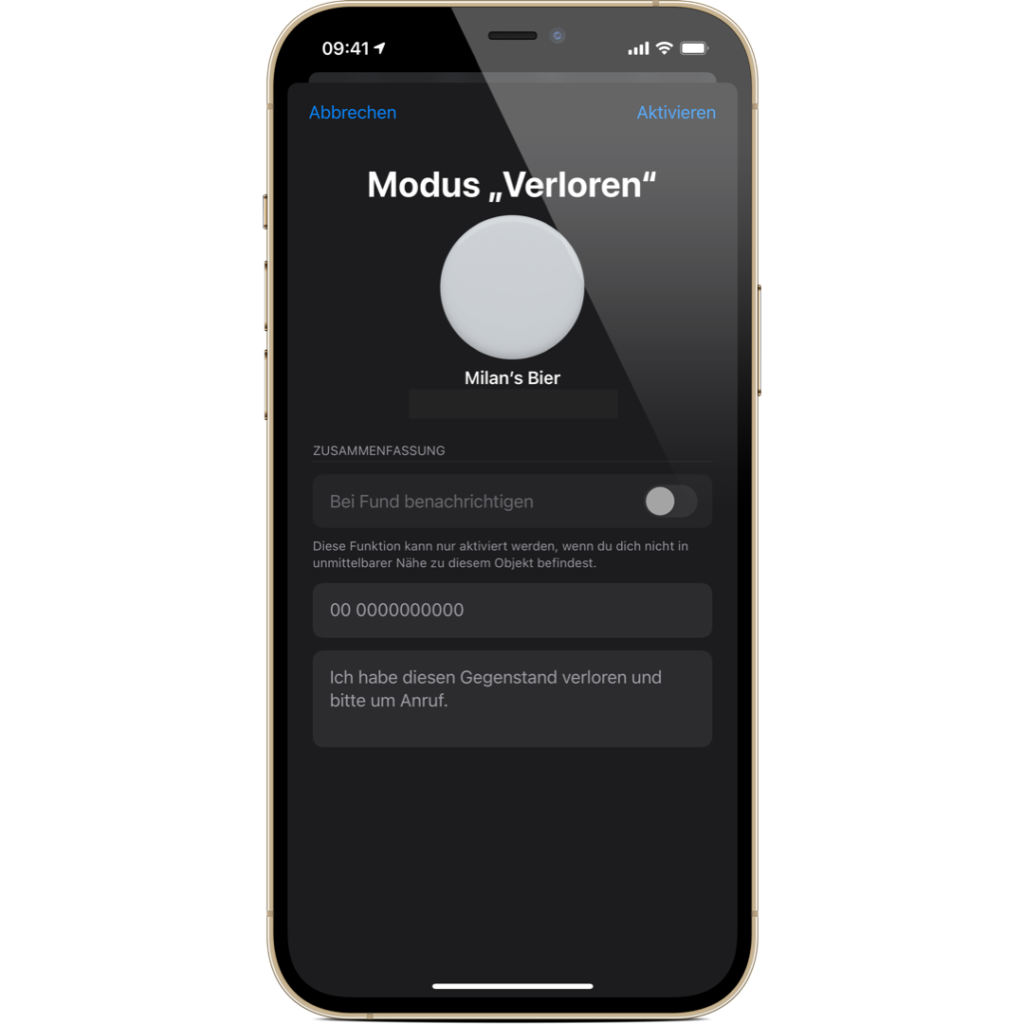
AirTag Lost Mode
Image: Apfelpatient

As soon as you have completed the process, the AirTag in question will be listed as "Lost" in the "Find My" network. Now, anyone who finds the tracker can use an NFC-enabled iPhone or Android phone to access a website that displays both your stored phone number and message. In the best case scenario, you will be sent the location that was registered on the stranger's device at the same time. If the finder is honest, you can of course consider yourself lucky. A reward offered in the message could be helpful. Are you looking for suitable AirTag cases? Then take a look at Amazon. In our AirTag list you will find the trackers and accessories from Apple and third-party suppliers - enjoy browsing. (Image: Apple)


  • Apple AirTag: How to use Exact Search
Make Apfelpatient a preferred source One click – and you'll see us more often on Google
Was this article helpful?
YesNo
Tags: AirTags
SendShareSend
Share

Our Amazon Storefront

A handpicked selection of products for iPhone, Mac and more – sorted by topic and updated regularly.

Shop Now

This post contains affiliate links (including Amazon). We earn a small commission on qualifying purchases – at no extra cost to you. Learn more on our Partner Program page.

Previous Post

iOS 14.6 hints at Apple Music with HiFi support

Next Post

WhatsApp for iOS: Voice messages get new tool

Milan Jovicic

Milan Jovicic

Milan founded Apfelpatient in 2016 and has been responsible for all editorial content since 2018 — news, rumors, guides, and product reviews. Apple devices here are not test units on loan for two weeks but everyday tools: from the iPhone through MacBook Pro, MacBook Air, and iMac to the Apple Vision Pro, at least one device from nearly every product category is in daily use, many of them replaced annually. Every menu path in a guide is verified on the device before it is published.

The iPhone 17 lineup in five colors seen from the back, whose successor is expected to adopt the smaller iPhone 18 Dynamic Island from the Pro models

iPhone 18: Smaller Dynamic Island already in the base model

August 12, 2026 - 8:13 PM CEST
Drawn outline of the folded iPhone Ultra with square corners on the hinge side and rounded corners opposite, matching the leaked iPhone Ultra screen protectors

iPhone Ultra: Screen protectors reveal the camera position

August 12, 2026 - 3:58 PM CEST
Glass panel set into the aluminium frame on the back of an iPhone 17 Pro Max in Cosmic Orange, whereas the iPhone 20 glass design is said to wrap the glass around the edges

iPhone 20: Glass design is not supposed to be scrapped after all

August 12, 2026 - 2:50 PM CEST

About APFELPATIENT

APFELPATIENT brings you the latest Apple news, product updates, guides, reviews and tips across the entire Apple ecosystem — from the iPhone to the Mac to the Apple Vision Pro. From the first rumors to confirmed news: researched responsibly.

Follow Apfelpatient

Facebook Instagram YouTube Threads Threads

Company

  • About Apfelpatient
  • Contact
  • Author Profiles

Community

  • Netiquette
  • Push Notifications
  • RSS feed

Legal

  • Legal Notice
  • Privacy Policy
  • Terms of Use
  • Cookie Settings
  • Affiliate Program

Resources

  • Sitemap

© 2026 Apfelpatient. All rights reserved.

No Result
View All Result
  • Home
  • News
  • Rumors
  • Tips & Tricks
  • Reviews
  • Insights

© 2026 Apfelpatient. All rights reserved. Page Directory

Change language to Deutsch