

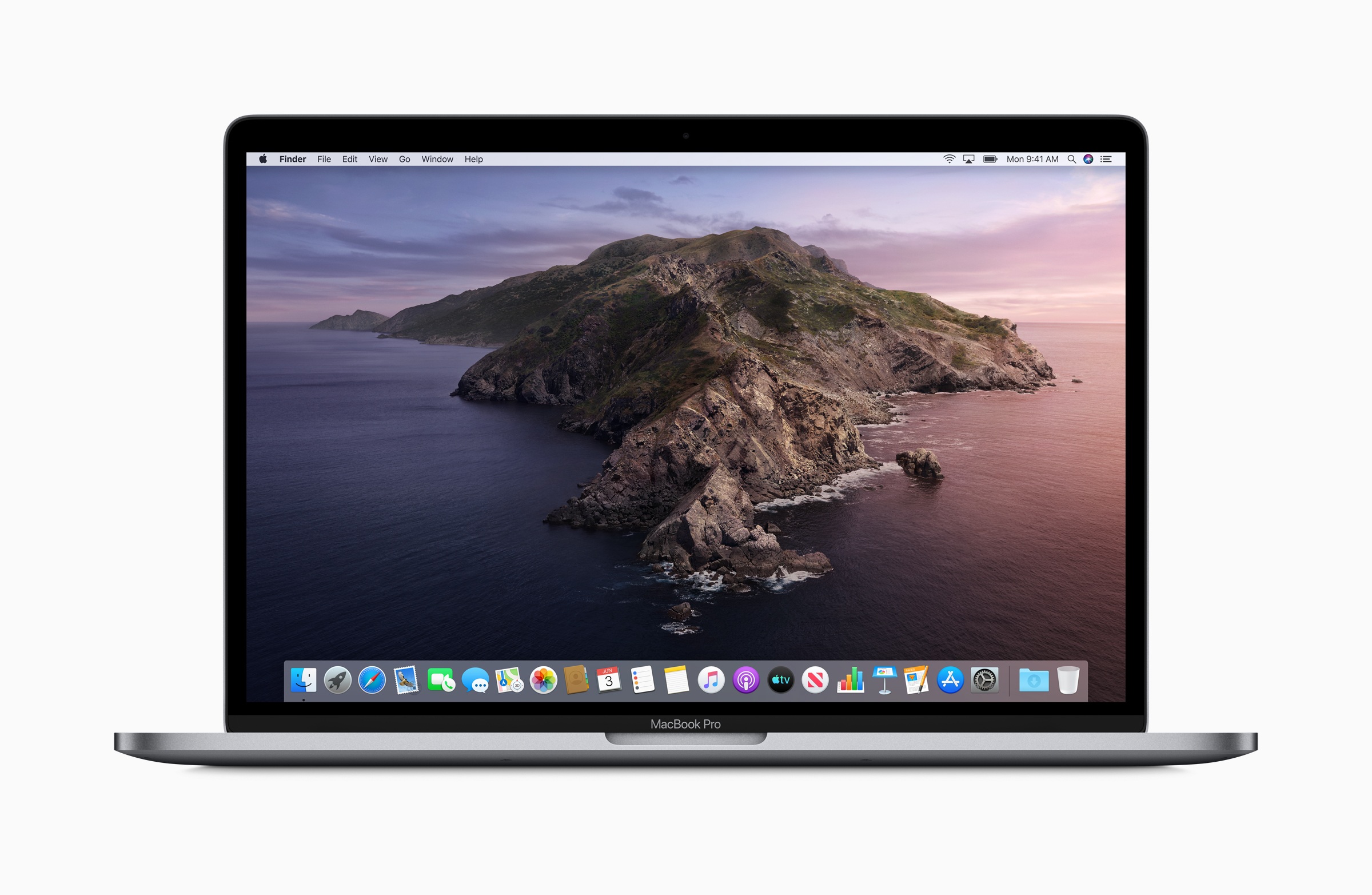
With macOS 10.15 Catalina, Apple's iTunes was split into three new applications. However, the new features also bring a few changes. Users who previously backed up their iPhone, iPad or iPod touch via iTunes will be able to do this in the future via the Finder itself - we'll show you how to do this.
In macOS 10.15 Catalina, iTunes is split into three new applications. Music, podcasts, films and series each get their own application. iOS backups are stored in the Finder under Catalina. Each of these applications offers the full range of functions from iTunes and more - just with a focus on the respective topic.
How to back up your iPhone, iPad or iPod touch under macOS 10.15 Catalina
If you want to back up or synchronize your iPhone, iPad or iPod touch device, you have to connect the respective iOS device to your Mac as usual. The same authentication process is carried out as with iTunes. This means that as soon as the iOS device is connected to the Mac, a dialog window opens on the display of the iPhone, iPad or iPod touch and asks the user to unlock the iDevice - only then is the connection established between the two devices. The synchronization process and the associated categories remain almost the same.
Even older devices can be secured
Users drag content into a specific category and click "Sync." Any content, including data in the application file, can also be deleted on the corresponding screen. Of course, iOS devices with older operating systems can also be backed up or synced—so iOS 13 is not required. Fans of the original app sync feature will be disappointed—the feature has not been reinstated. Apple intends to keep the iCloud method in the App Store as the only solution for this.
How to create an iCloud backup of your iPhone, iPad or iPod touch
A complete backup of your iPhone, iPad, and iPod touch on your Mac has one key advantage: the backup is accessible on your own hard drive and doesn't require an internet connection. Creating a backup via iCloud requires an active Wi-Fi connection, but it's significantly more convenient. With the correct settings, iOS will automatically back up your data regularly. To create an iCloud backup, first open the "Settings" on your iPhone, iPad, or iPod touch. Navigate to the first menu item in the list—"Your Name." You'll then find the "iCloud Backup" option further down. Once you've opened it, you'll need to enable the feature.
An iCloud backup is more convenient
In the last step, you must select the option "Create backup now" and wait for the backup to be completed. It is recommended that you connect the device to the power supply and activate the lock screen. Depending on the amount of data, the process may take some time. In the future, your iPhone, iPad or iPod touch will regularly try to update the backup. The process only starts when the Wi-Fi connection is active and the device is connected to a power source and the lock screen is on - for example, if you leave your iPhone plugged in every night, iOS will back up the device while you sleep. This is a much more convenient way to create a copy of the data - but please note that you will probably need to expand your iCloud storage plan.
“Change storage plan” – how it works
Apple provides every user with 5 GB free of charge; additional storage must be purchased if needed. If you need more iCloud storage, you can expand it via your iOS device's settings. To do so, go back to Settings, select "Your Name," and then open "iCloud." Now you can click "Manage Storage" in the top bar and access the "Change Storage Plan" menu item. Here you can choose between 50 GB and a full 2 TB. The subscription is billed monthly and can be canceled at any time. (Image: Apple)





