Apfelpatient
  • Home
  • News
  • Rumors
  • Tips & Tricks
  • Reviews
  • Insights
No result
View All Results
  • iPhone 18
  • iPhone 18 Pro
  • iPhone Duo
  • Apple Home
  • Siri AI
  • HomePod
  • HomePod mini
  • HomePod mini 2
  • MacBook Pro
  • Apple TV 4K
  • Apple Watch Series 12
  • Apple Watch Ultra 4
  • AirPods 5
  • iOS 27
  • iPadOS 27
  • macOS
  • MacBook Neo
  • iPhone 17e
  • AirTags
  • iOS 26
  • iPhone 17
  • iPadOS
  • iMac
  • Mac mini
  • Apple TV
  • iPad Pro
  • iPhone Air
  • Apple Vision Pro
  • iPhone 16
  • AirPods 4
  • Apple Watch Ultra
  • MacBook Air
  • iPad
  • AirPods Max
  • AirPods Pro 3
  • Mac Studio
  • Studio Display
  • iPad Air
  • iPad mini
  • watchOS 27
  • Apple CarPlay
  • Apple Pay
  • watchOS 26
  • Home
  • News
  • Rumors
  • Tips & Tricks
  • Reviews
  • Insights
No result
View All Results
Apfelpatient
No result
View All Results
  • iPhone 18
  • iPhone 18 Pro
  • iPhone Duo
  • Apple Home
  • Siri AI
  • HomePod
  • HomePod mini
  • HomePod mini 2
  • MacBook Pro
  • Apple TV 4K
  • Apple Watch Series 12
  • Apple Watch Ultra 4
  • AirPods 5
  • iOS 27
  • iPadOS 27
  • macOS
  • MacBook Neo
  • iPhone 17e
  • AirTags
  • iOS 26
  • iPhone 17
  • iPadOS
  • iMac
  • Mac mini
  • Apple TV
  • iPad Pro
  • iPhone Air
  • Apple Vision Pro
  • iPhone 16
  • AirPods 4
  • Apple Watch Ultra
  • MacBook Air
  • iPad
  • AirPods Max
  • AirPods Pro 3
  • Mac Studio
  • Studio Display
  • iPad Air
  • iPad mini
  • watchOS 27
  • Apple CarPlay
  • Apple Pay
  • watchOS 26

How to calibrate your Apple Watch correctly: How to get precise data

Milan Jovicic by Milan Jovicic
February 12, 2025 - 3:24 PM CET
in Apple Tips & Tricks
0
Calibrate Apple Watch

Photo by Unsplash / Vinoth Ragunathan

WhatsAppFacebookEmail
Threads

This article may contain affiliate links. Learn more on our Partner Program page.

Make Apfelpatient a preferred source One click – and you'll see us more often on Google

The Apple Watch is more than just a watch - it's a versatile companion for fitness and health. To get the most out of your workouts, it's important to calibrate the Apple Watch correctly. With good calibration, you can ensure that the measurements of pace, distance and calories burned are as accurate as possible, even when GPS availability is limited. Find out how to do this here.

If your Apple Watch sometimes seems inaccurate when calculating distances or calories burned, it is often due to a lack of calibration. The good news: With a few simple settings and steps, you can significantly improve the accuracy. All you need is a little time and the right information. Below I will explain to you step by step what you need to do.

How to check the settings

Before you start calibrating your Apple Watch, you should make sure that the basic requirements are met. Here are the necessary steps:

  • Open the Settings app on your iPhone.
  • Select Privacy & Security and go to Location Services. Make sure location services are enabled.
  • Scroll down to System Services and enable the Motion Calibration/Distance option.

Once these settings are configured correctly, you can start the calibration.
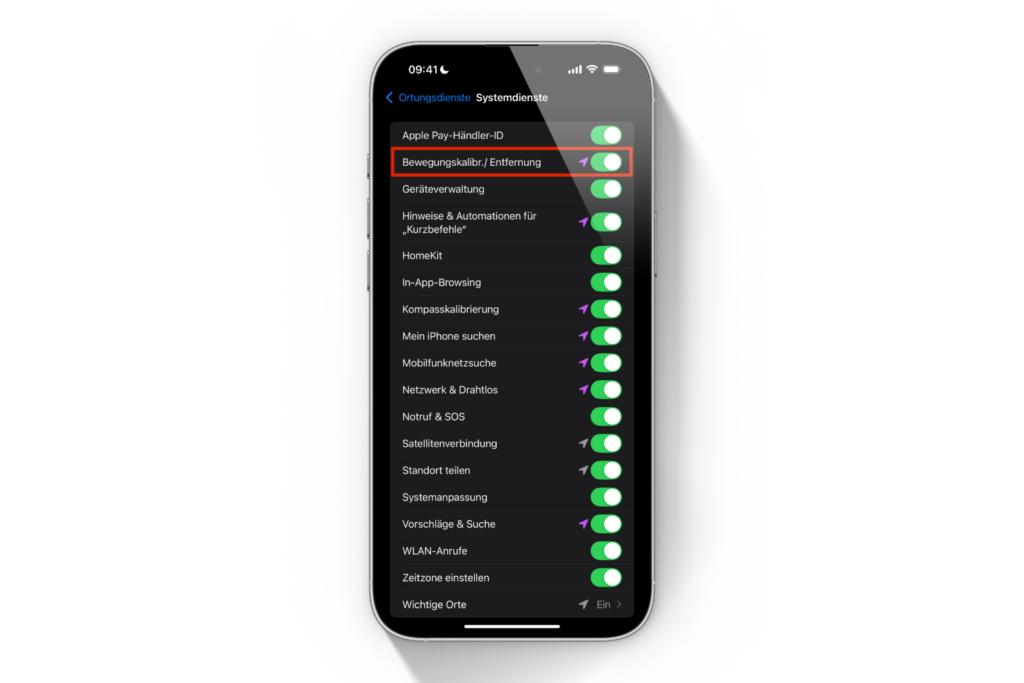
Image: Apfelpatient

Calibrating the Apple Watch

The calibration itself is simple but it depends on the correct execution. Here is what you need to do:

  • Choose the right location: Go outside to a flat, open area where you have good GPS reception. A park or sports field is a good place to do this.
  • What devices do you need? If you have an Apple Watch Series 2 or newer, the watch alone is enough. For older models (Series 1 or older), you also need your iPhone. Carry it in your hand or attach it to a strap.
  • Start a workout: Open the workout app on your watch. Select “Outdoor walking” or “Outdoor running”. If you want to set a goal, tap the icon with the three dots.
  • 20 minutes calibration: Walk or run for 20 minutes at your normal pace. If you don't have the time, you can split this calibration into several sessions.

If you often train at different speeds, such as interval training, repeat the 20 minutes for each speed. This will help the Apple Watch learn to correctly estimate your stride length and movement at different speeds.

optimization of accuracy

The Apple Watch uses not only the accelerometer and GPS but also your personal data to calculate values such as calories burned. Therefore, it is important that this information is correct. Check your height, weight, gender and age data in the Health app on your iPhone and update it if necessary.

Reset calibration data

If the measurements are still inaccurate despite calibration, you can reset the calibration data. Here's how:

  • Open the Watch app on your iPhone.
  • Go to My Watch and tap Privacy.
  • Select Reset Fitness Calibration Data.

This means you start from scratch and can perform the calibration again.
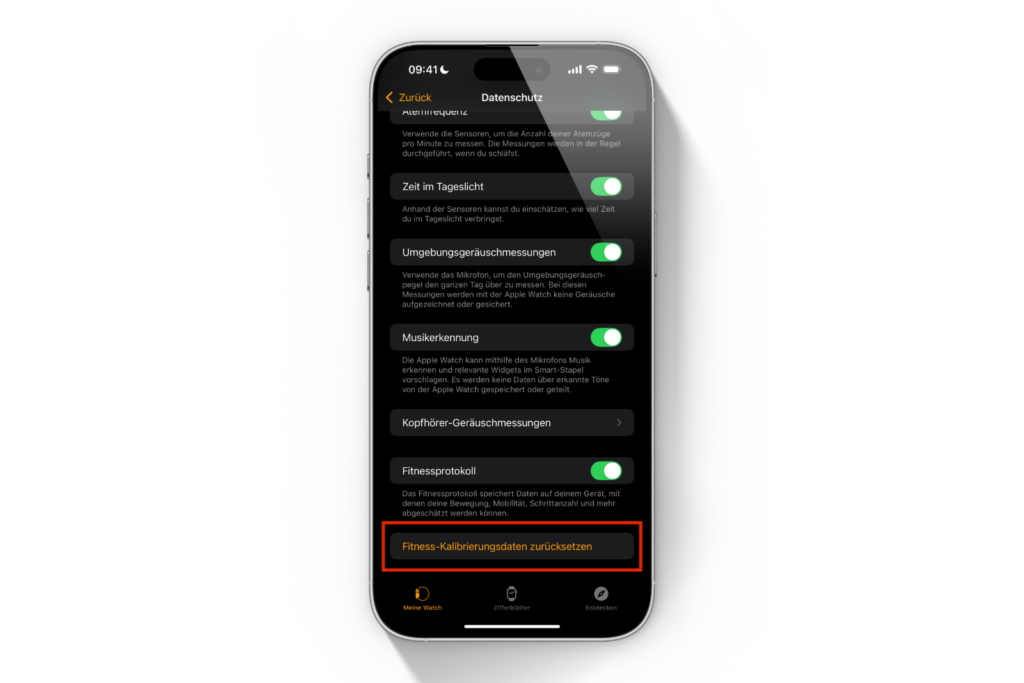
Image: Apfelpatient

Apple Watch: More accurate results for your workouts

By regularly calibrating your Apple Watch, you ensure that it accurately tracks your activities—be it distance traveled, your speed, or calories burned. The difference is particularly noticeable in areas with poor GPS reception. A one-time setup isn't enough, especially if you change your training habits or running speed. Always keep your watch up to date so it accurately measures your progress. The few minutes you invest in calibration are worth it—it's how you get the most out of your workouts. Time for fresh accessories? Visit our Amazon Storefront and discover a wide selection of products from leading manufacturers, including HomeKit-compatible ones! (Photo by Unsplash / Vinoth Ragunathan)

  • Quiet sounds from the AirPods Pro 2 charging case – what’s behind it
  • Apple Watch: New sleep apnea feature explained
Was this article helpful?
YesNo
Tags: Apple WatchwatchOS
SendShareSend
Share

Our Amazon Storefront

A handpicked selection of products for iPhone, Mac and more – sorted by topic and updated regularly.

Shop Now

This post contains affiliate links (including Amazon). We earn a small commission on qualifying purchases – at no extra cost to you. Learn more on our Partner Program page.

Previous Post

When will Apple release a foldable iPhone, iPad & MacBook?

Next Post

Apple uses ultra-thin glass for foldable iPhone

Milan Jovicic

Milan Jovicic

Milan founded Apfelpatient in 2016 and has been responsible for all editorial content since 2018 – news, rumors, how-to guides and product reviews. Here, Apple devices aren't review units kept for two weeks, they're everyday tools: from iPhone to MacBook Pro, MacBook Air and iMac all the way to Apple Vision Pro, at least one device from every product category is in daily use, many of them replaced every year. Every menu path in a guide is checked on the device before it goes live.

Related posts

MacBook Pro: How to turn off the illuminated Apple logo

by Milan Jovicic
November 6, 2026 - 3:52 PM CET
Turning off the MacBook Pro Apple logo: two open MacBook Pro models in black and silver, one behind the other, front view

The Apple logo lights up on the MacBook Pro with a PROLED XDR display. Here's how to turn the backlighting off and on again using Terminal.

Read moreDetails

Cleaning the inner display of an iPhone Duo: Here's how to do it right

by Milan Jovicic
November 5, 2026 - 2:11 PM CET
Cleaning the iPhone Duo inner display: open iPhone Duo with a polishing cloth on the dark display

Cleaning the inner display of the iPhone Duo: Which cloth is suitable, what Apple allows, and which mistakes you should avoid. With practical experience.

Read moreDetails

Connecting and resetting AirPods: Instructions for all Models

by Milan Jovicic
November 5, 2026 - 01:25 CET
Connect and reset AirPods: AirPods Max in a Smart Case in front of an iPhone in a folio, surrounded by several white AirPods charging cases

Connecting, pairing, and resetting AirPods: Here's how it works for all models. Includes double-tap, troubleshooting, and AirPods 5.

Read moreDetails

Siri Remote: Compatibility, "Find My" and New Features

by Milan Jovicic
November 4, 2026 - 00:34 CET
Siri Remote compatibility: silver Siri Remote with clickpad and buttons, front view on a white background

Siri Remote (4th generation): Which Apple TV models work, what "Find My" can do and who gets Precision Finding and sound. All models compared.

Read moreDetails

Setting up HomePod: Here's how to do it with iPhone and the Home app

by Milan Jovicic
November 4, 2026 - 00:06 CET
Setting up HomePod: original boxes of HomePod and HomePod mini side by side on a dark countertop

Setting up HomePod with iPhone and Home app: All steps, requirements and what helps if the configuration screen is missing.

Read moreDetails
Load More

Categories

  • Apple Insights
  • Apple Rumors
  • Apple News
  • Apple Tips & Tricks
  • iPhone news, rumors and tips
  • Mac and MacBook News
  • Reviews
Make Apfelpatient a preferred source One click – and you'll see us more often on Google

About APFELPATIENT

APFELPATIENT brings you the latest Apple news, product updates, guides, reviews and tips across the entire Apple ecosystem — from the iPhone to the Mac to the Apple Vision Pro. From the first rumors to confirmed news: researched responsibly.

Follow Apfelpatient

Facebook Instagram YouTube Threads Threads

Company

  • About Apfelpatient
  • Contact
  • Author Profiles

Community

  • Netiquette
  • Push notifications
  • RSS feed

Legal

  • Legal Notice
  • Privacy Policy
  • Terms of Use
  • Cookie settings
  • Affiliate Program

Resources

  • Sitemap

© 2026 Apfelpatient. All rights reserved.

No result
View All Results
  • Home
  • News
  • Rumors
  • Tips & Tricks
  • Reviews
  • Insights

© 2026 Apfelpatient. All rights reserved. Site map

Change language to Deutsch