
Apfelpatient
  • Home
  • News
  • Rumors
  • Tips & Tricks
  • Reviews
  • Insights
No result
View All Results
  • iPhone 18
  • iPhone 18 Pro
  • iPhone Duo
  • Apple Home
  • Siri AI
  • HomePod
  • HomePod mini
  • HomePod mini 2
  • MacBook Pro
  • Apple TV 4K
  • Apple Watch Series 12
  • Apple Watch Ultra 4
  • AirPods 5
  • iOS 27
  • iPadOS 27
  • macOS
  • MacBook Neo
  • iPhone 17e
  • AirTags
  • iOS 26
  • iPhone 17
  • iPadOS
  • iMac
  • Mac mini
  • Apple TV
  • iPad Pro
  • iPhone Air
  • Apple Vision Pro
  • iPhone 16
  • AirPods 4
  • Apple Watch Ultra
  • MacBook Air
  • iPad
  • AirPods Max
  • AirPods Pro 3
  • Mac Studio
  • Studio Display
  • iPad Air
  • iPad mini
  • watchOS 27
  • Apple CarPlay
  • Apple Pay
  • watchOS 26
  • Home
  • News
  • Rumors
  • Tips & Tricks
  • Reviews
  • Insights
No result
View All Results
Apfelpatient
No result
View All Results
  • iPhone 18
  • iPhone 18 Pro
  • iPhone Duo
  • Apple Home
  • Siri AI
  • HomePod
  • HomePod mini
  • HomePod mini 2
  • MacBook Pro
  • Apple TV 4K
  • Apple Watch Series 12
  • Apple Watch Ultra 4
  • AirPods 5
  • iOS 27
  • iPadOS 27
  • macOS
  • MacBook Neo
  • iPhone 17e
  • AirTags
  • iOS 26
  • iPhone 17
  • iPadOS
  • iMac
  • Mac mini
  • Apple TV
  • iPad Pro
  • iPhone Air
  • Apple Vision Pro
  • iPhone 16
  • AirPods 4
  • Apple Watch Ultra
  • MacBook Air
  • iPad
  • AirPods Max
  • AirPods Pro 3
  • Mac Studio
  • Studio Display
  • iPad Air
  • iPad mini
  • watchOS 27
  • Apple CarPlay
  • Apple Pay
  • watchOS 26

iOS 27: Hide audio and dictation icons in Messages

Milan Jovicic by Milan Jovicic
July 29, 2026 - 19:14 CEST
in Apple Tips & Tricks
0
Hide iOS 27 audio and dictation icon

Image: Apfelpatient

WhatsAppFacebookEmail
Threads

This article may contain affiliate links. Learn more on our Partner Program page.

Make Apfelpatient a preferred source One click – and you'll see us more often on Google

The icon on the right side of the Messages app's input field has been located right next to the send arrow for years – and is therefore constantly being tapped accidentally. The music stops, the iPhone listens, and the message that was actually sent is long gone. In iOS 27, the icon can finally be turned off.

It's one of those little things that gets disproportionately annoying in everyday life: your thumb lands a centimeter too far to the right after sending a message, and instead of a sent message, a voice recording or dictation starts. Until now, there was little you could do about it because the icon was permanently integrated into the input field. With iOS 27 and iPadOS 27, Apple introduced a separate setting for this, which is easily overlooked amidst the larger new features in Phone and FaceTime. The following instructions show how to remove the icon – and how to keep voice messages and dictation accessible nonetheless.

Why this mistake happens so often

The reason lies in the layout. The send arrow and the audio/microphone icon are located directly next to each other on the right edge of the input field; both are small, and the thumb naturally moves to this corner while typing. A misclick requires little attention but has immediate consequences: playback pauses, the microphone activates, and the screen switches to an uninvited mode.

The problem was publicly discussed, among other reasons, after a musician complained about the same screen corner being used twice, and the post gained wider circulation. iOS 27 now offers a solution.

Turn off the icon in the settings

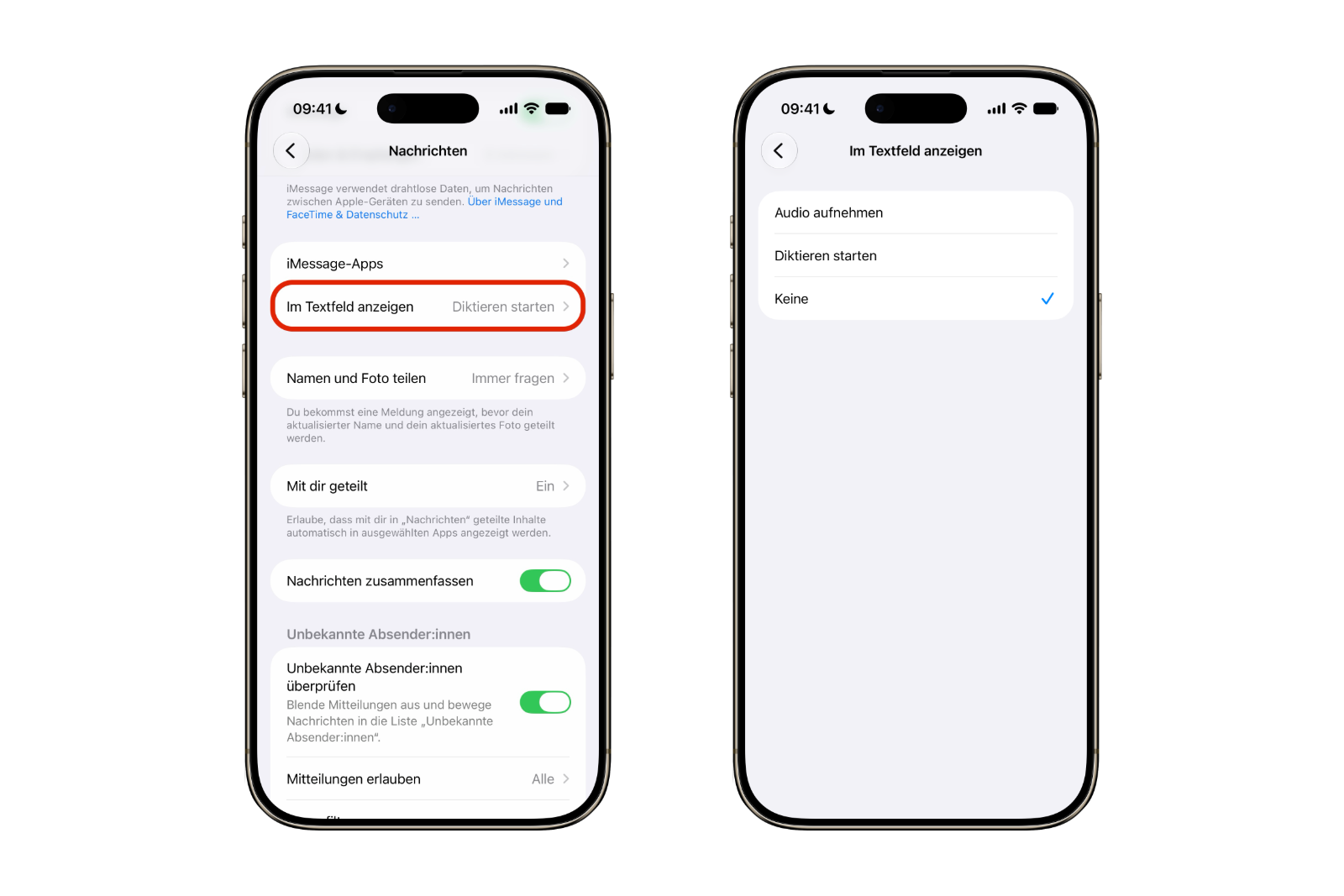
The new option is not in the keyboard settings, but directly in the messaging app:

  1. Open the Settings app.
  2. Tap Apps at the very bottom of the list.
  3. Select Messages.
  4. Tap on Show in text box.
  5. Choose between Record audio, Start dictation and None.

To permanently clear the field, select "None". Afterwards, only the submit arrow will remain on the right side of the input field, and any incorrect selection will have no further effect. The other two options determine which of the two functions triggers the symbol – useful for those who regularly use one function and never need the other.
Hide iOS 27 audio and dictation icon
Image: Apfelpatient

Continue recording voice messages

Hiding the shortcut only removes the function, not the shortcut itself. Voice messages can still be sent via the plus button to the left of the input field: tap it, select Audio from the menu, and record. The process is one step longer than before, but it's no longer accidental.

For those who rarely send voice messages anyway, this is the better compromise – the rare deliberate recording costs an extra tap, while the frequent accidental recording is completely eliminated.

Dictate without the symbol in the text field

Dictation data remains fully intact. The microphone button in the bottom right corner of the on-screen keyboard is independent of this and functions in messages just like in any other app.

If this key is missing, the dictation function is disabled system-wide. It can be enabled under Settings → General → Keyboard via the "Enable dictation" switch. Conversely, if you don't want to see the microphone icon on the keyboard, disable this option – however, this will affect all apps, not just Messages.

What remains possible on older iOS versions

This setting is new and tied to iOS 27 and iPadOS 27. On iOS 26 and earlier, the icon cannot be selectively removed from the input field – even the major redesign of the Messages app in iOS 26 did not change this.

Anyone wanting to prevent accidental recordings has only one system-wide solution: Settings → General → Keyboard → Enable Dictation. This disables the dictation function of the icon, but it applies everywhere. The audio version remains available on older systems. An update to iOS 27 is therefore the only clean solution; the final version is expected in September.

Audio and dictation icons in messages – the most important information at a glance

GoalHow to get there
Remove symbol completelySettings → Apps → Messages → Show in text field → None
Keep only voice recordingsame setting → record audio
Keep only the dictationsame setting → start dictation
Voice message despite hidden symbolPlus button to the left of the input field → Audio
Dictation despite hidden iconMicrophone button on the on-screen keyboard
Disable dictation system-wideSettings → General → Keyboard → Enable dictation function

This setting is an example of how much a single option can change: it doesn't alter the function, but only what the input field offers. For anyone who has accidentally clicked this icon for years, it will likely be one of the most noticeable improvements in the update – regardless of how unspectacular it may seem on paper. (Image: Apfelpatient)

  • Detecting stalkerware on the iPhone
  • iMessage contact key verification explained
  • Installing iOS 27 Public Beta: Instructions, risks and troubleshooting
  • Disable Apple Intelligence: How to turn off the AI
  • Apple Notes: Record audio and convert it to text
  • Apple Intelligence and Data Privacy: How Apple Protects Your Data
  • Create iPhone ringtones – without GarageBand
  • Create Genmoji: Custom emojis with Apple Intelligence
  • Image Playground: Create unique images on your iPhone

Frequently Asked Questions: Audio and dictation icon in the Messages app

Where can I find this setting in iOS 27?

Settings → Apps → Messages → Show in text field.

Can I still send voice messages?

Yes, via the plus button to the left of the input field and the Audio option.

Will I lose the dictation function if I select "None"?

No. The microphone button on the on-screen keyboard remains unaffected.

Why is there no microphone button on my keyboard?

Then the dictation function is disabled system-wide. To enable it, go to Settings → General → Keyboard → Enable dictation function.

Is this also possible on the iPad?

Yes, the setting is in the same location in iPadOS 27.

Does this already work under iOS 26?

No, this option is new in iOS 27. On older systems, the only solution is to disable the dictation function system-wide.

Was this article helpful?
YesNo
Tags: iOSiOS 27
SendShareSend
Share

Our Amazon Storefront

A handpicked selection of products for iPhone, Mac and more – sorted by topic and updated regularly.

Shop Now

This post contains affiliate links (including Amazon). We earn a small commission on qualifying purchases – at no extra cost to you. Learn more on our Partner Program page.

Previous Post

iOS 27: All the new features in Phone and FaceTime

Next Post

App Store: Apple fights back against London's regulatory plans

Milan Jovicic

Milan Jovicic

Milan founded Apfelpatient in 2016 and has been responsible for all editorial content since 2018 – news, rumors, how-to guides and product reviews. Here, Apple devices aren't review units kept for two weeks, they're everyday tools: from iPhone to MacBook Pro, MacBook Air and iMac all the way to Apple Vision Pro, at least one device from every product category is in daily use, many of them replaced every year. Every menu path in a guide is checked on the device before it goes live.

Related posts

Apple Creator Studio: Apps, subscription, and clear AI limits

by Milan Jovicic
November 18, 2026 - 8:06 PM CET
Apple Creator Studio app icons: Final Cut Pro, Logic Pro, Pixelmator Pro, Keynote, Pages, Numbers, Freeform, Motion, Compressor and MainStage

Apple Creator Studio: Which apps are included in the subscription, what the fall update brings, what's missing from the paid version, and where the AI limits lie.

Read moreDetails

WhatsApp hacked: How to protect your account

by Milan Jovicic
November 18, 2026 - 3:39 PM CET
WhatsApp hacked: App Store page of WhatsApp Messenger on the unfolded iPhone Duo

WhatsApp hacked? The latest scams, how to recover your account, and which settings permanently protect it with a password.

Read moreDetails

HomePod Surround: Set Up Four HomePods with Apple TV 4K

by Milan Jovicic
November 14, 2026 - 00:09 CET
HomePod surround: TV with Apple TV 4K, two HomePods at the front beside the screen and two HomePod mini as rear speakers

HomePod surround with Apple TV 4K: which HomePods work, how to position them, and how to set up the surround group and audio return channel.

Read moreDetails

iPhone Duo: How to pair and use Apple Pencil

by Milan Jovicic
November 12, 2026 - 1:51 PM CET
Folded iPhone Duo in a dark case on a grey stone surface with a white Apple Pencil on top – iPhone Duo with Apple Pencil

Apple Pencil on the iPhone Duo: Which stylus fits, how to pair it via cable, and what happens to the stylus after a restart.

Read moreDetails

Apple Watch Ultra: How to customize the action button

by Milan Jovicic
November 12, 2026 - 01:42 CET
Apple Watch Ultra Action button: watch with titanium case and light Ocean Band lying on a gray stone surface, the orange button on the side of the case in the foreground

Apple Watch Ultra: How to assign the action button to workout, flashlight, voice memo and more – including quick switching and siren.

Read moreDetails
Load More

Categories

  • Apple Insights
  • Apple Rumors
  • Apple News
  • Apple Tips & Tricks
  • iPhone news, rumors and tips
  • Mac and MacBook News
  • Reviews
Make Apfelpatient a preferred source One click – and you'll see us more often on Google

About APFELPATIENT

APFELPATIENT brings you the latest Apple news, product updates, guides, reviews and tips across the entire Apple ecosystem — from the iPhone to the Mac to the Apple Vision Pro. From the first rumors to confirmed news: researched responsibly.

Follow Apfelpatient

Facebook Instagram YouTube Threads Threads

Company

  • About Apfelpatient
  • Contact
  • Author Profiles

Community

  • Netiquette
  • Push notifications
  • RSS feed

Legal

  • Legal Notice
  • Privacy Policy
  • Terms of Use
  • Cookie settings
  • Affiliate Program

Resources

  • Sitemap

© 2026 Apfelpatient. All rights reserved.

No result
View All Results
  • Home
  • News
  • Rumors
  • Tips & Tricks
  • Reviews
  • Insights

© 2026 Apfelpatient. All rights reserved. Site map

Change language to Deutsch