

apple patient
  • Home
  • News
  • Rumors
  • Tips & Tricks
  • Reviews
  • Insights
No Result
View All Result
  • iPhone 18
  • iOS 27
  • iPadOS 27
  • macOS
  • MacBook Neo
  • iPhone 17e
  • AirTags
  • iOS 26
  • iPhone 17
  • MacBook Pro
  • iPadOS
  • iMac
  • Mac mini
  • HomePod
  • Apple TV
  • iPad Pro
  • iPhone Air
  • Apple Vision Pro
  • iPhone 16
  • AirPods 4
  • Apple Watch Ultra
  • HomePod Mini
  • MacBook Air
  • iPad
  • AirPods Max
  • AirPods Pro 3
  • Apple Watch Series 3
  • Mac Studio
  • Studio Display
  • iPad Air
  • iPad mini
  • watchOS 27
  • Apple CarPlay
  • Apple Pay
  • watchOS 26
  • Home
  • News
  • Rumors
  • Tips & Tricks
  • Reviews
  • Insights
No Result
View All Result
apple patient
No Result
View All Result

Apple Sidecar on the Mac – How to turn the iPad into a second screen

Milan Jovicic by Milan Jovicic
1. October 2019 - 20:25 CEST
in Apple Tips & Tricks
0
Photo by bigtunaonline / Bigstockphoto

Photo by bigtunaonline / Bigstockphoto

WhatsAppFacebookEmail
Threads

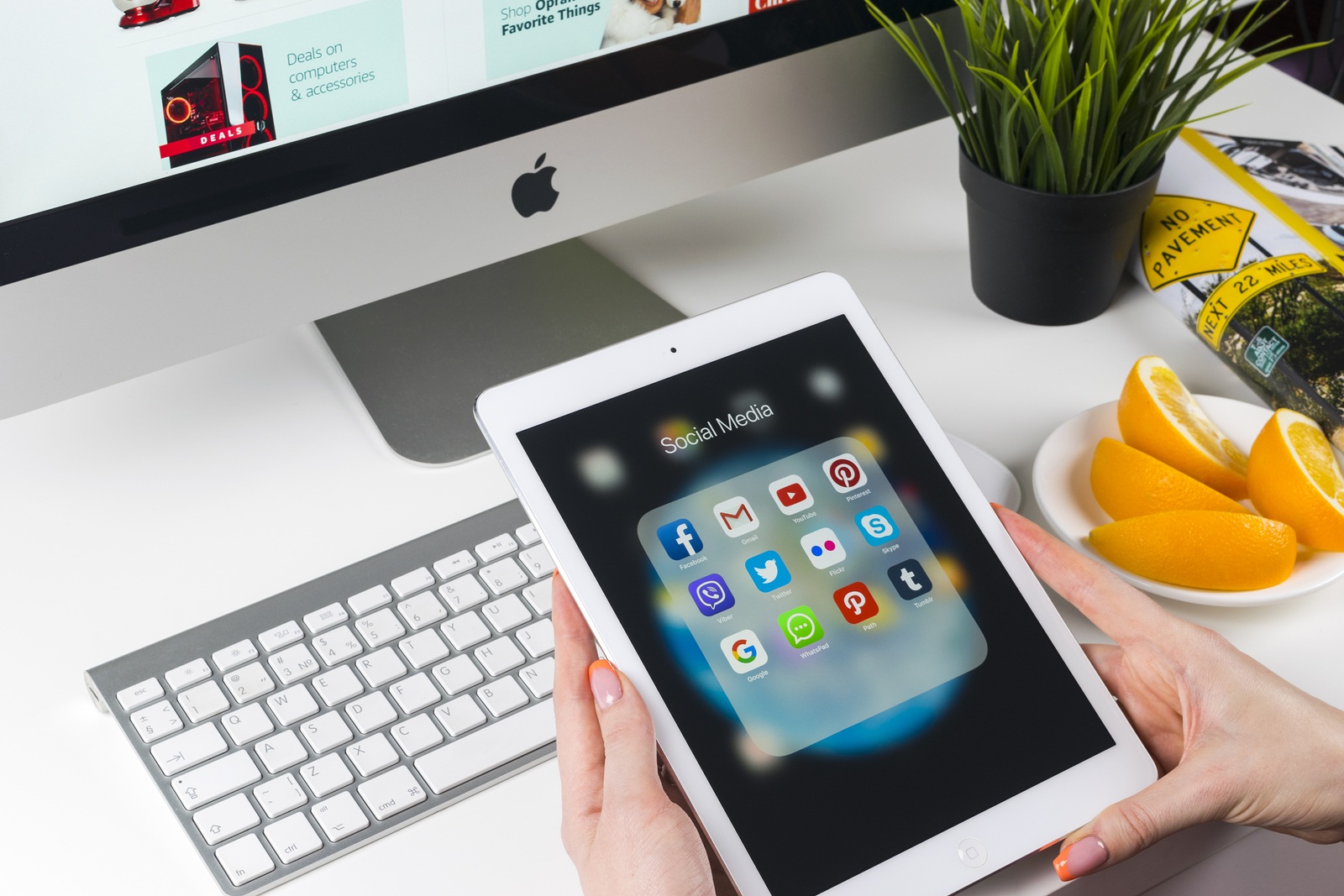
It's a feature that many have wanted for a long time. The iPad can finally be connected to the Mac and used as a second screen and more - without annoying third-party applications. We would now like to take a closer look at how Sidecar works, what configuration options are available and what you need to take into account.

By far the most impressive new feature this year in macOS Catalina and iPadOS is the Sidecar function. This allows an iPad to be turned into a mirrored Mac display or turns it directly into a second screen - including the ability to use the iPad itself as a graphics tablet together with the Apple Pencil. The connection between the iPad and a Mac device can be made via a cable or wirelessly. Although Apple is a fan of simplicity, there are still a few things to consider. Thanks to Sidecar, various macOS applications - including those from third parties - can be used directly on the iPad. Participating apps include Adobe Illustrator, Affinity Photo, ZBrush and many more.

Which Mac devices support the Sidecar feature on macOS Catalina?

Before we discuss setting up and optimizing the function, we should first clarify an important point - namely which Macs actually support the feature. The compatible Mac models include:

  • iMac 27-inch (Late 2015 or later)
  • MacPro (2016 or newer)
  • Mac mini (2018)
  • Mac Pro (2019)
  • MacBook Air (2018)
  • MacBooks (early 2016 or newer)

However, there is an important point to note. Apple itself has not yet published an official list of compatible Mac devices. The above list has been compiled by renowned developers and beta testers. The information was taken from the beta of macOS Catalina. This means that everything could of course change before the final version of macOS Catalina is officially released. As soon as this has been rolled out to all users, Apple will most likely publish an official list of compatible devices. We will update the article accordingly.

How to set up Sidecar on Mac under macOS Catalina

In order to use this useful feature, you must of course activate it first. To do this, open the Mac system preferences and navigate to the menu item “Sidecar”.  Now select the iPad under “Connect to”. To establish a wireless connection, Bluetooth must be activated on both devices. If you choose a wired connection, a Apple Thunderbolt 3 (USB-C) cable required to enable data transfer - this can be purchased directly from Apple or on Amazon. By the way, both the iPad and the respective Mac must be connected to the same iCloud account.

How to set up Sidecar on the iPad under iPadOS

This step is actually quite simple. If the Apple Tablet has iPadOS and is connected to the same iCloud account, all steps are already completed. An additional menu for Sidecar is not yet available on the iPad. By the way, all iPad models that support iPadOS can also be used for Sidecar. You can find out which iPad models are compatible with iPadOS here.

How to customize Sidecar on Mac under macOS Catalina

As mentioned at the beginning, there are several ways to use Sidecar. The adjustment is also made in the Mac system settings under the Sidecar menu item. Here the user can choose whether Sidecar should be used on the left or right side. At the same time, the user can decide whether the Mac's Touch Bar should be displayed at the top or bottom of the iPad.

How to activate and customize the Apple Pencil in Sidecar

Of course, Apple's own stylus is also included. This can also be adjusted in the same sidecar menu. There are two setting options available. Here, the user can use the double tap function with the Apple Pencil activate or deactivate and show or hide the so-called cursor symbol of the Apple Pencil. Apple AirPods with wireless charging case on special offer on Amazon (Photo by bigtunaonline / Bigstockphoto)

Make Apfelpatient a preferred source One click – and you'll see us more often on Google
Was this article helpful?
YesNo
Tags: iPadiPadOSMacmacOSmacOS 10.15 Catalina
SendShare1Send
Share

Our Amazon Storefront

A handpicked selection of products for iPhone, Mac and more – sorted by topic and updated regularly.

Shop Now

This post contains affiliate links (including Amazon). We earn a small commission on qualifying purchases – at no extra cost to you. Learn more on our Partner Program page.

Previous Post

How to mute anonymous and spam calls on iPhone under iOS 13

Next Post

iPhone 11 & iPhone 11 Pro – Deep Fusion appears in iOS 13 Beta

Milan Jovicic

Milan Jovicic

Milan founded Apfelpatient in 2016 and has been responsible for all editorial content since 2018 — news, rumors, guides, and product reviews. Apple devices here are not test units on loan for two weeks but everyday tools: from the iPhone through MacBook Pro, MacBook Air, and iMac to the Apple Vision Pro, at least one device from nearly every product category is in daily use, many of them replaced annually. Every menu path in a guide is verified on the device before it is published.

Symbolic image for Apple government affairs: the glass entrance cube of the Apple Store on Fifth Avenue in New York at dusk

Apple hires new head of government relations

August 12, 2026 - 8:44 PM CEST
Key art for the Apple TV series Pluribus showing a screaming woman against a yellow background, with Pluribus season 2 about to begin filming

Pluribus: Gilligan plans at least three seasons

August 12, 2026 - 8:27 PM CEST
The iPhone 17 lineup in five colors seen from the back, whose successor is expected to adopt the smaller iPhone 18 Dynamic Island from the Pro models

iPhone 18: Smaller Dynamic Island already in the base model

August 12, 2026 - 8:13 PM CEST

About APFELPATIENT

APFELPATIENT brings you the latest Apple news, product updates, guides, reviews and tips across the entire Apple ecosystem — from the iPhone to the Mac to the Apple Vision Pro. From the first rumors to confirmed news: researched responsibly.

Follow Apfelpatient

Facebook Instagram YouTube Threads Threads

Company

  • About Apfelpatient
  • Contact
  • Author Profiles

Community

  • Netiquette
  • Push Notifications
  • RSS feed

Legal

  • Legal Notice
  • Privacy Policy
  • Terms of Use
  • Cookie Settings
  • Affiliate Program

Resources

  • Sitemap

© 2026 Apfelpatient. All rights reserved.

No Result
View All Result
  • Home
  • News
  • Rumors
  • Tips & Tricks
  • Reviews
  • Insights

© 2026 Apfelpatient. All rights reserved. Page Directory

Change language to Deutsch




