

apple patient
  • Home
  • News
  • Rumors
  • Tips & Tricks
  • Reviews
  • Insights
No Result
View All Result
  • iPhone 18
  • iOS 27
  • iPadOS 27
  • macOS
  • MacBook Neo
  • iPhone 17e
  • AirTags
  • iOS 26
  • iPhone 17
  • MacBook Pro
  • iPadOS
  • iMac
  • Mac mini
  • HomePod
  • Apple TV
  • iPad Pro
  • iPhone Air
  • Apple Vision Pro
  • iPhone 16
  • AirPods 4
  • Apple Watch Ultra
  • HomePod Mini
  • MacBook Air
  • iPad
  • AirPods Max
  • AirPods Pro 3
  • Apple Watch Series 3
  • Mac Studio
  • Studio Display
  • iPad Air
  • iPad mini
  • watchOS 27
  • Apple CarPlay
  • Apple Pay
  • watchOS 26
  • Home
  • News
  • Rumors
  • Tips & Tricks
  • Reviews
  • Insights
No Result
View All Result
apple patient
No Result
View All Result

Apple Music Sing: How to use the karaoke function

Milan Jovicic by Milan Jovicic
December 26, 2022 - 19:05 CET
in Apple Tips & Tricks
0
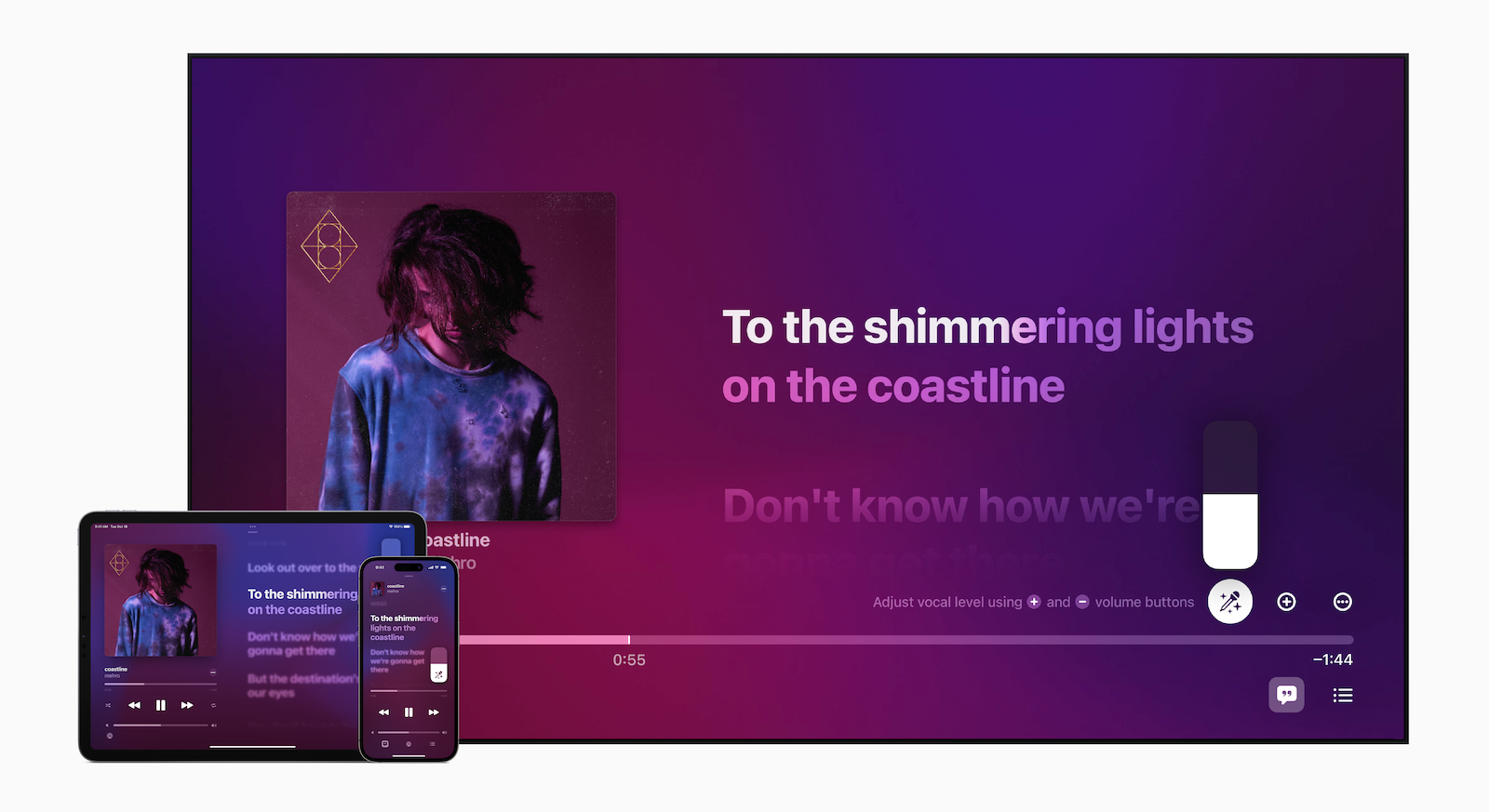
Apple Music Sing

Image: Apple - Apple Music Sing

WhatsAppFacebookEmail
Threads

With the new Apple Music Sing karaoke feature being introduced in iOS 16.2, we've taken a look at the feature. Below, we'll show you how to use the feature in Apple Music, including how to adjust the volume of your voice, see the Duet view, and more.

iOS 16.2 and Co. are now officially available to all users. Some interesting features have been added, including Apple Music Sing.

What Apple Music Sing offers

  • Customizable vocals: Users now have control over the vocal range of a song. They can sing with the artist's original vocals, take the lead vocals, or remix millions of songs from the Apple Music catalog.
  • Real-time lyrics: Users can sing along to their favorite songs with animated lyrics that dance to the rhythm of the song.
  • Background vocals: Simultaneous vocal lines can be animated independently of the main vocals to make them easier for users to follow.
  • Duet View: Multiple singers are displayed on opposite sides of the screen to make it easy to sing along to duets or songs with multiple singers.

How to use the karaoke function in iOS 16.2

  • Make sure you are using iOS 16.2 or later.
  • On your iPhone, open Apple Music and find a song you want to listen to.
  • Apple Music Sing is also available on the iPad and the Apple TV 4K 2022 model (apparently not on older Apple TV hardware).
  • After you start a song, tap the lyrics button (quote symbol) in the bottom left corner.
  • Now look for the microphone and star symbol (the symbol will not be displayed for incompatible songs).
  • After you tap the microphone, Apple Music Sing is activated.
  • Now you can adjust the volume of your voice by dragging and sing along to the lyrics bar by bar.
  • Tap the Sing icon to turn the feature off.

This is what it looks like when you use Apple Music Sing:
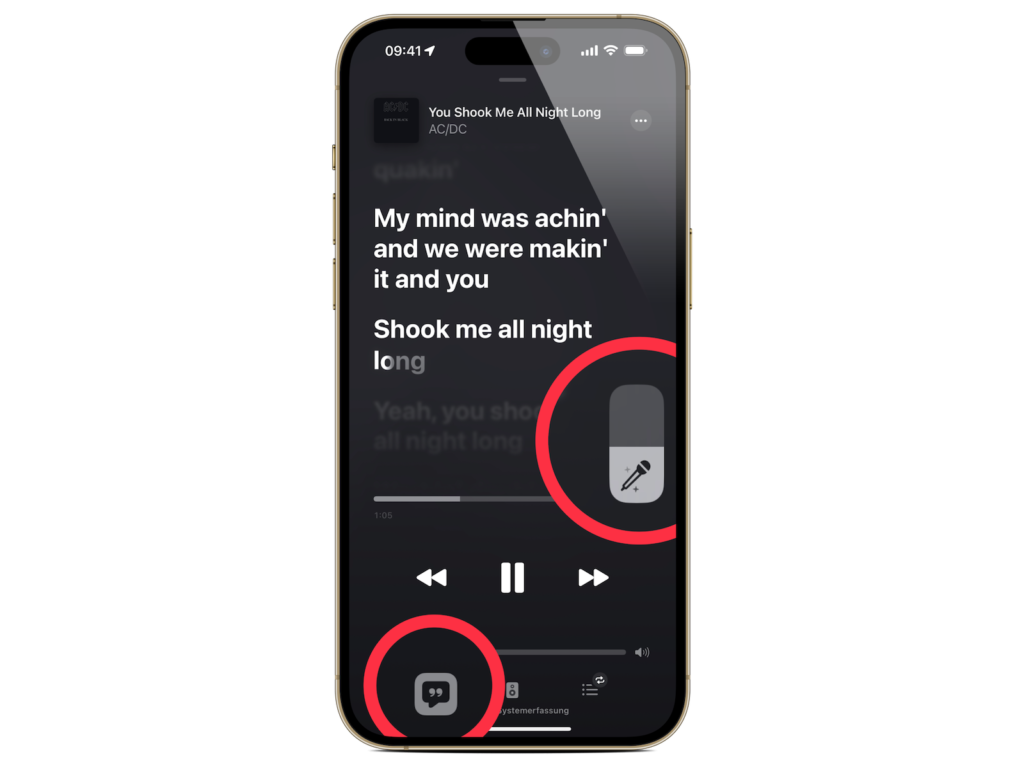
Image: Apfelpatient

For songs that contain duets, you will see that the special view is automatically activated with the different parts on the left and right side of the screen:
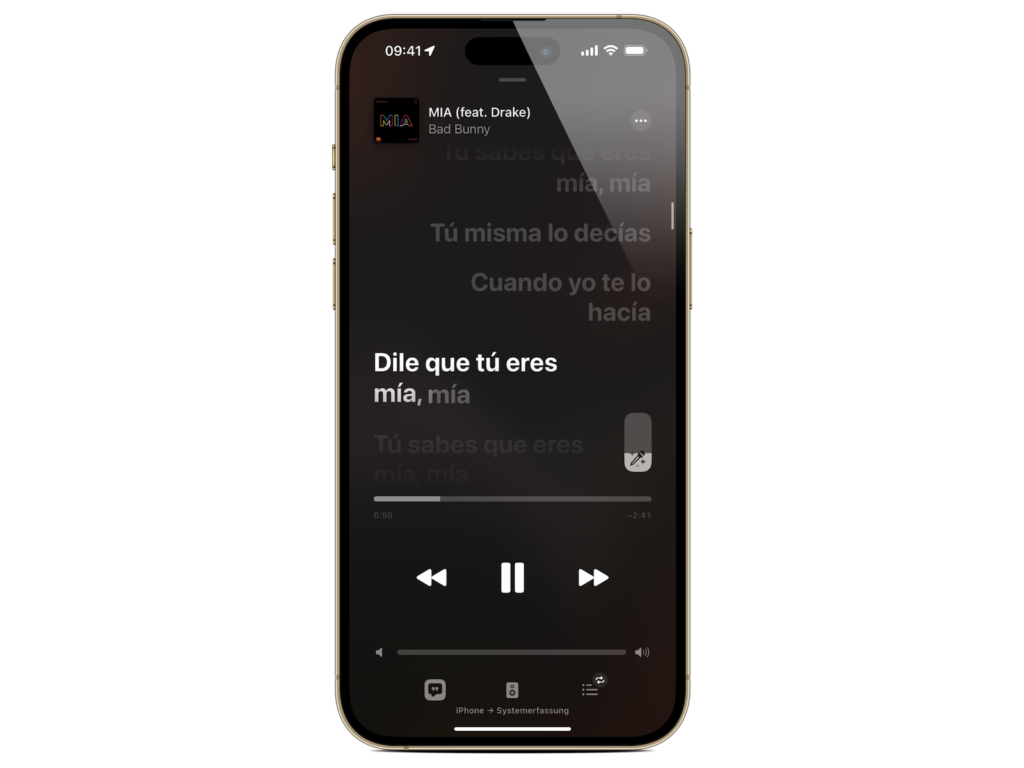
Image: Apfelpatient

Which songs work with Apple Music Sing?

For now, you have to listen to a song and tap the lyrics to see if it's compatible with Apple Music Sing's karaoke feature, or you can check out the "Discover" section where you'll find some playlists - have fun. Looking for new accessories? Then take a look in our Amazon Storefront - there you will find numerous products from leading providers, also for HomeKit and Co.! (Image: Apple)


  • How to customize the Always-On Display in iOS 16.2
Make Apfelpatient a preferred source One click – and you'll see us more often on Google
Was this article helpful?
YesNo
Tags: Apple ServicesiOSiPadOStvOS
SendShareSend
Share

Our Amazon Storefront

A handpicked selection of products for iPhone, Mac and more – sorted by topic and updated regularly.

Shop Now

This post contains affiliate links (including Amazon). We earn a small commission on qualifying purchases – at no extra cost to you. Learn more on our Partner Program page.

Previous Post

How to customize the Always-On Display in iOS 16.2

Next Post

Mac & iPhone: TSMC begins production of 3nm chips

Milan Jovicic

Milan Jovicic

Milan founded Apfelpatient in 2016 and has been responsible for all editorial content since 2018 — news, rumors, guides, and product reviews. Apple devices here are not test units on loan for two weeks but everyday tools: from the iPhone through MacBook Pro, MacBook Air, and iMac to the Apple Vision Pro, at least one device from nearly every product category is in daily use, many of them replaced annually. Every menu path in a guide is verified on the device before it is published.

Five iPhone models in different colors side by side, one from the front showing the Dynamic Island, which is expected to be smaller on the iPhone 18.

iPhone 18: All the rumors at a glance

August 12, 2026 - 9:24 PM CEST
Symbolic image of Apple's leadership team: Apple Park from the air, illuminated at sunset.

Apple's leadership team is undergoing a transformation: Who's leaving and who's taking their place?

August 12, 2026 - 9:10 PM CEST
Symbolic image for Apple government affairs: the glass entrance cube of the Apple Store on Fifth Avenue in New York at dusk

Apple hires new head of government relations

August 12, 2026 - 8:44 PM CEST

About APFELPATIENT

APFELPATIENT brings you the latest Apple news, product updates, guides, reviews and tips across the entire Apple ecosystem — from the iPhone to the Mac to the Apple Vision Pro. From the first rumors to confirmed news: researched responsibly.

Follow Apfelpatient

Facebook Instagram YouTube Threads Threads

Company

  • About Apfelpatient
  • Contact
  • Author Profiles

Community

  • Netiquette
  • Push Notifications
  • RSS feed

Legal

  • Legal Notice
  • Privacy Policy
  • Terms of Use
  • Cookie Settings
  • Affiliate Program

Resources

  • Sitemap

© 2026 Apfelpatient. All rights reserved.

No Result
View All Result
  • Home
  • News
  • Rumors
  • Tips & Tricks
  • Reviews
  • Insights

© 2026 Apfelpatient. All rights reserved. Page Directory

Change language to Deutsch


