

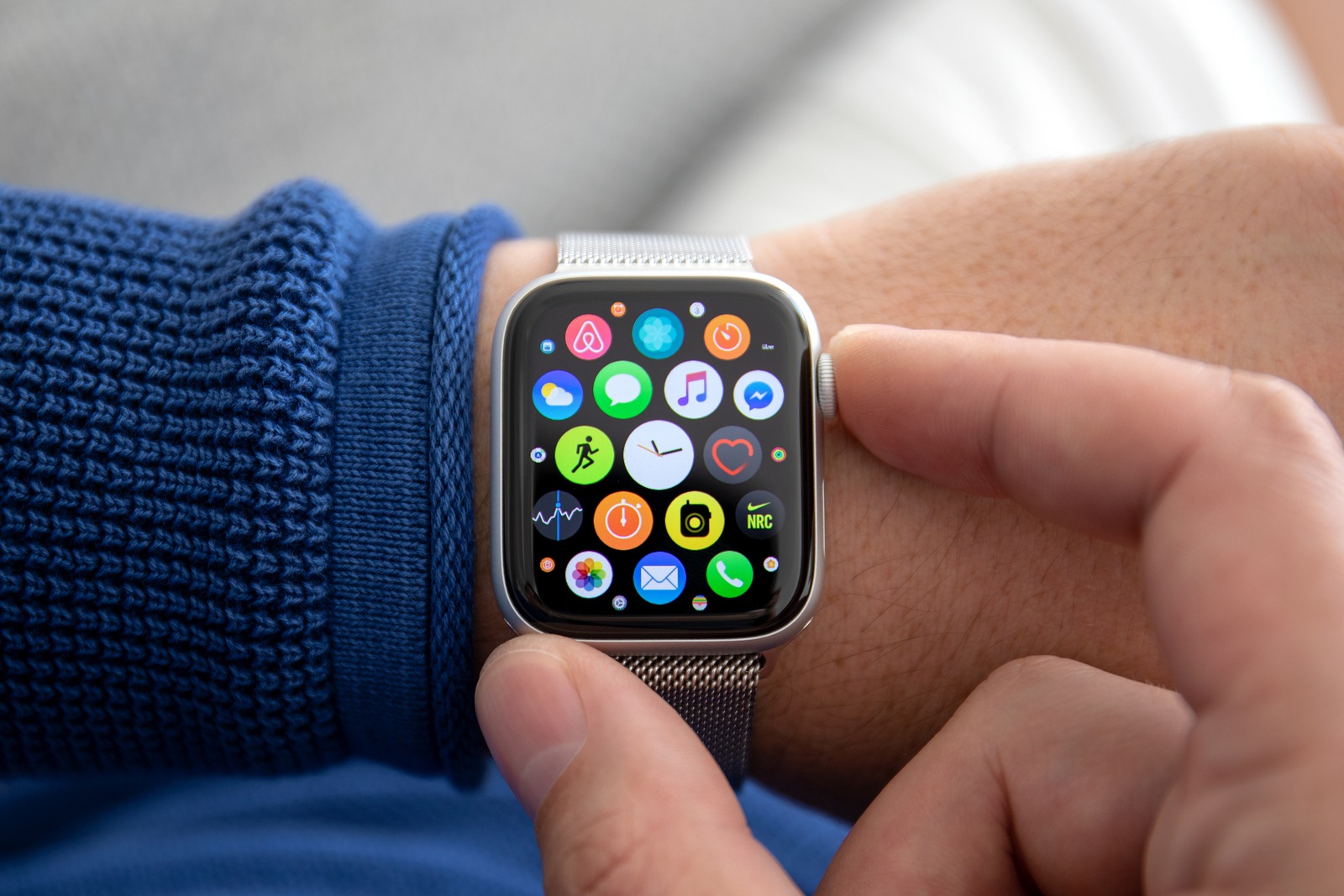
The Apple Watch has evolved steadily over the years and many users can no longer imagine life without it. With watchOS 6, more useful features have been added - one of which relates to hearing.
The Apple Watch is designed to enrich our lives in terms of health. It should ensure that its wearer pays more attention to their own well-being and takes action accordingly – that's Apple's vision. With watchOS 6, the Apple Watch not only gains new features but also becomes less dependent on the iPhone itself. But today we want to talk about ambient noise, and that's where the new "Sounds" app comes in. Although watchOS 6 has been available to most Watch owners since September, the feature seems to be a little unfamiliar to this day. Apple explains the app as follows:
Noise – Apple Watch can check the noise levels in your environment and alert you if they may be affecting your hearing.
How the “Sounds” app works
But how exactly does it all work? Basically, it's very simple. If the app is activated, your Apple Watch can continuously measure your ambient noise using the built-in microphone. However, data protection is the top priority. Although the measurement takes place continuously in the background, no noises themselves are recorded - only the measurement results are documented. This means that confidential conversations remain confidential.
The configurable values at a glance
The "Noises" app can, of course, be precisely configured like any other feature. In the "Noise Threshold" section, a decibel level can be set. If this threshold is exceeded, the user receives a warning message. The function is described as follows:
Get notified when the average noise level reaches or exceeds 90 decibels for 3 minutes.
The 90 decibels serve as an example. Users can choose between 80, 85, 90, 95 or 100 decibels. Each value has a so-called daily limit. According to Apple, these limits are set by the World Health Organization. Here is an example: According to the WHO, a user should not be exposed to ambient noise of over 90 decibels for more than 30 minutes a day - otherwise this would damage hearing in the long term. Here is the list:
- 80 decibels – limit: 5 hours 30 minutes / day
- 85 decibels – limit: 1 hour 45 minutes / day
- 90 decibels – limit: 30 minutes / day
- 95 decibels – limit: 10 minutes / day
- 100 decibels – limit: 3 minutes / day
Many people might now say, "Oh come on, I should notice if it's too loud" – but that's precisely the point. Noise levels are often underestimated. This makes the new feature all the more beneficial – you can also consider it a little reminder.
How to set up the “Sounds” app on your Apple Watch
Setting up the "Sounds" app, like so many things with Apple, is pretty easy. Users can set up the feature via their Apple Watch or, alternatively, via their iPhone. Open the settings on your Apple Watch and navigate to the "Sounds" section. Now you can enable "Ambient Sound Measurement." In the "Sound Notification" section, you can set the benchmark. If you want to measure the level in real time, open the "Sounds" app on your Apple Watch. There you can track the actual real-time value of your ambient noise. Cool, right?!
How to set up the “Sounds” app on your iPhone
However, if you want to set it up via your iPhone, you can do so via the Apple Watch app. Open the corresponding app and navigate to the "Sounds" menu item. Now you can enable or disable the feature and set the desired value. While the feature may not be of interest to some, the added value is worth noting. A little hint can't hurt, especially when it comes to your own health. By the way, if you're concerned about battery life, I can reassure you. On my Apple Watch Series 4 (44mm) with LTE, I barely notice any difference. Have you enabled the feature on your watch? Let me know the answer in our survey – thank you very much for your participation. (Photo by Denys Prykhodov / Bigstockphoto)
Note – This application is only available on Apple Watch Series 4 or later with watchOS 6. Older models are not supported.





