

apple patient
  • Home
  • News
  • Rumors
  • Tips & Tricks
  • Reviews
  • Insights
No Result
View All Result
  • iPhone 18
  • iOS 27
  • iPadOS 27
  • macOS
  • MacBook Neo
  • iPhone 17e
  • AirTags
  • iOS 26
  • iPhone 17
  • MacBook Pro
  • iPadOS
  • iMac
  • Mac mini
  • HomePod
  • Apple TV
  • iPad Pro
  • iPhone Air
  • Apple Vision Pro
  • iPhone 16
  • AirPods 4
  • Apple Watch Ultra
  • HomePod Mini
  • MacBook Air
  • iPad
  • AirPods Max
  • AirPods Pro 3
  • Apple Watch Series 3
  • Mac Studio
  • Studio Display
  • iPad Air
  • iPad mini
  • watchOS 27
  • Apple CarPlay
  • Apple Pay
  • watchOS 26
  • Home
  • News
  • Rumors
  • Tips & Tricks
  • Reviews
  • Insights
No Result
View All Result
apple patient
No Result
View All Result

How to restore Apple Watch firmware using an iPhone

Milan Jovicic by Milan Jovicic
March 18, 2022 - 6:43 PM CET
in Apple Tips & Tricks
0
watchOS 8.5 Apple Watch Recovery

Image: Apple

WhatsAppFacebookEmail
Threads

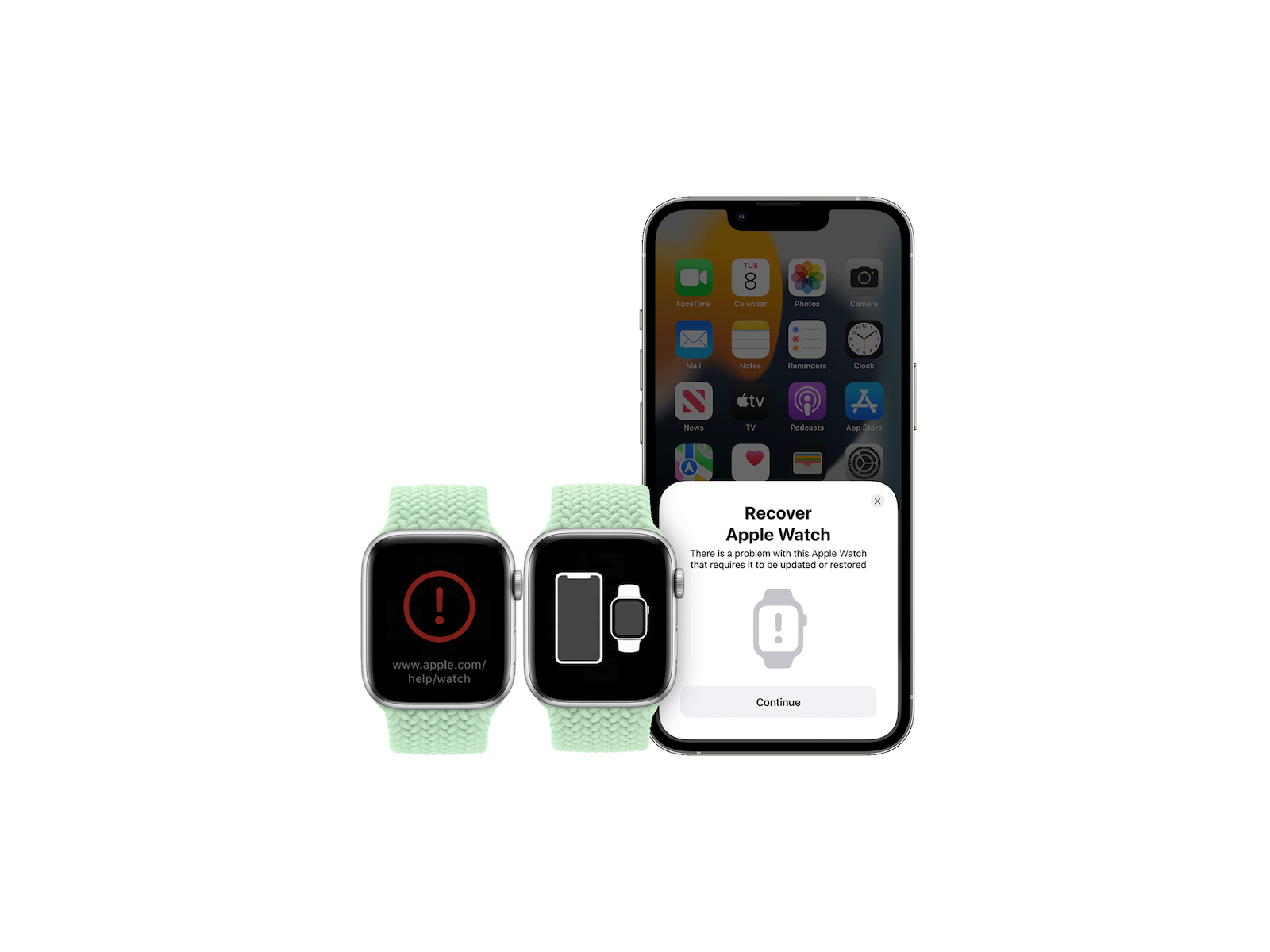
One of the subtle changes Apple introduced with watchOS 8.5 is the ability to restore the smartwatch's firmware without sending it in for repair. Below, you'll learn how to restore Apple Watch using iPhone.

In a new support document published alongside the release of watchOS 8.5, Apple describes the two different screens that the Apple Watch uses to indicate whether it needs to be updated or restored.

Your Apple Watch may display an animation prompting you to bring it near an iPhone if it encounters an issue that requires an update or restore. You may also see a red exclamation point on your watch.

Previously, if users had issues with their Apple Watch that required a restore or something similar, they had to bring the device to Apple. This is because the Apple Watch does not have a user-friendly port to connect to a device such as a Mac or iPhone. With the new process integrated with watchOS 8.5 and iOS 15.4, it is now possible to restore the Apple Watch wirelessly using the iPhone.
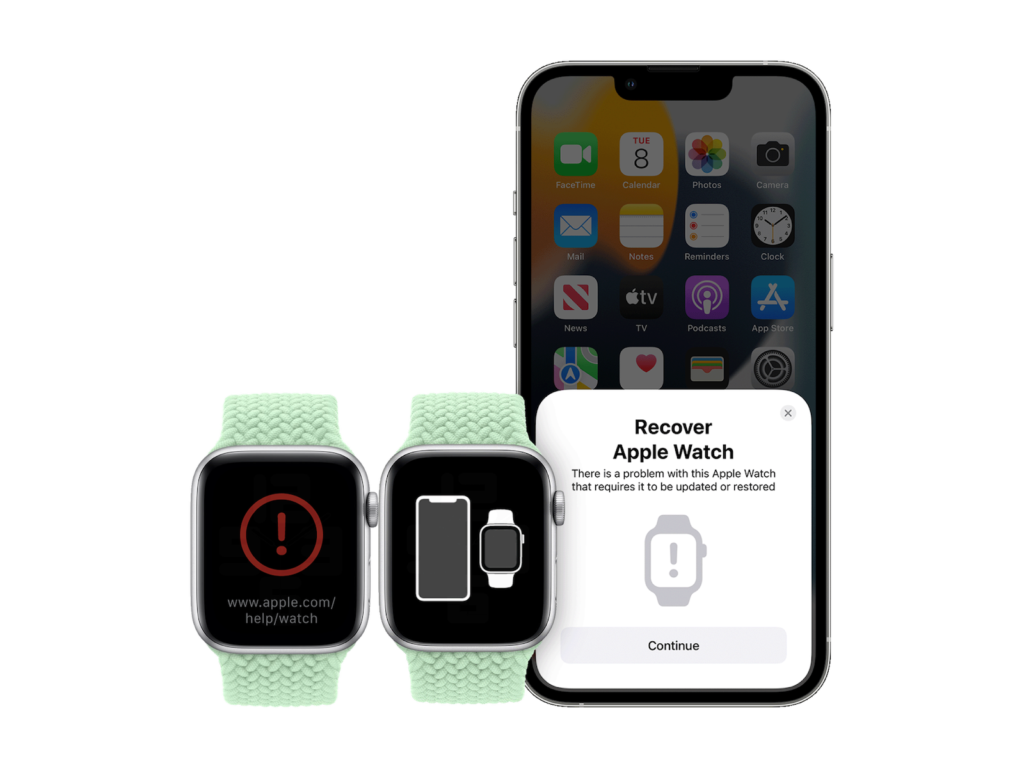
Image: Apple

How to restore Apple Watch with iPhone

  • When you see any of the screens above, bring your iPhone and Apple Watch close together.
  • iOS 15.4 and watchOS 8.5 or later are required.
  • Make sure the iPhone is connected to WiFi, Bluetooth is turned on, and unlocked.
  • Place your Apple Watch on the charger.
  • Double-click the side button on your Apple Watch (next to the Digital Crown).
  • Follow the instructions on your iPhone.

If your Apple Watch is displaying a red exclamation mark, you may need to double-click the side button before placing it on the charger and then following the rest of the steps above. Apple says that if the process doesn't work, you should check your Wi-Fi and use a 2.4GHz network instead of a 5GHz network. It also advises against using an 802.1X network. This process may not resolve all Apple Watch issues and the official support document recommendsto send the device in if the red exclamation screen does not disappear. (Image: Apple)


  • iOS 15.4: How to use Visual Lookup
Make Apfelpatient a preferred source One click – and you'll see us more often on Google
Was this article helpful?
YesNo
Tags: iOSiOS 15.4watchOSwatchOS 8.5
SendShareSend
Share

Our Amazon Storefront

A handpicked selection of products for iPhone, Mac and more – sorted by topic and updated regularly.

Shop Now

This post contains affiliate links (including Amazon). We earn a small commission on qualifying purchases – at no extra cost to you. Learn more on our Partner Program page.

Previous Post

Webcam problems: Apple Studio Display runs iOS 15.4

Next Post

Apple TV: Authorize purchases with Apple Watch – here's how

Milan Jovicic

Milan Jovicic

Milan founded Apfelpatient in 2016 and has been responsible for all editorial content since 2018 — news, rumors, guides, and product reviews. Apple devices here are not test units on loan for two weeks but everyday tools: from the iPhone through MacBook Pro, MacBook Air, and iMac to the Apple Vision Pro, at least one device from nearly every product category is in daily use, many of them replaced annually. Every menu path in a guide is verified on the device before it is published.

Symbolic image of Apple's leadership team: Apple Park from the air, illuminated at sunset.

Apple's leadership team is undergoing a transformation: Who's leaving and who's taking their place?

August 12, 2026 - 9:10 PM CEST
Symbolic image for Apple government affairs: the glass entrance cube of the Apple Store on Fifth Avenue in New York at dusk

Apple hires new head of government relations

August 12, 2026 - 8:44 PM CEST
Key art for the Apple TV series Pluribus showing a screaming woman against a yellow background, with Pluribus season 2 about to begin filming

Pluribus: Gilligan plans at least three seasons

August 12, 2026 - 8:27 PM CEST

About APFELPATIENT

APFELPATIENT brings you the latest Apple news, product updates, guides, reviews and tips across the entire Apple ecosystem — from the iPhone to the Mac to the Apple Vision Pro. From the first rumors to confirmed news: researched responsibly.

Follow Apfelpatient

Facebook Instagram YouTube Threads Threads

Company

  • About Apfelpatient
  • Contact
  • Author Profiles

Community

  • Netiquette
  • Push Notifications
  • RSS feed

Legal

  • Legal Notice
  • Privacy Policy
  • Terms of Use
  • Cookie Settings
  • Affiliate Program

Resources

  • Sitemap

© 2026 Apfelpatient. All rights reserved.

No Result
View All Result
  • Home
  • News
  • Rumors
  • Tips & Tricks
  • Reviews
  • Insights

© 2026 Apfelpatient. All rights reserved. Page Directory

Change language to Deutsch


