

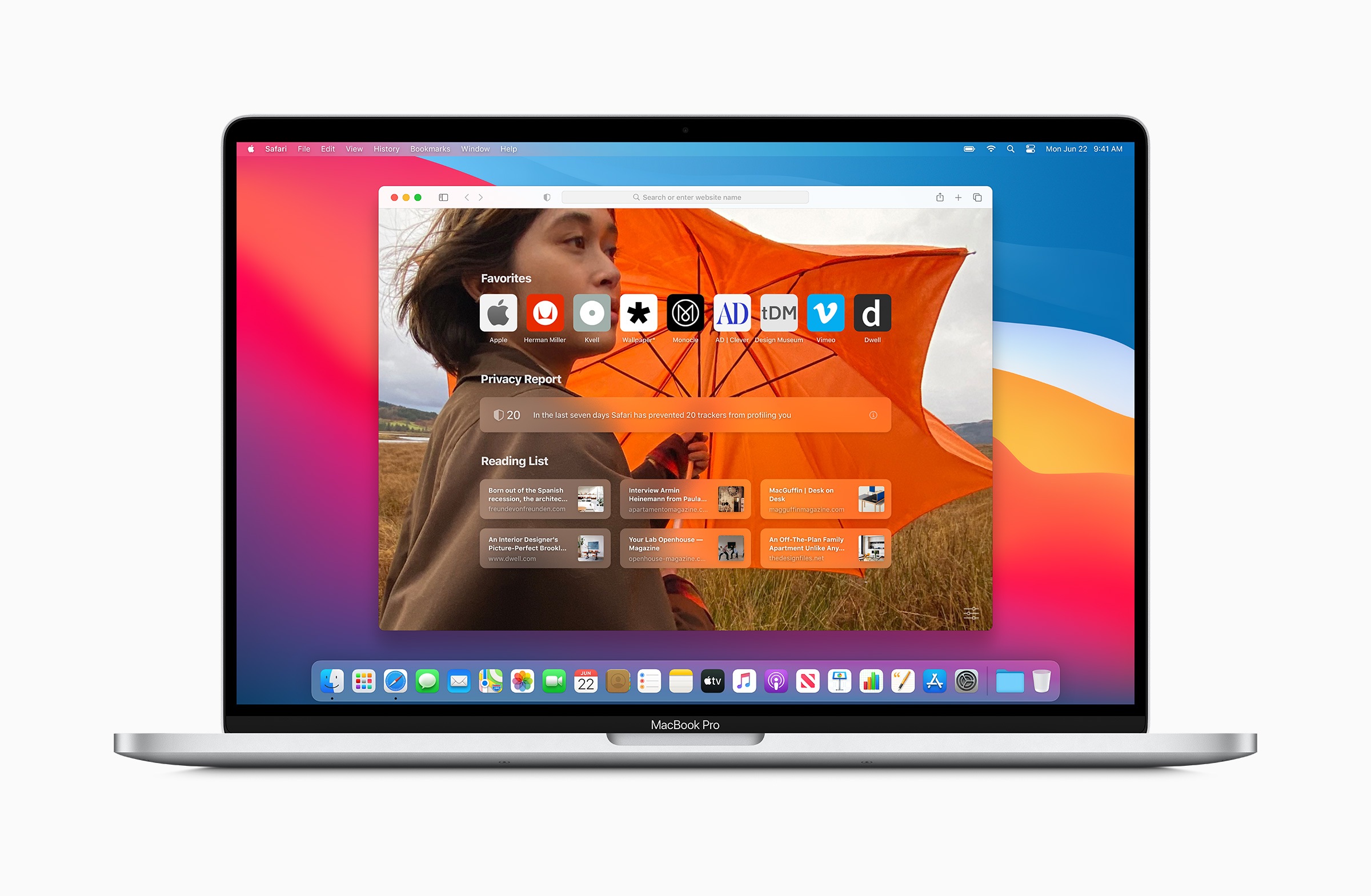
Volunteer testers are always welcome at Apple. Cupertino has been offering public betas for macOS for several years. After we have already extensively tested the Theme After covering the iOS 14 beta, we would now like to take a closer look at a macOS beta and guide you safely through the entire process.
Apple occasionally offers updates for iOS, watchOS, tvOS and macOS as a closed preview for developers and also makes them available to public testers. Users of this offer can test all kinds of new functions on their iPhone, iPad, Apple TV or Mac. In addition to new functions, these beta versions also contain errors. Sometimes such bugs can make using the iPhone, iPad, Apple TV, Apple Watch and Mac significantly more difficult. The compatibility of individual programs and general performance can also suffer. Therefore, a beta should never be used on a device that is used every day. We always recommend using a second device for such a project.
How to create a backup on your MacBook, iMac & Co.
Before you can participate in the Apple Beta Software Program, you should definitely create a backup of your Mac. This way we can easily return to where you decided to get a beta without losing any data - namely here?! First, we will create a manual backup. To do this, click the Time Machine icon in the menu bar of your Mac. Now you can back up all of your data. If you have never created a backup on your Mac, that's no problem. To create backups with Time Machine, all you need is an external storage device. Once you have selected one and connected it to your Mac, you can use Time Machine to create a full backup.
How to Become an Apple Beta Tester
To get started, you must first sign up for the Apple Beta Software Program and accept the terms and conditions. You will obviously need a working Apple ID to sign up. If you have already downloaded a movie or app from the iTunes or App Store, or set up an iPhone or iPad, you should have an Apple ID. After you have signed up for the Apple Beta Software Program and backed up your Mac computer, follow the remaining steps.
How to install the latest macOS 11 Big Sur beta version on your Mac
Before you can begin the installation, your Mac must be enrolled in Apple's Beta Software Program be registeredTo do this, download the configuration profile to your Mac - follow the link provided by Apple under point 2. Once the new macOS Public Beta Access Utility has loaded, you can open it and follow the on-screen instructions. Once you've completed registration, open "Software Update" in System Preferences and click "Update Now" to install the latest public beta. By the way: If there is no public beta of macOS available, you will receive a notification as soon as one is rolled out. After installing the latest macOS public beta, your Mac will restart - a process that is necessary for every major update.
Rules for using a macOS 11 Big Sur beta
Apple warns that the public beta software “may contain errors or inaccuracies and may not work as well as regularly released software.” The notice also mentions that the public beta software, despite its high availability, contains confidential information. Apple’s support document:
“Is Public Beta Software confidential? Yes, Public Beta Software is Apple's confidential information. Therefore, you should not install Public Beta Software on a system that you do not control or share with others. You should not post information or screenshots of Apple's Public Beta Software in blogs, tweets, or elsewhere, and you should not talk about or demonstrate Apple's Public Beta Software to anyone not involved in the Apple Beta Software program. Once Apple has released technical information about the Public Beta Software, it is no longer classified as confidential.”
So the most important rule is not to talk about the public beta program – a point that not many users stick to.
The Feedback Assistant on the Mac
Please remember to use the application “Feedback Assistant” regularly to report bugs and also give your opinion on features and other aspects of macOS. This is part of the job of a good beta tester and helps Apple significantly in development.
How to stop automatic macOS 11 Big Sur beta updates on your Mac and revert to the final version
If you don't want to use any more beta versions, you can easily stop the automatic update. To do this, open "System Preferences" and go to "Software Update". Then navigate to "Details" and click on "Restore Defaults". This will deactivate the automatic update of the latest macOS beta version. However, this process does not remove the beta profile from your Mac - this can only be done through a normal update or a full restore. Do you remember your manual backup? OK, so much for there being no time travel. To prevent possible bugs in the future, it is recommended that you restore the backup. To do this, restart your Mac - during the restart, hold down the "Command" + "R" keys until the Apple logo appears. The macOS utility should then open. Now you can click on the top menu item "Restore from Time Machine Backup" and follow the individual instructions on your screen.
Enable automatic updates for macOS
By the way, if you want your Mac to update automatically, you can set this up in the “System Preferences” under “Software Update”. Then click on “Update my Mac automatically”. You can also control the associated intermediate steps using the “More options” area. (Image: Apple)





