

apple patient
  • Home
  • News
  • Rumors
  • Tips & Tricks
  • Reviews
  • Insights
No Result
View All Result
  • iPhone 18
  • iOS 27
  • iPadOS 27
  • macOS
  • MacBook Neo
  • iPhone 17e
  • AirTags
  • iOS 26
  • iPhone 17
  • MacBook Pro
  • iPadOS
  • iMac
  • Mac mini
  • HomePod
  • Apple TV
  • iPad Pro
  • iPhone Air
  • Apple Vision Pro
  • iPhone 16
  • AirPods 4
  • Apple Watch Ultra
  • HomePod Mini
  • MacBook Air
  • iPad
  • AirPods Max
  • AirPods Pro 3
  • Apple Watch Series 3
  • Mac Studio
  • Studio Display
  • iPad Air
  • iPad mini
  • watchOS 27
  • Apple CarPlay
  • Apple Pay
  • watchOS 26
  • Home
  • News
  • Rumors
  • Tips & Tricks
  • Reviews
  • Insights
No Result
View All Result
apple patient
No Result
View All Result

macOS 10.15 Catalina – How to activate Screen Time

Milan Jovicic by Milan Jovicic
16. October 2019 - 16:18 CEST
in Apple Tips & Tricks
0
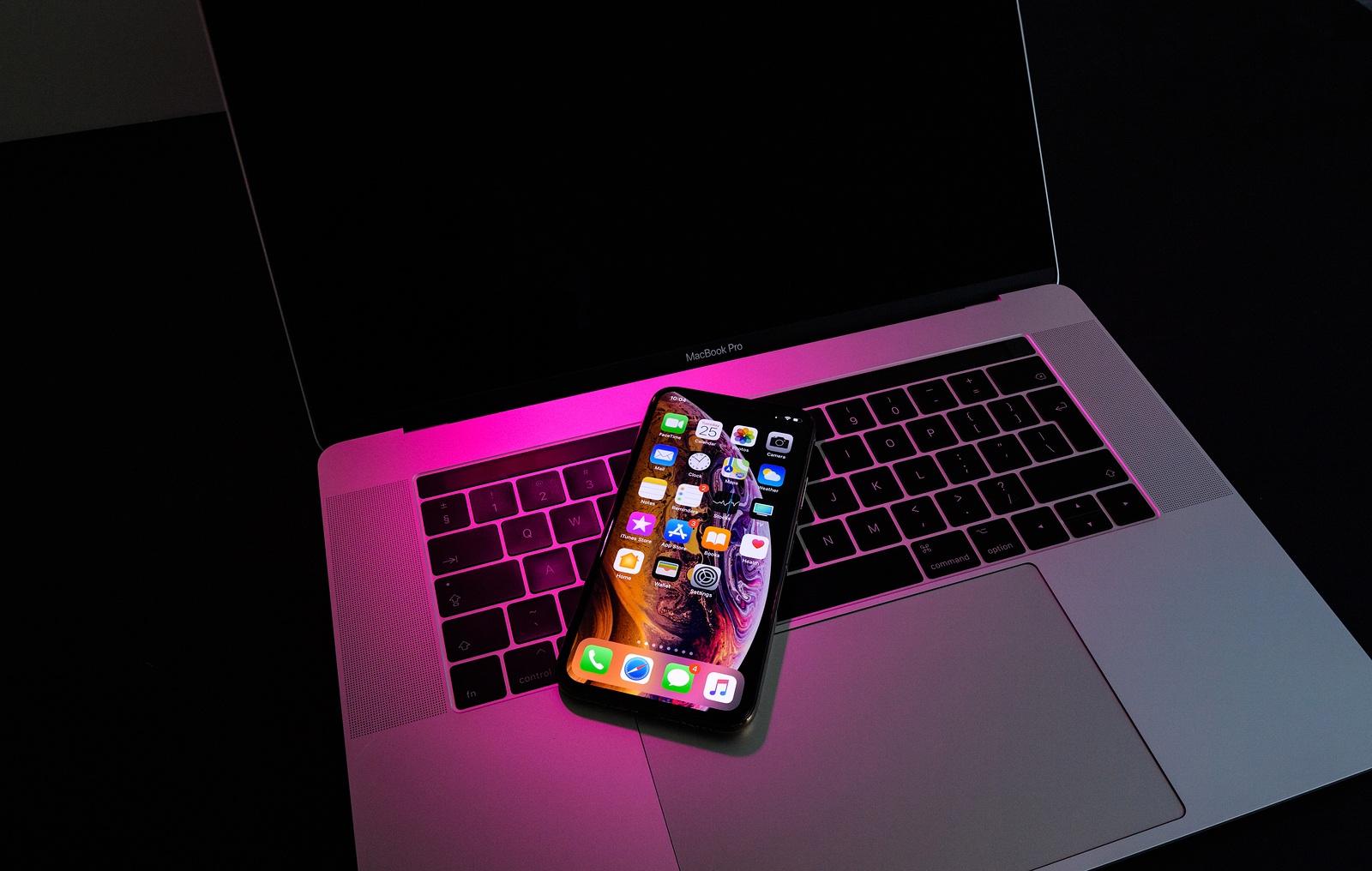
PARIS, FRANCE - SEP 25, 2018: New iPhone Xs and Xs Max smartphone model by Apple Computers close up. Newest golden Apple Iphone on pink magenta light on Macbook Pro 15 laptop keyboard

PARIS, FRANCE - SEP 25, 2018: New iPhone Xs and Xs Max smartphone model by Apple Computers close up. Newest golden Apple Iphone on pink magenta light on Macbook Pro 15 laptop keyboard

WhatsAppFacebookEmail
Threads

The Screen Time feature was first introduced last year in iOS 12 on iPhone, iPad, and iPod touch. Now the feature is also available to Mac users on macOS Catalina.

What are the benefits of the Screen Time function? It's simple - users can analyze and control their usage behavior in detail and set limits. The latter can be viewed as a parental control. But today we just want to introduce you to the basics and help you get started. Screen Time records all usage behavior and summarizes daily or weekly activity in the form of diagrams. Users can then set schedules for screen-free time and even set daily limits for individual app categories. But that's not all. The feature also offers the option of controlling access to offensive content, purchases and downloads. If Screen Time is used for children, the settings can be protected with a password. For example, if the child is only allowed to play games or visit social networks for two hours a day, the parent can make these settings and protect them with a password. The child therefore has no way of manipulating the tool. The whole thing can be managed from iPhone, iPad or Mac devices - it is important to activate iCloud synchronization and family sharing.

How to enable Screen Time on Mac under macOS 10.15 Catalina

Open the macOS settings and navigate to the menu item "Screen Time" in the second line on the right. A new view will now open. Clicking on "Activate" activates the feature - if you want to use the whole thing across devices (iCloud), you must confirm the point "Share across devices" - the same iCloud is required here. The categories App Usage, Notifications, Activations, Timeouts, App Limits, Always Allowed and Content & Privacy are now available. Under "App Usage", for example, you can see the usage time of the individual applications, while the "Notifications" category groups all push notifications.

Under "App Limits" you can limit the use of individual applications. The Screen Time feature offers a lot of useful functions in detail and helps users monitor their activities. Apart from that, it can also be used as an advanced parental control with many options. (Photo by hadrian / Bigstockphoto)

Make Apfelpatient a preferred source One click – and you'll see us more often on Google
Was this article helpful?
YesNo
Tags: macOSmacOS 10.15 Catalina
SendShare6Send
Share

Our Amazon Storefront

A handpicked selection of products for iPhone, Mac and more – sorted by topic and updated regularly.

Shop Now

This post contains affiliate links (including Amazon). We earn a small commission on qualifying purchases – at no extra cost to you. Learn more on our Partner Program page.

Previous Post

iOS – Instagram makes it easier to manage shortcuts

Next Post

Apple releases new beta for iOS 13.2 and more

Milan Jovicic

Milan Jovicic

Milan founded Apfelpatient in 2016 and has been responsible for all editorial content since 2018 — news, rumors, guides, and product reviews. Apple devices here are not test units on loan for two weeks but everyday tools: from the iPhone through MacBook Pro, MacBook Air, and iMac to the Apple Vision Pro, at least one device from nearly every product category is in daily use, many of them replaced annually. Every menu path in a guide is verified on the device before it is published.

Five iPhone models in different colors side by side, one from the front showing the Dynamic Island, which is expected to be smaller on the iPhone 18.

iPhone 18: All the rumors at a glance

August 12, 2026 - 9:24 PM CEST
Symbolic image of Apple's leadership team: Apple Park from the air, illuminated at sunset.

Apple's leadership team is undergoing a transformation: Who's leaving and who's taking their place?

August 12, 2026 - 9:10 PM CEST
Symbolic image for Apple government affairs: the glass entrance cube of the Apple Store on Fifth Avenue in New York at dusk

Apple hires new head of government relations

August 12, 2026 - 8:44 PM CEST

About APFELPATIENT

APFELPATIENT brings you the latest Apple news, product updates, guides, reviews and tips across the entire Apple ecosystem — from the iPhone to the Mac to the Apple Vision Pro. From the first rumors to confirmed news: researched responsibly.

Follow Apfelpatient

Facebook Instagram YouTube Threads Threads

Company

  • About Apfelpatient
  • Contact
  • Author Profiles

Community

  • Netiquette
  • Push Notifications
  • RSS feed

Legal

  • Legal Notice
  • Privacy Policy
  • Terms of Use
  • Cookie Settings
  • Affiliate Program

Resources

  • Sitemap

© 2026 Apfelpatient. All rights reserved.

No Result
View All Result
  • Home
  • News
  • Rumors
  • Tips & Tricks
  • Reviews
  • Insights

© 2026 Apfelpatient. All rights reserved. Page Directory

Change language to Deutsch



