

apple patient
  • Home
  • News
  • Rumors
  • Tips & Tricks
  • Reviews
  • Insights
No Result
View All Result
  • iPhone 18
  • iOS 27
  • iPadOS 27
  • macOS
  • MacBook Neo
  • iPhone 17e
  • AirTags
  • iOS 26
  • iPhone 17
  • MacBook Pro
  • iPadOS
  • iMac
  • Mac mini
  • HomePod
  • Apple TV
  • iPad Pro
  • iPhone Air
  • Apple Vision Pro
  • iPhone 16
  • AirPods 4
  • Apple Watch Ultra
  • HomePod Mini
  • MacBook Air
  • iPad
  • AirPods Max
  • AirPods Pro 3
  • Apple Watch Series 3
  • Mac Studio
  • Studio Display
  • iPad Air
  • iPad mini
  • watchOS 27
  • Apple CarPlay
  • Apple Pay
  • watchOS 26
  • Home
  • News
  • Rumors
  • Tips & Tricks
  • Reviews
  • Insights
No Result
View All Result
apple patient
No Result
View All Result

iOS 17 Tips: How to keep control of your photos

Milan Jovicic by Milan Jovicic
3. October 2023 - 13:06 CEST
in Apple Tips & Tricks
0
iOS 17 Photos Privacy

Photo by Unsplash / Sophia Stark

WhatsAppFacebookEmail
Threads

The latest version of the iOS operating system, iOS 17, has brought with it a wealth of privacy improvements. One particularly important innovation concerns third-party apps' access to your photo collection. With iOS 17, you can now control even more closely which apps can access your images and videos. In this article, we'll explain how you can make the most of this feature.

With iOS 17, Apple is taking data protection a step further. The new photo selection and the warning messages about access to your camera and photo collection are just the tip of the iceberg. iOS 17 now informs you in more detail about which permissions apps request for the Photos app. This creates a higher level of transparency and allows you to better protect your privacy.

How do you restrict access to the iPhone Photos app for apps running iOS 17?

  • Use automatic notifications: After installing iOS 17 on your iPhone, you will receive automatic notifications from apps that have full access to your Photos app library. Here you can decide whether you want to allow or restrict this access.
  • Note the initial request: You will also be notified when an app asks for permissions for the Photos app for the first time. This allows you to control the access permissions from the start.
  • Set restrictions: To adjust access to the iPhone Photos app at any time, go to Settings, find the app in question, and select Photos. Here you can choose between None, Limited Access, and Full Access.
  • After restricting access, you can use iOS 17's Photos Picker. You can select albums, pictures, or videos to share and your privacy will remain protected.
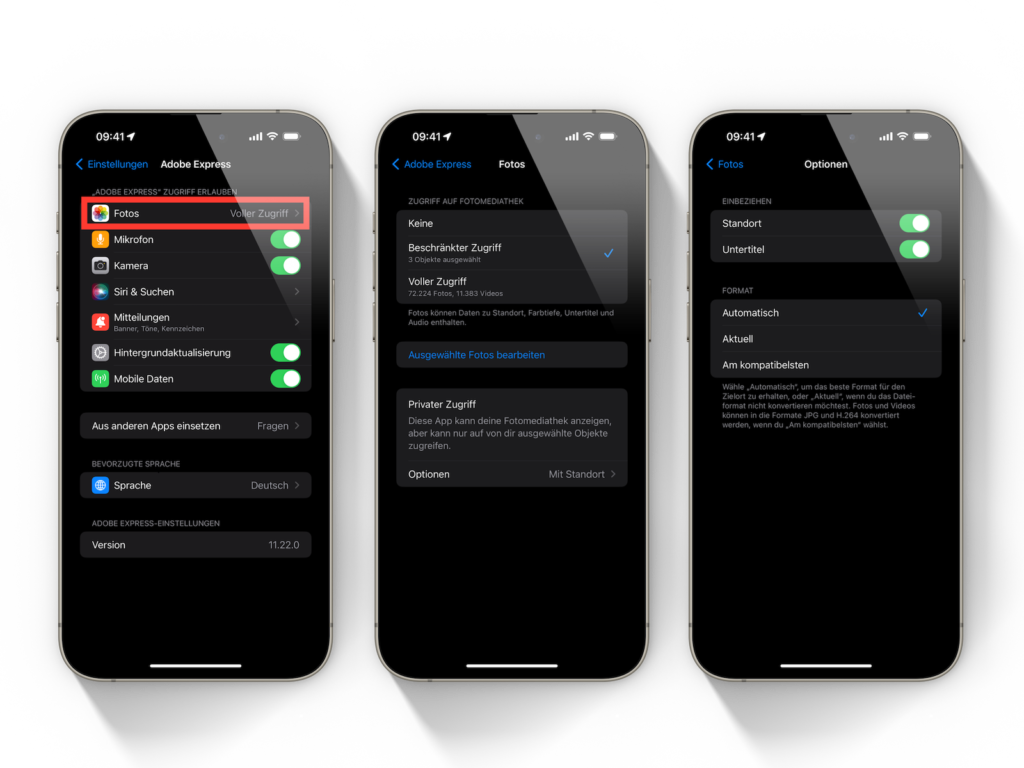
iOS 17 settings for app access to iPhone Photos library
Image: Apfelpatient

Conclusion

With iOS 17, Apple is putting a strong focus on data protection and privacy. The ability to restrict apps' access to the iPhone Photos app is an important addition that allows users to keep control of their personal data. By following the steps above, you can ensure that your photos and videos are only used by the apps you trust. iOS 17 brings us one step closer to safer and more privacy-friendly smartphone use. Are you looking for new accessories? Then take a look in our Amazon Storefront - there you will find numerous products from leading providers, also for HomeKit and Co.! (Photo by Unsplash / Sophia Stark)


  • iOS 17 NameDrop: Easy sharing of contact information
Make Apfelpatient a preferred source One click – and you'll see us more often on Google
Was this article helpful?
YesNo
Tags: iOSiOS 17iPadOSiPadOS 17
SendShareSend
Share

Our Amazon Storefront

A handpicked selection of products for iPhone, Mac and more – sorted by topic and updated regularly.

Shop Now

This post contains affiliate links (including Amazon). We earn a small commission on qualifying purchases – at no extra cost to you. Learn more on our Partner Program page.

Previous Post

Speculations about Apple Event: Will autumn remain silent?

Next Post

iOS 17.1 & Co.: Apple releases second beta

Milan Jovicic

Milan Jovicic

Milan founded Apfelpatient in 2016 and has been responsible for all editorial content since 2018 — news, rumors, guides, and product reviews. Apple devices here are not test units on loan for two weeks but everyday tools: from the iPhone through MacBook Pro, MacBook Air, and iMac to the Apple Vision Pro, at least one device from nearly every product category is in daily use, many of them replaced annually. Every menu path in a guide is verified on the device before it is published.

Drawn outline of the folded iPhone Ultra with square corners on the hinge side and rounded corners opposite, matching the leaked iPhone Ultra screen protectors

iPhone Ultra: Screen protectors reveal the camera position

August 12, 2026 - 3:58 PM CEST
Glass panel set into the aluminium frame on the back of an iPhone 17 Pro Max in Cosmic Orange, whereas the iPhone 20 glass design is said to wrap the glass around the edges

iPhone 20: Glass design is not supposed to be scrapped after all

August 12, 2026 - 2:50 PM CEST
Jennifer Bailey on stage at an Apple event in front of a projected Apple Card, the Apple Pay chief is leaving the company in October

Apple Pay: Jennifer Bailey is leaving Apple in October

August 12, 2026 - 2:31 PM CEST

About APFELPATIENT

APFELPATIENT brings you the latest Apple news, product updates, guides, reviews and tips across the entire Apple ecosystem — from the iPhone to the Mac to the Apple Vision Pro. From the first rumors to confirmed news: researched responsibly.

Follow Apfelpatient

Facebook Instagram YouTube Threads Threads

Company

  • About Apfelpatient
  • Contact
  • Author Profiles

Community

  • Netiquette
  • Push Notifications
  • RSS feed

Legal

  • Legal Notice
  • Privacy Policy
  • Terms of Use
  • Cookie Settings
  • Affiliate Program

Resources

  • Sitemap

© 2026 Apfelpatient. All rights reserved.

No Result
View All Result
  • Home
  • News
  • Rumors
  • Tips & Tricks
  • Reviews
  • Insights

© 2026 Apfelpatient. All rights reserved. Page Directory

Change language to Deutsch


