

apple patient
  • Home
  • News
  • Rumors
  • Tips & Tricks
  • Reviews
  • Insights
No Result
View All Result
  • iPhone 18
  • iOS 27
  • iPadOS 27
  • macOS
  • MacBook Neo
  • iPhone 17e
  • AirTags
  • iOS 26
  • iPhone 17
  • MacBook Pro
  • iPadOS
  • iMac
  • Mac mini
  • HomePod
  • Apple TV
  • iPad Pro
  • iPhone Air
  • Apple Vision Pro
  • iPhone 16
  • AirPods 4
  • Apple Watch Ultra
  • HomePod Mini
  • MacBook Air
  • iPad
  • AirPods Max
  • AirPods Pro 3
  • Apple Watch Series 3
  • Mac Studio
  • Studio Display
  • iPad Air
  • iPad mini
  • watchOS 27
  • Apple CarPlay
  • Apple Pay
  • watchOS 26
  • Home
  • News
  • Rumors
  • Tips & Tricks
  • Reviews
  • Insights
No Result
View All Result
apple patient
No Result
View All Result

iOS 17 Standby Mode: Customize and Enjoy – Here's How

Milan Jovicic by Milan Jovicic
9. August 2023 - 19:38 CEST
in Apple Tips & Tricks
0
iOS 17 iPadOS 17 Public Beta

Image: Apple

WhatsAppFacebookEmail
Threads

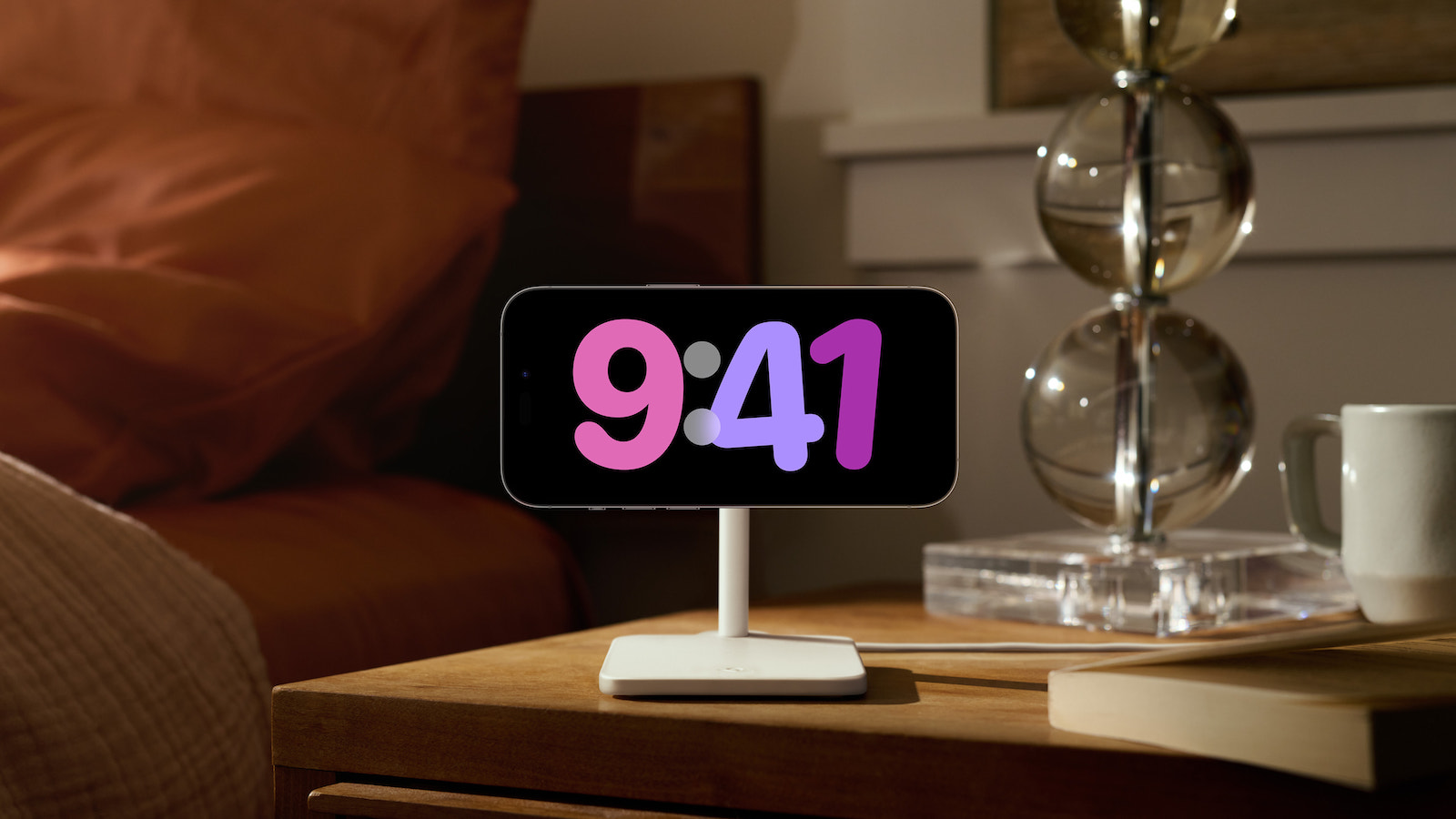
With iOS 17, Apple introduces a fascinating new feature - Smart Display mode for the iPhone in landscape orientation when it is charging. This standby mode turns the smartphone into a mini smart display that shows information and widgets. Below you will learn how to use the iOS 17 iPhone standby display and customize it to your preferences.

The release of iOS 17 brings with it many exciting new features and improvements. In addition to updates to messages, FaceTime and phone functions, the iPhone's standby mode is particularly notable. It opens up a variety of possibilities for using your iPhone as a useful mini display while it is charging. Find out now how you can make the most of this function and adapt it to your needs.

iOS 17 iPhone Standby: How to Use and Customize It

Installation and activation of standby mode

To use Standby mode, make sure you have iOS 17 installed and place your iPhone in landscape mode on an upright charger. Note that the mode only works with certain chargers and your screen must be locked. On the iPhone 14 Pro/Pro Max with Always-On, the Standby screen is always displayed.

Basic functions and adjustments

Once activated, Standby mode automatically displays the default view with an analog clock and a calendar widget. You can add or remove widgets by pressing and holding either area. You can also switch views by swiping from right to left and customize other standby views by pressing and holding them.

Important functions and settings

The iOS 17 iPhone standby supports live activity, Siri, incoming calls and important notifications. It also remembers your "favorite view" and dims it for the night. You can adjust the standby settings under Settings > StandBy to design the mini smart display according to your preferences.

Conclusion

The Smart Display mode of iOS 17 allows you to use your iPhone as a practical mini display while charging. With a wide range of customization options and useful functions, standby mode offers an exciting new experience for iPhone users. Discover the world of iOS 17 iPhone Standby and customize it to your liking to get the most out of your iPhone experience. Are you looking for new accessories? Then take a look in our Amazon Storefront - there you will find numerous products from leading providers, also for HomeKit and Co.! (Image: Apple)


  • iOS 17 Trick: Automatically delete verification codes
Make Apfelpatient a preferred source One click – and you'll see us more often on Google
Was this article helpful?
YesNo
Tags: iOSiOS 17iPhone
SendShareSend
Share

Our Amazon Storefront

A handpicked selection of products for iPhone, Mac and more – sorted by topic and updated regularly.

Shop Now

This post contains affiliate links (including Amazon). We earn a small commission on qualifying purchases – at no extra cost to you. Learn more on our Partner Program page.

Previous Post

Optimizations in sight: The highlights of iOS 17 Beta 5

Next Post

Do you need a VPN? The truth about online security

Milan Jovicic

Milan Jovicic

Milan founded Apfelpatient in 2016 and has been responsible for all editorial content since 2018 — news, rumors, guides, and product reviews. Apple devices here are not test units on loan for two weeks but everyday tools: from the iPhone through MacBook Pro, MacBook Air, and iMac to the Apple Vision Pro, at least one device from nearly every product category is in daily use, many of them replaced annually. Every menu path in a guide is verified on the device before it is published.

Key art for the Apple TV series Pluribus showing a screaming woman against a yellow background, with Pluribus season 2 about to begin filming

Pluribus: Gilligan plans at least three seasons

August 12, 2026 - 8:27 PM CEST
The iPhone 17 lineup in five colors seen from the back, whose successor is expected to adopt the smaller iPhone 18 Dynamic Island from the Pro models

iPhone 18: Smaller Dynamic Island already in the base model

August 12, 2026 - 8:13 PM CEST
Drawn outline of the folded iPhone Ultra with square corners on the hinge side and rounded corners opposite, matching the leaked iPhone Ultra screen protectors

iPhone Ultra: Screen protectors reveal the camera position

August 12, 2026 - 3:58 PM CEST

About APFELPATIENT

APFELPATIENT brings you the latest Apple news, product updates, guides, reviews and tips across the entire Apple ecosystem — from the iPhone to the Mac to the Apple Vision Pro. From the first rumors to confirmed news: researched responsibly.

Follow Apfelpatient

Facebook Instagram YouTube Threads Threads

Company

  • About Apfelpatient
  • Contact
  • Author Profiles

Community

  • Netiquette
  • Push Notifications
  • RSS feed

Legal

  • Legal Notice
  • Privacy Policy
  • Terms of Use
  • Cookie Settings
  • Affiliate Program

Resources

  • Sitemap

© 2026 Apfelpatient. All rights reserved.

No Result
View All Result
  • Home
  • News
  • Rumors
  • Tips & Tricks
  • Reviews
  • Insights

© 2026 Apfelpatient. All rights reserved. Page Directory

Change language to Deutsch


