

apple patient
  • Home
  • News
  • Rumors
  • Tips & Tricks
  • Reviews
  • Insights
No Result
View All Result
  • iPhone 18
  • iOS 27
  • iPadOS 27
  • macOS
  • MacBook Neo
  • iPhone 17e
  • AirTags
  • iOS 26
  • iPhone 17
  • MacBook Pro
  • iPadOS
  • iMac
  • Mac mini
  • HomePod
  • Apple TV
  • iPad Pro
  • iPhone Air
  • Apple Vision Pro
  • iPhone 16
  • AirPods 4
  • Apple Watch Ultra
  • HomePod Mini
  • MacBook Air
  • iPad
  • AirPods Max
  • AirPods Pro 3
  • Apple Watch Series 3
  • Mac Studio
  • Studio Display
  • iPad Air
  • iPad mini
  • watchOS 27
  • Apple CarPlay
  • Apple Pay
  • watchOS 26
  • Home
  • News
  • Rumors
  • Tips & Tricks
  • Reviews
  • Insights
No Result
View All Result
apple patient
No Result
View All Result

iOS 16: How to customize the iPhone lock screen

Milan Jovicic by Milan Jovicic
September 2, 2022 - 5:30 p.m. CEST
in Apple Tips & Tricks
0
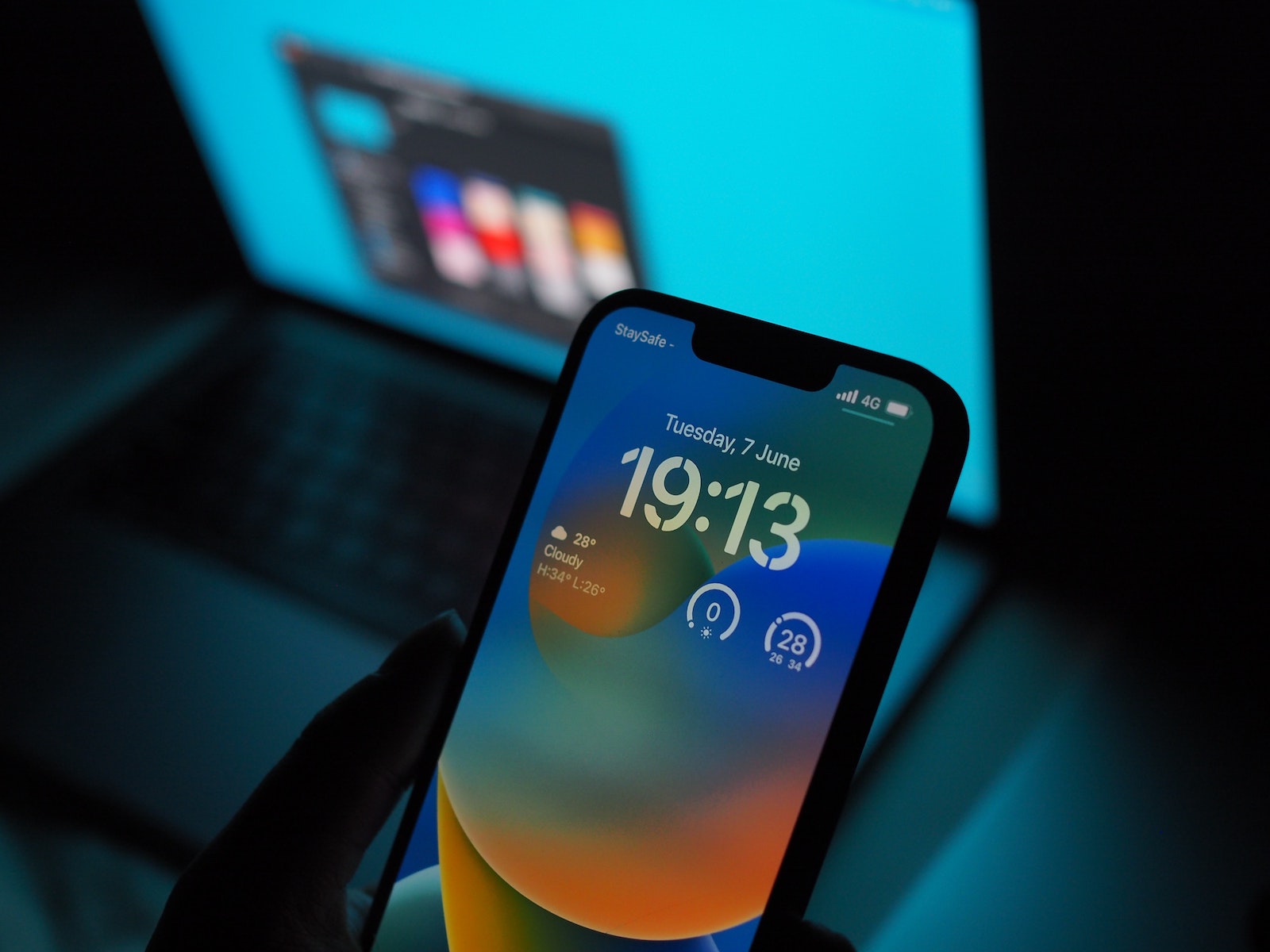
Customize iOS 16 iPhone lock screen

Photo by Unsplash / Penfer

WhatsAppFacebookEmail
Threads

With iOS 16, Apple has completely redesigned the iPhone's lock screen. It is more customizable than ever and can display information-rich widgets. Below I'll show you how to personalize your iPhone's lock screen in iOS 16.

In iOS 16, you can customize the lock screen with unique fonts, colors, and for the first time, widgets. To get started, just unlock your iPhone with Face ID or Touch ID, then long-press the lock screen to open the Lock Screen Gallery.

The Lock Screen Gallery

If you have an Apple Watch, the interface will look familiar, as it's similar to the way you customize your watch face. The lock screens here are categorized as Collections (Apple's default lock screens), Photos, and Colors. You can swipe left and right to select a different lock screen, then long-press on one to set it. Alternatively, you can tap Customize to personalize the currently selected lock screen, or tap the blue + button to create a completely new one. Here, we'll focus on customizing an existing lock screen.

iOS 16: Customize your lock screen

When you tap Customize, an interactive view of your lock screen will appear with different options available to you depending on the type of lock screen you have. If you're customizing a "color" lock screen, you can tap the colored circle on the left to change the color and hue. You can swipe left and right to apply different styles to the image.
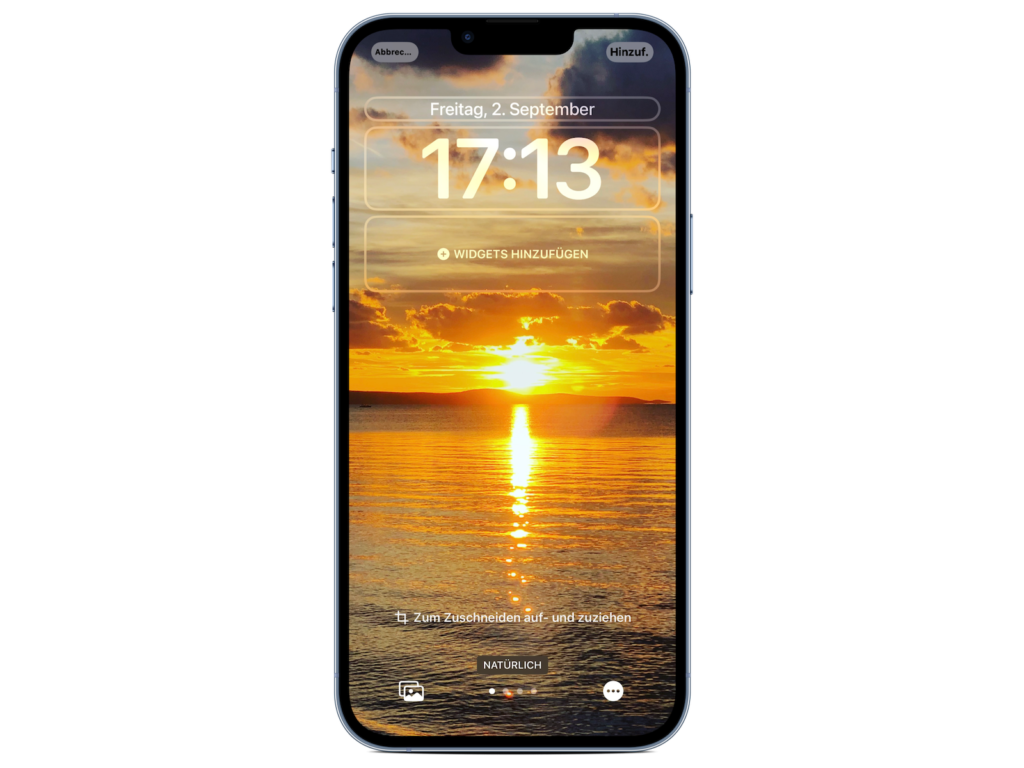
Customize iPhone lock screen in iOS 16 and add widgets
Image: Apfelpatient

If you're customizing a "photo" lock screen, the bottom options let you choose a different image (or selection of images if it's a shuffle wallpaper) from your photo library, set a filter, and enable or disable the perspective zoom/depth effect. Note that the filters you can select by swiping left and right are automatically generated for the chosen image, so you'll see different options here depending on whether it's a depth photo or a color wallpaper. (If it's a photo, remember that choosing different filters can also use different font styles for the time and date.) If you're customizing a lock screen from Apple's "Collections," the options at the bottom of the screen are more limited.
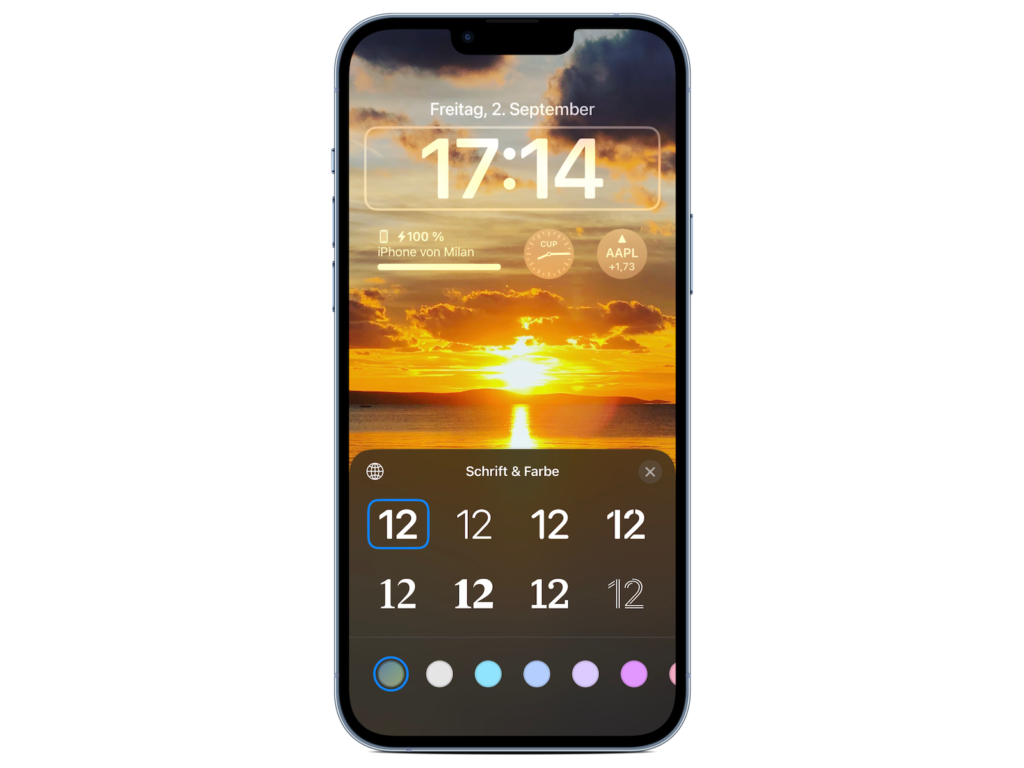
Personalize the iOS 16 lock screen time
Image: Apfelpatient

At the top, you'll see a frame surrounding the time and date, and a blank space below the time. The frame in the middle indicates that you can tap it to edit the style of the time, while the frames above and below it can be tapped to add optional widgets. Widgets you can add above the time include a different time zone, a set alarm, the next calendar event, a weather condition, your activity rings, the next reminder, and a selected stock. The widgets that can be placed below the time are more information-rich and include the device's battery level, calendar, clock, fitness, home, messages, reminders, stocks, and weather.
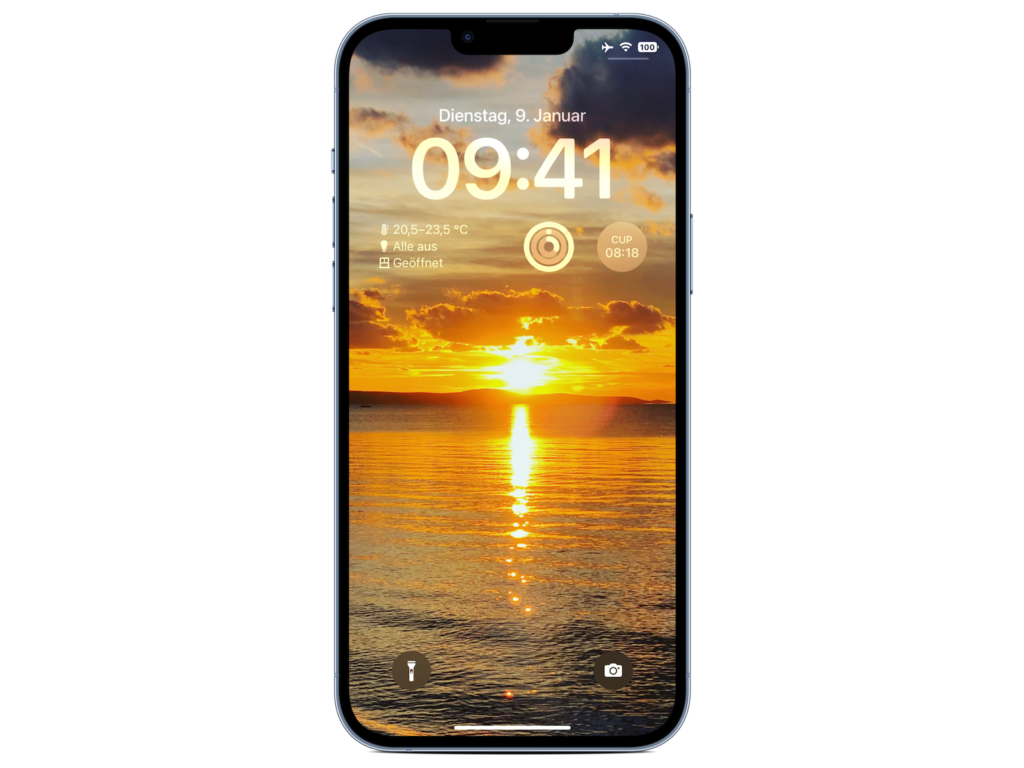
How to change the iPhone lock screen wallpaper and add widgets in iOS 16
Image: Apfelpatient

When you're finished customizing your lock screen, simply tap "Done" and then tap the screen again to exit the lock screen gallery. You can also customize the current lock screen by going to Settings -> Wallpapers & Lock Screens. Looking for new accessories? Then check out... in our Amazon Storefront - there you will find numerous products from leading providers, also for HomeKit and Co.! (Photo by Unsplash / Penfer)


  • iOS 16: How to remove the search bar on the home screen
Make Apfelpatient a preferred source One click – and you'll see us more often on Google
Was this article helpful?
YesNo
Tags: iOSiOS 16iPhone
SendShareSend
Share

Our Amazon Storefront

A handpicked selection of products for iPhone, Mac and more – sorted by topic and updated regularly.

Shop Now

This post contains affiliate links (including Amazon). We earn a small commission on qualifying purchases – at no extra cost to you. Learn more on our Partner Program page.

Previous Post

iPhone & Co.: EU calls for further improvements in batteries & more

Next Post

iPhone 14 Pro: New images show always-on display

Milan Jovicic

Milan Jovicic

Milan founded Apfelpatient in 2016 and has been responsible for all editorial content since 2018 — news, rumors, guides, and product reviews. Apple devices here are not test units on loan for two weeks but everyday tools: from the iPhone through MacBook Pro, MacBook Air, and iMac to the Apple Vision Pro, at least one device from nearly every product category is in daily use, many of them replaced annually. Every menu path in a guide is verified on the device before it is published.

Drawn outline of the folded iPhone Ultra with square corners on the hinge side and rounded corners opposite, matching the leaked iPhone Ultra screen protectors

iPhone Ultra: Screen protectors reveal the camera position

August 12, 2026 - 3:58 PM CEST
Glass panel set into the aluminium frame on the back of an iPhone 17 Pro Max in Cosmic Orange, whereas the iPhone 20 glass design is said to wrap the glass around the edges

iPhone 20: Glass design is not supposed to be scrapped after all

August 12, 2026 - 2:50 PM CEST
Jennifer Bailey on stage at an Apple event in front of a projected Apple Card, the Apple Pay chief is leaving the company in October

Apple Pay: Jennifer Bailey is leaving Apple in October

August 12, 2026 - 2:31 PM CEST

About APFELPATIENT

APFELPATIENT brings you the latest Apple news, product updates, guides, reviews and tips across the entire Apple ecosystem — from the iPhone to the Mac to the Apple Vision Pro. From the first rumors to confirmed news: researched responsibly.

Follow Apfelpatient

Facebook Instagram YouTube Threads Threads

Company

  • About Apfelpatient
  • Contact
  • Author Profiles

Community

  • Netiquette
  • Push Notifications
  • RSS feed

Legal

  • Legal Notice
  • Privacy Policy
  • Terms of Use
  • Cookie Settings
  • Affiliate Program

Resources

  • Sitemap

© 2026 Apfelpatient. All rights reserved.

No Result
View All Result
  • Home
  • News
  • Rumors
  • Tips & Tricks
  • Reviews
  • Insights

© 2026 Apfelpatient. All rights reserved. Page Directory

Change language to Deutsch


