

apple patient
  • Home
  • News
  • Rumors
  • Tips & Tricks
  • Reviews
  • Insights
No Result
View All Result
  • iPhone 18
  • iOS 27
  • iPadOS 27
  • macOS
  • MacBook Neo
  • iPhone 17e
  • AirTags
  • iOS 26
  • iPhone 17
  • MacBook Pro
  • iPadOS
  • iMac
  • Mac mini
  • HomePod
  • Apple TV
  • iPad Pro
  • iPhone Air
  • Apple Vision Pro
  • iPhone 16
  • AirPods 4
  • Apple Watch Ultra
  • HomePod Mini
  • MacBook Air
  • iPad
  • AirPods Max
  • AirPods Pro 3
  • Apple Watch Series 3
  • Mac Studio
  • Studio Display
  • iPad Air
  • iPad mini
  • watchOS 27
  • Apple CarPlay
  • Apple Pay
  • watchOS 26
  • Home
  • News
  • Rumors
  • Tips & Tricks
  • Reviews
  • Insights
No Result
View All Result
apple patient
No Result
View All Result

iOS 13 – How to manage the data limit for downloads on mobile on iPhone & iPad

Milan Jovicic by Milan Jovicic
2. October 2019 - 09:36 CEST
in Apple Tips & Tricks
0
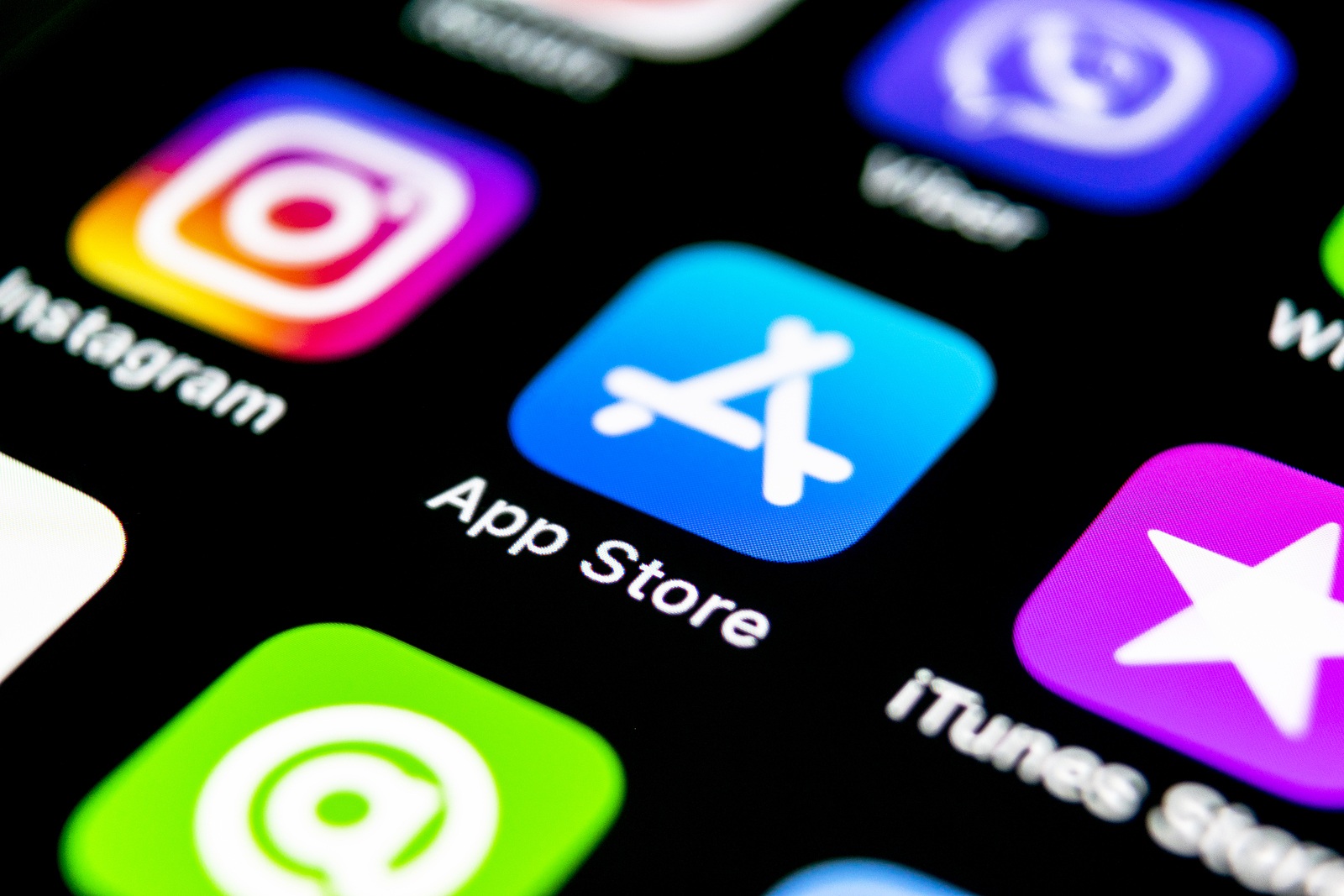
Saint-Petersburg, Russia, September 30, 2018: Apple store application icon on Apple iPhone X smartphone screen close-up. Mobile application icon of app store. Social networks. AppStore

Saint-Petersburg, Russia, September 30, 2018: Apple store application icon on Apple iPhone X smartphone screen close-up. Mobile application icon of app store. Social networks. AppStore

WhatsAppFacebookEmail
Threads

The data limit for downloads on mobile networks has been a big issue among iPhone and iPad owners for years. With iOS 13 and iPadOS, this is now over. We'll explain how to manage the new feature.

The data limit for downloads from the mobile network was only increased from 150 MB to 200 MB in the summer - not enough, as many users found. The desire for more became louder and louder - finally Cupertino fulfilled the users' needs. In iOS 13, Apple warns users when they try to start a large download on the mobile network - but they are allowed to exceed the specified limit of 200 MB. The limit was therefore completely removed in iOS 13 and replaced by a warning message. The feature was successfully tested in the summer during the beta phase - the hype about it was correspondingly high.

How to adjust the data limit for downloads in mobile networks on iPhone & iPad

Under iOS 13 & iPadOS, the system now displays a message indicating that the app size is slightly higher and shows the exact file size. Here, the user can now decide whether to continue the download or wait for a WiFi connection. The whole thing can even be customized. There is a new area in the settings under iTunes & App Store called “App Downloads”. The default option is “Ask if over 200 MB” and displays the warning accordingly. Alternatively, the user has two other setting options available – “Always allow” and “Always ask”. (iOS 13 – How to use data saving mode on iPhone & iPad)

An exception applies abroad

In "Always ask" mode, the user is always asked to confirm the download of a mobile app. At the other end of the spectrum, selecting "Always allow" removes all barriers and means that the system can easily complete downloads from the mobile network without interruptions - this is ideal especially for users with unlimited data. But there is one exception: separate approval is only ever required when the iPhone / iPad or the user is abroad. (Photo by bigtunaonline / Bigstockphoto)

  • iOS 13 Audio Sharing – How to activate the feature on your iPhone, iPad or iPod touch

Make Apfelpatient a preferred source One click – and you'll see us more often on Google
Was this article helpful?
YesNo
Tags: iOSiOS 13iOS 13.1iPadOS
SendShare32Send
Share

Our Amazon Storefront

A handpicked selection of products for iPhone, Mac and more – sorted by topic and updated regularly.

Shop Now

This post contains affiliate links (including Amazon). We earn a small commission on qualifying purchases – at no extra cost to you. Learn more on our Partner Program page.

Previous Post

Keynote – When could the next Apple event take place?

Next Post

Beta – Apple releases iOS 13.2, watchOS 6.1 and more

Milan Jovicic

Milan Jovicic

Milan founded Apfelpatient in 2016 and has been responsible for all editorial content since 2018 — news, rumors, guides, and product reviews. Apple devices here are not test units on loan for two weeks but everyday tools: from the iPhone through MacBook Pro, MacBook Air, and iMac to the Apple Vision Pro, at least one device from nearly every product category is in daily use, many of them replaced annually. Every menu path in a guide is verified on the device before it is published.

Symbolic image for Apple government affairs: the glass entrance cube of the Apple Store on Fifth Avenue in New York at dusk

Apple hires new head of government relations

August 12, 2026 - 8:44 PM CEST
Key art for the Apple TV series Pluribus showing a screaming woman against a yellow background, with Pluribus season 2 about to begin filming

Pluribus: Gilligan plans at least three seasons

August 12, 2026 - 8:27 PM CEST
The iPhone 17 lineup in five colors seen from the back, whose successor is expected to adopt the smaller iPhone 18 Dynamic Island from the Pro models

iPhone 18: Smaller Dynamic Island already in the base model

August 12, 2026 - 8:13 PM CEST

About APFELPATIENT

APFELPATIENT brings you the latest Apple news, product updates, guides, reviews and tips across the entire Apple ecosystem — from the iPhone to the Mac to the Apple Vision Pro. From the first rumors to confirmed news: researched responsibly.

Follow Apfelpatient

Facebook Instagram YouTube Threads Threads

Company

  • About Apfelpatient
  • Contact
  • Author Profiles

Community

  • Netiquette
  • Push Notifications
  • RSS feed

Legal

  • Legal Notice
  • Privacy Policy
  • Terms of Use
  • Cookie Settings
  • Affiliate Program

Resources

  • Sitemap

© 2026 Apfelpatient. All rights reserved.

No Result
View All Result
  • Home
  • News
  • Rumors
  • Tips & Tricks
  • Reviews
  • Insights

© 2026 Apfelpatient. All rights reserved. Page Directory

Change language to Deutsch



