

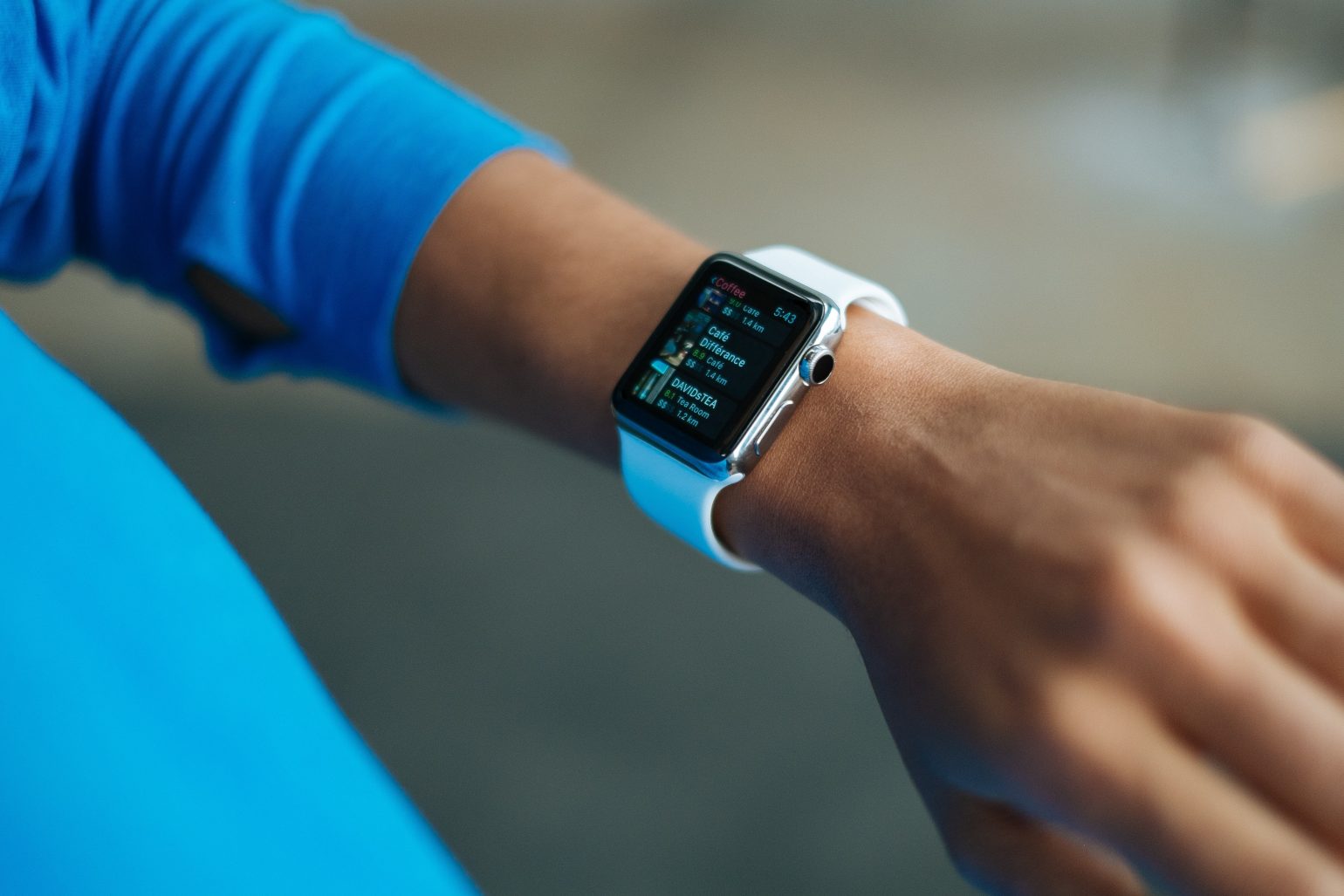
The Apple Watch is more popular than ever – after a somewhat bumpy start, Apple’s smartwatch has convinced even the biggest skeptics among us. We recently told you extensively about VoiceOver for iPhone, iPad and iPod touch reported. Now we would like to take a closer look at VoiceOver for watchOS in this article. We will explain how you can set up and customize Apple's accessibility features on your Apple Watch.
This time too, if you only have limited technical knowledge, that's not a problem. We'll try to make getting started with VoiceOver for Apple Watch as easy as possible. But first, we should explain the function and the idea behind it again.
What is VoiceOver?
VoiceOver is a screen reader that allows blind or visually impaired people to operate an Apple product using gestures and voice input. The feature is integrated into the iPhone, iPad, iPod touch and Apple Watch, among others. The feature is also available for Mac computers, but this article is focused on learning VoiceOver for Apple Watch. VoiceOver was first introduced on the iPod Shuffle and iPhone 3GS in 2009 and has been included in every Apple product since then - with the exception of the iPod classic and iPod nano. The feature is free and does not require any additional downloads.
How to enable VoiceOver on your Apple Watch
Apple's gesture-based screen reader uses the Apple Watch's speaker—it's built into watchOS and also available in around 35 languages. To activate this useful feature, you first need to open the Apple Watch app on your iPhone. Then navigate to the "General" menu item and tap "Accessibility." A series of settings will now appear. Here, click "Turn On VoiceOver." You should now hear your Apple Watch speak for the first time.
Adjusting the voice – The voice in VoiceOver for Apple Watch can of course be customized to the user's needs, just like in iOS. Here are the settings that are available for customization:
Speech Rate - The speech rate can be increased or decreased by moving the slider. It can be increased by moving the slider to the right and decreased by moving the slider to the left. The default speech rate is 50% - but most people prefer 75%.
Voice - The default voice used in Germany is Anna. However, unlike iOS, users cannot choose between different male and female voices and different languages or accents. The language that is already stored in the settings is used automatically.
Common gestures
The gestures used for VoiceOver are similar to those used by VoiceOver on iPhone, iPad, and iPod touch, with a few differences. Here is a list of the most commonly used gestures:
Single tap: selects an app or other item on the screen. VoiceOver identifies what it is and tells the user what it is.
Double tap: select an app or other item on the screen to open it.
Swipe with two fingers to scroll.
How to enable and use “Tap Time” in VoiceOver for Apple Watch
Using the "Tap Time" feature allows you to tell the time via vibration. This is useful, for example, in situations where you're not alone and want to avoid a voice announcement. However, people with hearing impairments can also benefit from the feature in certain cases – Apple promotes the feature under the motto "Feel what's going on." To activate the feature, VoiceOver must of course be turned on. The VoiceOver section takes you directly to the "Tap Time" settings menu. Once you've enabled the feature, the Apple Watch will tell you the time via vibration. Double-tapping lets you feel the hours and minutes.
A triple tap simply tells you the minutes. You can also choose between three other Taptik styles. These are called Numbers, Short, or Morse Code. If you select the "Numbers" style, you will feel a long tap every ten hours, and each subsequent hour will be marked with a short tap. You can trigger this with a double tap while the watch is in standby mode. The "Short" Taptik style marks every fifth hour with a long tap and all other hours with a short tap. You can also trigger this command by double tapping in standby mode. Last but not least, there is the "Morse Code" style. If you double tap the screen of your Apple Watch in standby mode, Apple's smartwatch will mark digit by digit in Morse code. All three options can be tested in a "preview."
How to activate the screen curtain under VoiceOver for the Apple Watch
The screen curtain turns off the display on the screen - this function can be used on any Apple device under VoiceOver. The Apple Watch can be operated as usual but the screen remains dark. Power consumption can be significantly reduced on all devices with this function and thus the battery life of the device is also extended. If you have problems with the battery of your Apple Watch, the following article could help you. extend the battery life of your Apple WatchTo enable the Screen Shade, you first need to open the Apple Watch app on your iPhone. Then, open the "General" section and navigate to "Accessibility." You can now turn the Screen Shade on or off using the VoiceOver button.
Apple Watch straps
Are you looking for something new for your Apple Watch? Here we present a few interesting bracelets. In addition to the original Apple Watch bracelets from Apple, there are of course dozens of third-party suppliers. A very popular and high-quality provider is Bluestein – the Apple Watch bracelets impress with a great design at a reasonable price. The range consists of sporty as well as more elegant bracelets. In addition to Bluestein There are of course many other shops, and it is often worth browsing on Amazon - but it is important to note that not every Apple Watch strap from third-party suppliers is of sufficient quality. Researching or reading reviews of individual products is strongly recommended here, as this is the only way to prevent greater damage. You don't have an Apple Watch yet and would like to buy one? Perhaps we can help you decide between an Apple Watch GPS or GPS+Cellular model. Here you can find out the differences and their advantages.





