

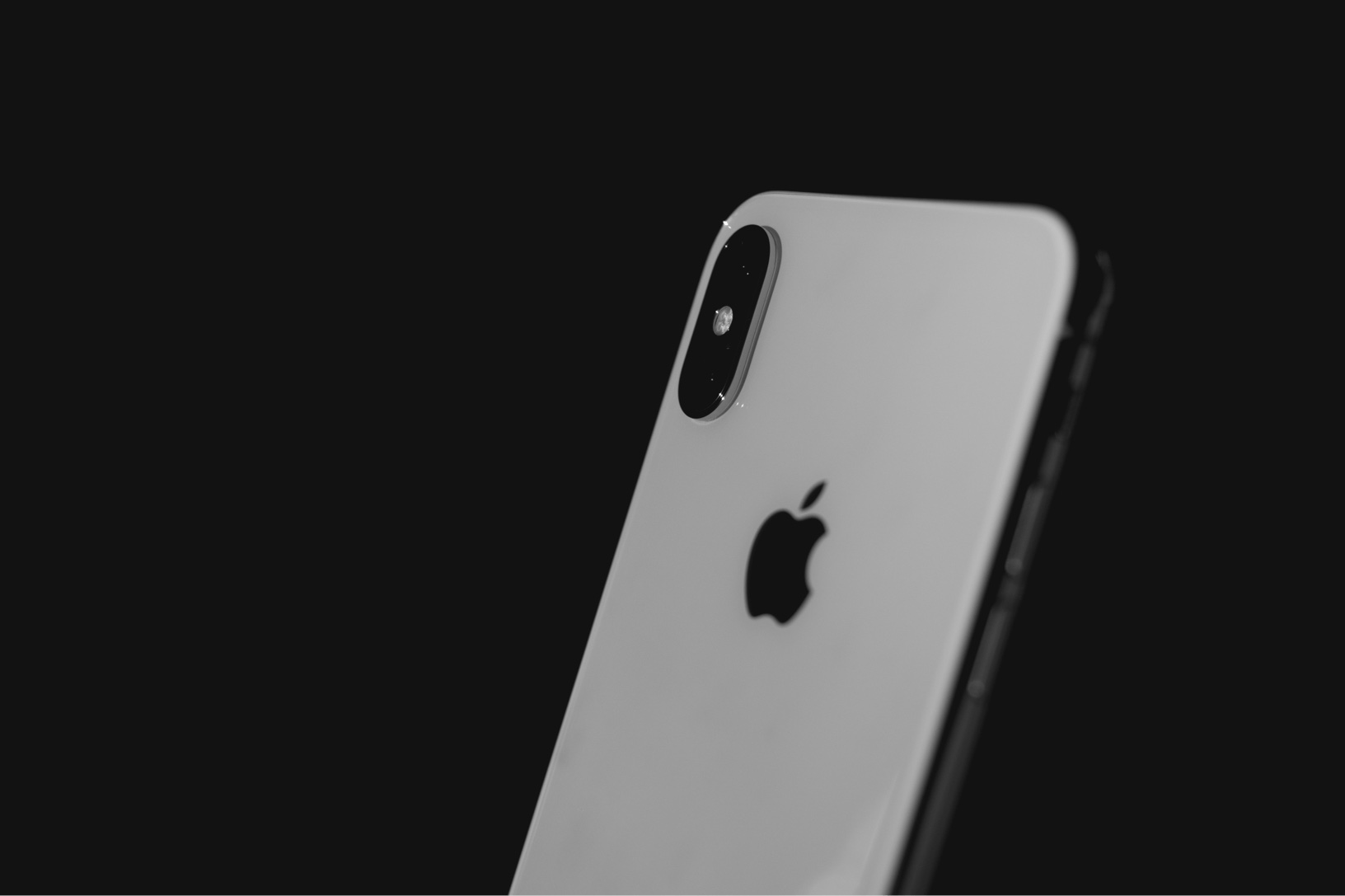
If your iPhone's battery suddenly dies earlier than it should, there could be a number of reasons for this. Identifying the cause of a shorter iPhone battery life is not always easy - but it is still possible. There are basically two possible causes: either a certain process is responsible or it is a serious problem - here are a few solutions.
The iPhone has become an important part of many people's lives and is indispensable. The biggest problem is often the battery life. It doesn't matter whether you restore your iPhone from a backup or just update it to the latest iOS version - both processes increase the battery consumption on your iPhone in the short term. If an iPhone is restored from a backup, the device has to download all applications such as games, emails, photos and other content. This process can take longer depending on the amount of data. In addition, some apps have to restore their own library or database. The iPhone processor is particularly stressed in such a case, which of course uses a lot of energy - so the power consumption can be considerable until the device is fully restored.
It's similar when you update iOS on your iPhone - the system has to fully process the update. You should give the iPhone about a day to process everything. Usually, the battery consumption will level off after that. If this is the case, then everything is fine and you can stop reading here - but if the battery continues to drain quickly, I recommend you read on. In addition to the system's work, we users also have a big influence on the battery consumption of our devices. When the iPhone is new, we tend to sit on the device for longer and try everything out. iPhones in the X series offer particularly great features - Animojis and portrait pictures are just a small part of them.
iPhone battery under scrutiny
Augmented reality (AR) applications can also attract a lot of attention – intensive use leads to higher battery consumption. Processes in the background can also strain your iPhone’s battery. If you still feel that the battery is running out quickly, then you need to filter out the problem. Make a note of the exact battery level and put the iPhone aside for about 20-40 minutes. No problem based on the percentage display – this is how the battery percentage is displayed on your iPhone X, XS, XS Max or XROnce you have switched the iPhone back on and the battery indicator in standby mode has dropped slightly, everything is fine. However, if the battery has dropped significantly, we must continue to search for the cause. The first step is to restart the iPhone - this short process can often resolve most errors immediately.
Force restart the iPhone
iPhone X and newer models, iPhone 8 or iPhone 8 Plus:
First, press and release the volume up button. Now press and release the volume down button. Next, press and hold the side button. Do not release the button until the Apple logo appears.
iPhone 7 or iPhone 7 Plus:
- Press and hold the volume down button and the standby button. Do not release both buttons until the Apple logo appears.
iPhone 6 and 6 Plus, iPhone 6s and 6s Plus, iPhone SE and iPhone 5s:
- Press and hold the Standby button and the Home button. Do not release both buttons until the Apple logo appears.
How to check your iPhone's battery usage
iOS includes an excellent utility – also known as Battery Usage. This provides a detailed breakdown of your iPhone's battery consumption. Open the iPhone's Settings and navigate to "Battery" at the bottom. Now wait a moment for the tool to load. Tap the "View Activity" button to see a breakdown of power usage in the foreground and background – it is recommended that you check the last 10 days to get a better overview of battery usage. To do this, click on "Last 10 Days". Reading the activity can be a little difficult the first time. If an app is showing significantly increased values in the background, it is a good idea to close the respective application completely. Deactivating background refresh in individual apps can also be beneficial. To do this, go to the iPhone's Settings, open the "General" section and then navigate to the "Background Refresh" menu item. You can now manage the individual applications as you wish.
Force close an app on iPhone
On the home screen of your iPhone X or newer, swipe up from the bottom of the screen and keep your finger in the middle of the screen. On iPhone 8 or older, press the home button twice to display the most recently used apps. You can now use swipe gestures to access the individual applications - they are all in standby mode. Swipe up on the preview of the respective app to close it. By the way: This step should also be carried out if an app is no longer responding.
How to restore your iPhone
Sometimes restoring your iPhone from an old backup, especially from a backup of another device, can be tricky. If you suspect this is the cause, we recommend setting up your iPhone again. This will, of course, result in some painful data loss, but it can solve the problem—we've had to go this route before, but for a different reason. First, you need to completely erase your iPhone. Open the Settings app and click on General. Then tap on Reset at the very bottom of the list. Now navigate to Erase All Content and Settings and select Erase Now. Once the erase process is complete, you can set up your iPhone again. To do this, tap on Set Up as New Device. If your battery consumption returns to normal, then the backup was indeed the culprit.
How to check the battery status of your iPhone
If the solutions listed above do not help, you may want to consider replacing the battery. With iOS 11.3, Apple has added information about the general battery health of your iPhone. It shows the current maximum capacity and peak performance and also informs you when your iPhone is slowing down and if it needs service. It even allows you to control battery performance management – Here you can find out everything about the battery status of your iPhone.
More battery for your iPhone with additional accessories
Finally, we would like to show you some solutions for increasing battery capacity. Battery capacity can be increased with special iPhone cases. These cases have an integrated battery and are available for all iPhone models. Apple's latest Smart Battery Case even offers new features. It not only extends battery life considerably but also supports wireless charging for the current iPhone line-up. A power bank could also be attractive for some users - Here you can find the currently best power banks for your iPhone and iPad.





