

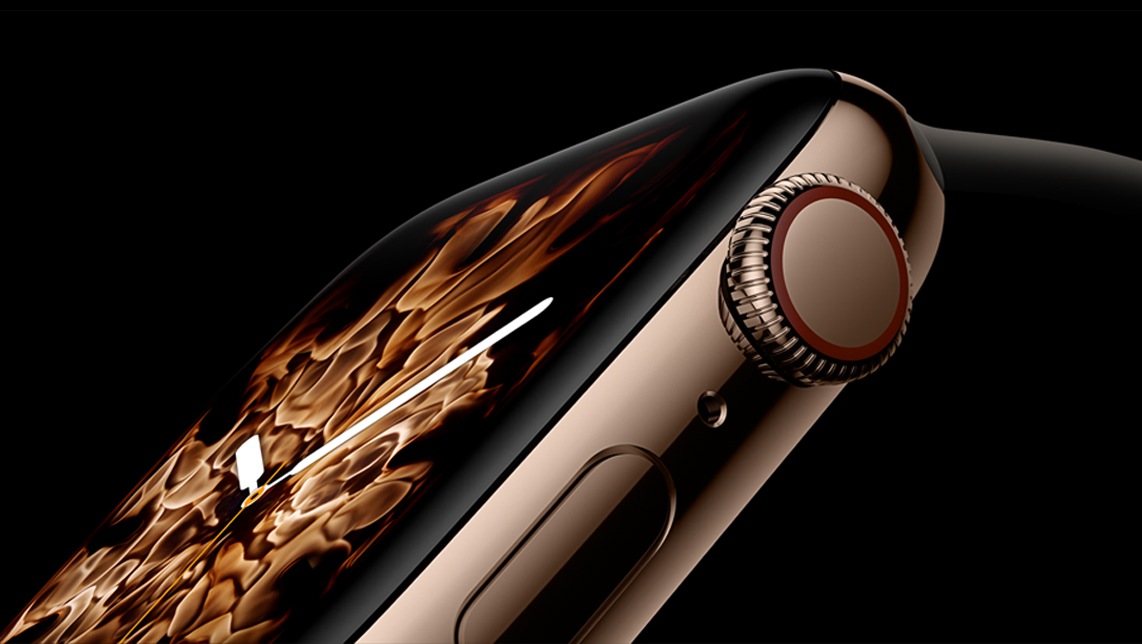
It has long been clear that the Apple Watch is not just a smartwatch. Apple's computer watch is also a fashion accessory. In the Christmas quarter of 2017, Cupertino made more sales with the Apple Watch than the entire Swiss watch industry combined.
It is considered the best-selling watch in the world - even Rolex had to make way. Thanks to the many different straps, the Apple Watch never gets boring. There is also something for everyone. But battery life can often be a problem. This may have improved a lot over the years, but in many cases the Apple Watch still needs to be charged daily. Although software updates also improve the battery performance of the Apple Watch and help you get a little more out of it, you can also optimize consumption yourself. Of all the things that drain the watch's power, the display hits the Apple Watch the hardest by far. If you want to save a lot of battery life, you need to reduce the display's power consumption.
Dials: The agony of choice
Apple's computer watch has an OLED display (Organic Light Emitting Diodes) - the technology consists in each individual pixel of the display being its own light source. The size of the individual pixels enables a much higher resolution, pixel density and thus image quality. A black pixel hardly uses any power compared to an actively used pixel. So if you want to extend the battery life, you cannot use a full-screen dial - such as the white version of the chronograph. Instead, use a small motif with as much black area as possible.
Brightness
Another way to save battery is to reduce the brightness of the display. To do this, tap the crown to switch to the app view, then go to Settings and scroll down - now select brightness and text size. Here you can now adjust the brightness - alternatively, this setting can also be made via the Apple Watch app on the iPhone.
sleep and theater mode
Adjusting the sleep mode can also save power. To do this, go to the Apple Watch app on your iPhone under General and then open the “Wake Display” section. Battery life will be significantly increased if the commands “Wake: On Raise Arm and Wake: Turn Crown Forward” are deactivated. You can also control the length of time the display stays on when you tap to wake the watch. The recommended setting is 15 seconds. If you don't want to mess with these settings, you can simply use Theater Mode. From your watch face, swipe up from the bottom of the display to access Control Center, then scroll down and activate Theater Mode. This essentially turns on silent mode and keeps the display dark – tapping the screen, the crown, or the side button wakes the display.
notifications
You can also significantly improve battery life by reducing the number of notifications you receive. These can be disabled in two ways. If you receive an unimportant notification, swipe over it and tap the menu icon, then tap "Turn Off" on Apple Watch. The second way to disable notifications is through the Apple Watch app on your iPhone. All apps are listed further down under Notifications – here, the user can choose which notifications should be mirrored to the Apple Watch in the future.
Apple Watch Apps and Complications
Many iPhone apps also offer their own app for the Apple Watch. Such apps often consume unnecessary amounts of power because they are constantly synced with the respective iPhone app. It is therefore recommended to delete apps that are not being used. This can be done in the Apple Watch iPhone app under "Installed on Apple Watch." There are various complications that can be stored on a watch face. They all have one thing in common: updating. In order to display new information, the watch face must constantly refresh – this also leads to increased power consumption. Here, too, it is recommended to keep the number of complications small.
Hey Siri
The Apple Watch has the "Hey Siri" feature – a bit of a power hog. When this feature is enabled, Apple's assistant is constantly ready to accept a new command – this "waiting" state also consumes valuable battery life. Therefore, if you're not actively using Siri, you should turn the feature off. You can do this on the Apple Watch in the Settings under General in the Siri section.
Health and Haptics
For example, if you are not particularly interested in your heart rate data when walking or running, you can activate the power saving mode during training. This can be done on the Apple Watch app in the settings under General further down. The calculations for energy consumption may differ as a result, but you will save some battery life in return. Another way to reduce battery life is to reduce the volume of the alarms. The adjustments can be made via the Sounds & Haptics section in the settings. For some users, the haptic feedback is enough as a hint.
Restart and pairing
If, despite all of the tips, you notice unusually high battery consumption on your Apple Watch, there could be another reason for this. Restarting the watch can often help. To restart the Apple Watch, hold down the crown and side button until the Apple logo appears. However, before planning a trip to Apple or an authorized service partner, re-pairing the Apple Watch with your iPhone could help as a last resort. Open the Apple Watch app on your iPhone and tap your watch at the top. Clicking the "i" symbol again opens a new menu. You can now unpair your Apple Watch from the iPhone. Once the process is complete, you can re-pair the device.
power reserve
Finally, we would like to mention the power saving mode. In the power reserve, the time is displayed on the Apple Watch and at the same time the battery life is saved. If the battery of the Apple Watch falls below 10 percent, the watch offers to activate the power saving mode. Of course, the user can activate this at any time beforehand. While this mode is active, the Apple Watch and the iPhone do not communicate with each other - and the user cannot access any other functions. The power reserve can be activated at any time in the control center via the battery percentage display area. To deactivate the feature, hold down the side button until the Apple logo appears.





