apple patient
  • Home
  • News
  • Rumors
  • Tips & Tricks
  • Reviews
  • Insights
No Result
View All Result
  • iPhone 18
  • iOS 27
  • iPadOS 27
  • macOS
  • MacBook Neo
  • iPhone 17e
  • AirTags
  • iOS 26
  • iPhone 17
  • MacBook Pro
  • iPadOS
  • iMac
  • Mac mini
  • HomePod
  • Apple TV
  • iPad Pro
  • iPhone Air
  • Apple Vision Pro
  • iPhone 16
  • AirPods 4
  • Apple Watch Ultra
  • HomePod Mini
  • MacBook Air
  • iPad
  • AirPods Max
  • AirPods Pro 3
  • Apple Watch Series 3
  • Mac Studio
  • Studio Display
  • iPad Air
  • iPad mini
  • watchOS 27
  • Apple CarPlay
  • Apple Pay
  • watchOS 26
  • Home
  • News
  • Rumors
  • Tips & Tricks
  • Reviews
  • Insights
No Result
View All Result
apple patient
No Result
View All Result

iPhone 13: How to use "Photographic Styles"

Milan Jovicic by Milan Jovicic
5. October 2021 - 16:49 CEST
in Apple Tips & Tricks
0
iPhone 13 Photographic Styles

Image: Apple

WhatsAppFacebookEmail
Threads

When Apple announced the new iPhone 13 lineup, it also introduced some new camera features, including Photographic Styles for photos and Cinematic Mode for video recording. Below, we'll take a look at how you can use Photographic Styles.

“Photographic Styles” are a series of subtle filter-like adjustments that you can activate before taking photos. They allow you to add a stylistic effect to your shots that doesn’t affect the skin tone of your subjects. These styles come in four presets + Standard:

  • Standard
  • contrasting
  • Bright
  • Warm
  • and cold.

Luminous captures the image in bright, vibrant yet natural-looking colors while High Contrast creates a more dramatic look that darkens the shadows and enhances color and contrast.
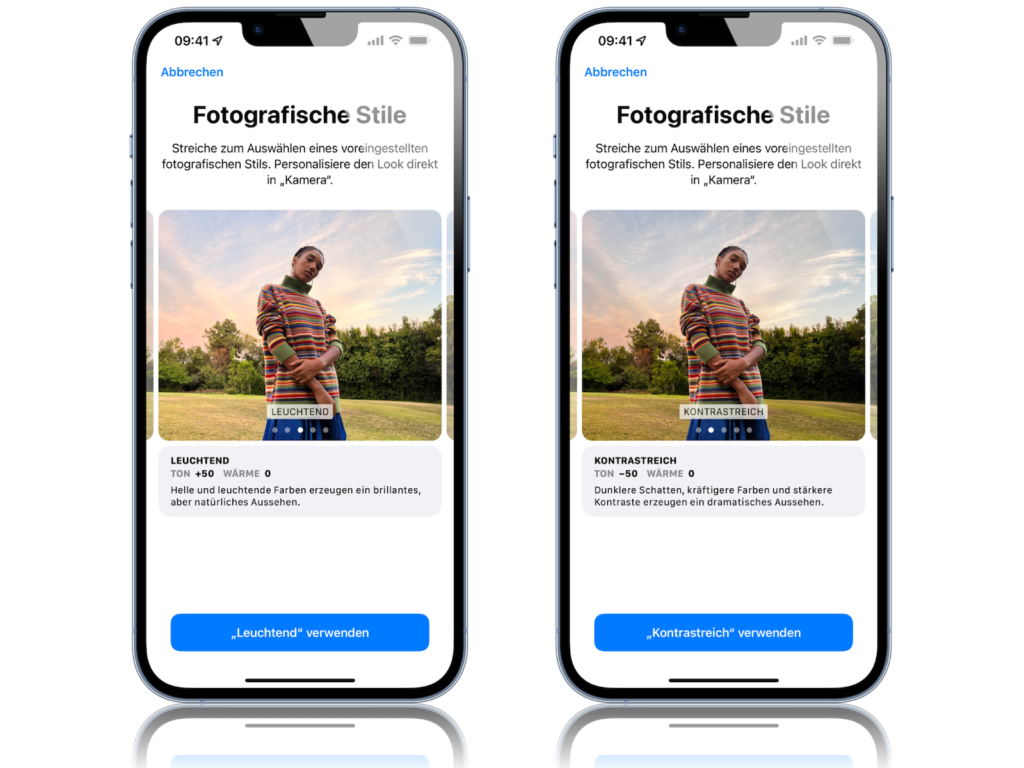
Image: Apfelpatient

Warm, on the other hand, adds a summery golden accent to the motifs. Cold, on the other hand, uses blue tones to achieve the characteristic cool look.
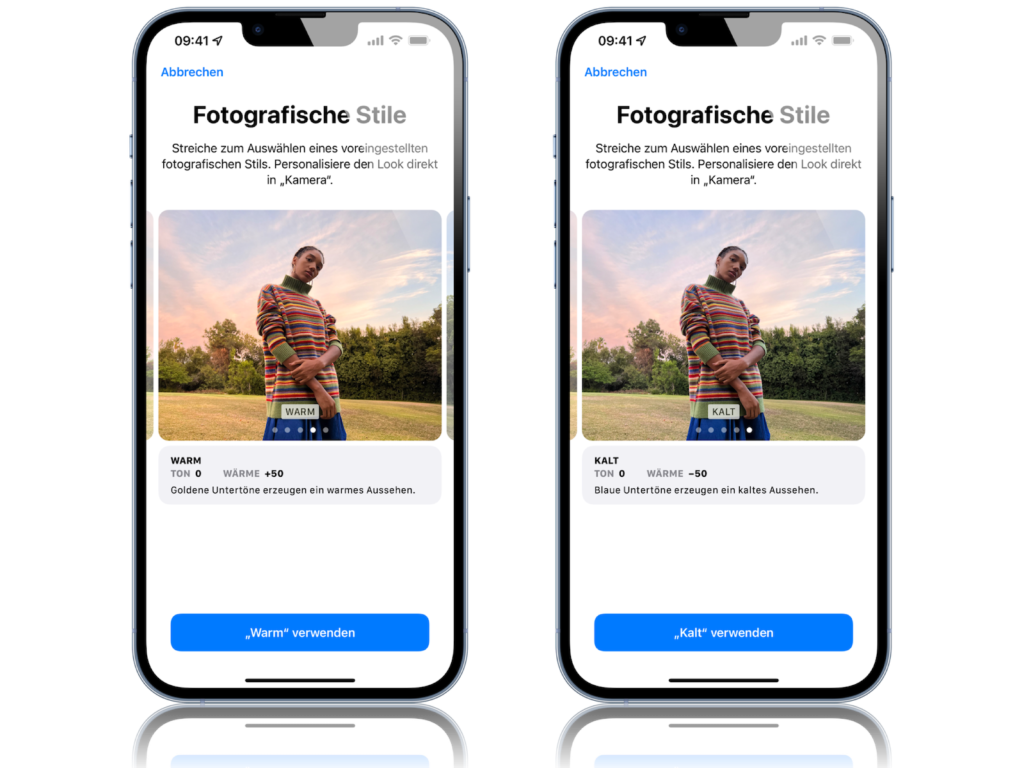
Image: Apfelpatient

These styles work smarter than filters because they capture certain elements of the photo as you take it, rather than changing them in post-production. Additionally, the hue and warmth are customizable for each style, so you can get exactly the look you want. What's more, you can maintain it throughout your photoshoot. Photo styles can also be used with the front camera, so you can bring your selfies to the same level. Please note: These styles cannot be removed from a photo once it's taken.

Use “Photographic Styles” on all iPhone 13 models

Below I will guide you through the process with step-by-step instructions.

  • Launch the Camera app on your iPhone 13.
  • If you've never used Photo Styles before, or you're stuck with Standard mode, swipe up the horizontal menu below the viewfinder to select Photo mode, then swipe up from the bottom of the viewfinder and tap the Photo Styles icon (it looks like three cards in a row).
  • Swipe through the four presets (in addition to the default option). You can preview each preset as it will be applied to the current scene in the viewfinder.
  • Use the optional Hue and Warmth sliders below the viewfinder to adjust the look to your preferences.
  • When you're done, press the shutter button.
  • Now that your style is active, the Photo Style icon will appear in the top right corner of the camera interface. Tap it to change the style at any time.

By default, the photo style you choose will remain active the next time you start the Camera app until you select a different one or return to the default style. You can also change the active photo style via the Settings app. In Settings, tap Camera and navigate to the "Photographic Styles" section. You can make your selection here, have fun with your iPhone 13. Don't have an iPhone 13 yet? Then take a look in our Amazon Storefront over. (Image: Apple)


  • iPhone 13 Pro: How to take macro photos
Make Apfelpatient a preferred source One click – and you'll see us more often on Google
Was this article helpful?
YesNo
Tags: iOSiPhoneiPhone 13
SendShareSend
Share

Our Amazon Storefront

A handpicked selection of products for iPhone, Mac and more – sorted by topic and updated regularly.

Shop Now

This post contains affiliate links (including Amazon). We earn a small commission on qualifying purchases – at no extra cost to you. Learn more on our Partner Program page.

Previous Post

10th anniversary of death: Apple commemorates Steve Jobs

Next Post

When will Apple introduce the first iPad Pro with OLED display?

Milan Jovicic

Milan Jovicic

Milan founded Apfelpatient in 2016 and has been responsible for all editorial content since 2018 — news, rumors, guides, and product reviews. Apple devices here are not test units on loan for two weeks but everyday tools: from the iPhone through MacBook Pro, MacBook Air, and iMac to the Apple Vision Pro, at least one device from nearly every product category is in daily use, many of them replaced annually. Every menu path in a guide is verified on the device before it is published.

Symbolic image for Apple government affairs: the glass entrance cube of the Apple Store on Fifth Avenue in New York at dusk

Apple hires new head of government relations

August 12, 2026 - 8:44 PM CEST
Key art for the Apple TV series Pluribus showing a screaming woman against a yellow background, with Pluribus season 2 about to begin filming

Pluribus: Gilligan plans at least three seasons

August 12, 2026 - 8:27 PM CEST
The iPhone 17 lineup in five colors seen from the back, whose successor is expected to adopt the smaller iPhone 18 Dynamic Island from the Pro models

iPhone 18: Smaller Dynamic Island already in the base model

August 12, 2026 - 8:13 PM CEST

About APFELPATIENT

APFELPATIENT brings you the latest Apple news, product updates, guides, reviews and tips across the entire Apple ecosystem — from the iPhone to the Mac to the Apple Vision Pro. From the first rumors to confirmed news: researched responsibly.

Follow Apfelpatient

Facebook Instagram YouTube Threads Threads

Company

  • About Apfelpatient
  • Contact
  • Author Profiles

Community

  • Netiquette
  • Push Notifications
  • RSS feed

Legal

  • Legal Notice
  • Privacy Policy
  • Terms of Use
  • Cookie Settings
  • Affiliate Program

Resources

  • Sitemap

© 2026 Apfelpatient. All rights reserved.

No Result
View All Result
  • Home
  • News
  • Rumors
  • Tips & Tricks
  • Reviews
  • Insights

© 2026 Apfelpatient. All rights reserved. Page Directory

Change language to Deutsch