apple patient
  • Home
  • News
  • Rumors
  • Tips & Tricks
  • Reviews
  • Insights
No Result
View All Result
  • iPhone 18
  • iOS 27
  • iPadOS 27
  • macOS
  • MacBook Neo
  • iPhone 17e
  • AirTags
  • iOS 26
  • iPhone 17
  • MacBook Pro
  • iPadOS
  • iMac
  • Mac mini
  • HomePod
  • Apple TV
  • iPad Pro
  • iPhone Air
  • Apple Vision Pro
  • iPhone 16
  • AirPods 4
  • Apple Watch Ultra
  • HomePod Mini
  • MacBook Air
  • iPad
  • AirPods Max
  • AirPods Pro 3
  • Apple Watch Series 3
  • Mac Studio
  • Studio Display
  • iPad Air
  • iPad mini
  • watchOS 27
  • Apple CarPlay
  • Apple Pay
  • watchOS 26
  • Home
  • News
  • Rumors
  • Tips & Tricks
  • Reviews
  • Insights
No Result
View All Result
apple patient
No Result
View All Result

AirTag “Exact Search”: This is what the debug mode looks like

Milan Jovicic by Milan Jovicic
May 6, 2021 - 3:27 PM CEST
in Apple News
0
AirTag debug mode

Image: Apfelpatient

WhatsAppFacebookEmail
Threads

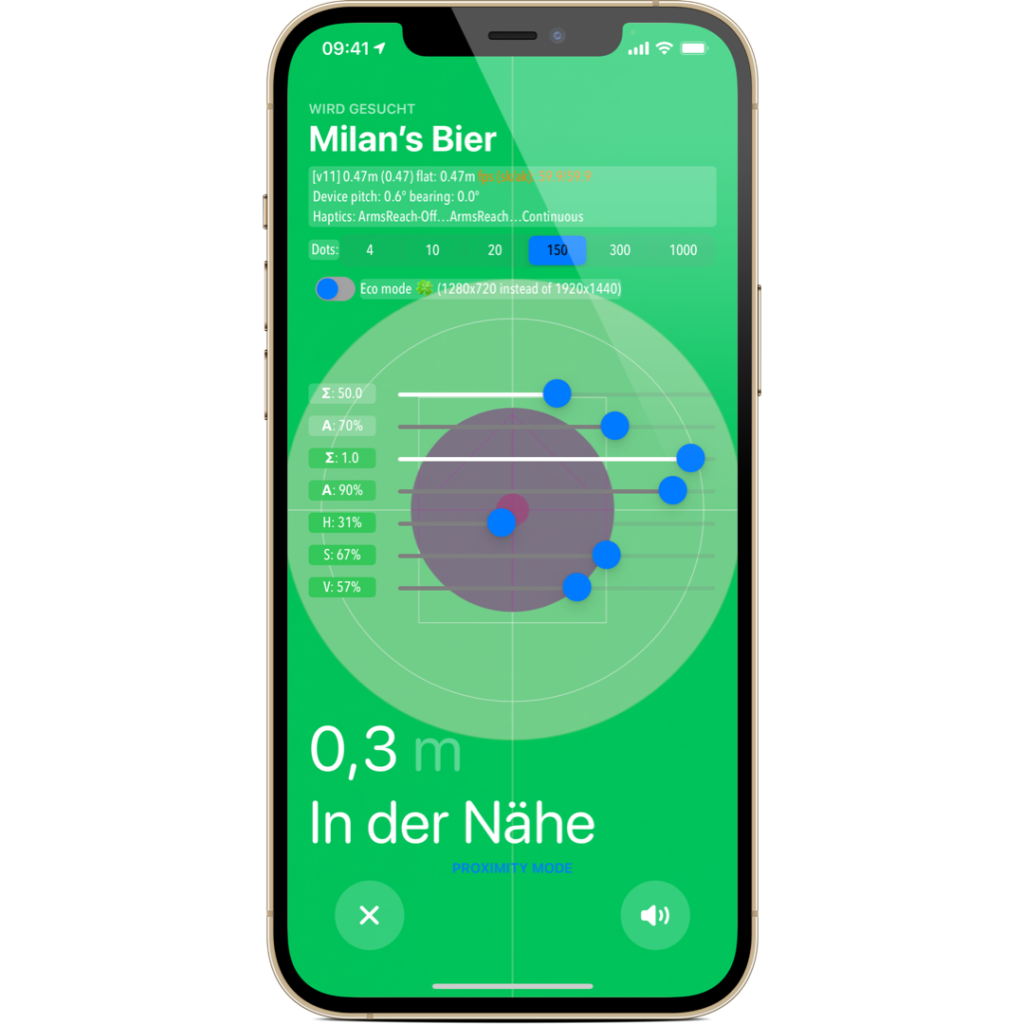
A frustrated AirTag owner accidentally discovered the hidden debug mode in the screen interface that displays “Find My” when the Exact Find feature is activated.

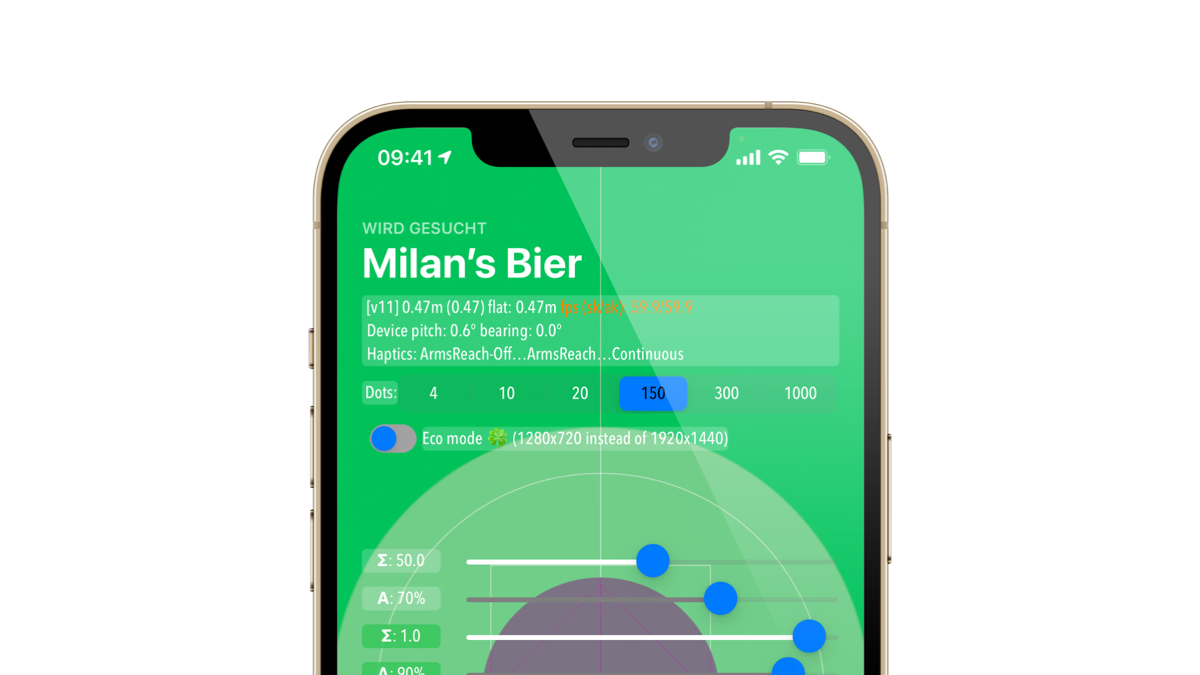
Exact Find is a feature that shows users specific on-screen instructions to find a nearby AirTag. iPhones with a U1 chip, which include the iPhone 11 and iPhone 12 models, can use the feature, which combines camera input, AR, sound, ultra-wideband wireless technology, and haptic feedback to help locate the tracker. The Hidden Mode overlay, which appears after tapping the item's name four times in the Exact Find interface, displays real-time diagnostic and technical information about the feature's operation, including accelerometer and gyroscope coordinates, haptic feedback, screen resolution, tracking animations, and more. Reddit user "cyem" stumbled upon Hidden Mode after becoming frustrated with the performance of his AirTag. So writes this:

My experience with AirTags so far hasn't been great - the first one that came out of the box failed to pair four times in a row when it was on the phone. Now that it's finally connected, anything outside of 2 feet away shows up as a weak signal and when I do get a signal, there's never an arrow. Funnily enough, in my frustration, I tapped my name about five times and found what appears to be a hidden developer mode. Even more interesting, the arrow underneath actually seems to work - just not in normal mode.

AirTag debug mode is currently accessible to everyone

Debug mode is present in the public versions of iOS 14.5 and iOS 14.5.1, and is also accessible in the current iOS 14.6 beta. It's unclear if the debug options should be removed from shipping builds. To try AirTag debug mode for yourself, all you need to do is bring the AirTag within UWB range and start Exact Find from Find My. Then tap the heading that has the name of the object four times.

AirTag debug mode
Image: Apfelpatient

But beware: There doesn't seem to be an easy way to completely reset the debug menu after the controls have been changed. Most likely, Apple will remove access to this menu completely in a future iOS version. Nevertheless, it's an interesting look behind the scenes to see how Apple engineers refine the design and behavior of system functions. (Image: Apfelpatient)


  • Apple AirTag: How to use Exact Search
Make Apfelpatient a preferred source One click – and you'll see us more often on Google
Was this article helpful?
YesNo
Tags: AirTags
SendShareSend
Share

Our Amazon Storefront

A handpicked selection of products for iPhone, Mac and more – sorted by topic and updated regularly.

Shop Now

This post contains affiliate links (including Amazon). We earn a small commission on qualifying purchases – at no extra cost to you. Learn more on our Partner Program page.

Previous Post

Does AirTag enable inexpensive, effective stalking?

Next Post

HomePod: Deezer announces native streaming integration

Milan Jovicic

Milan Jovicic

Milan founded Apfelpatient in 2016 and has been responsible for all editorial content since 2018 — news, rumors, guides, and product reviews. Apple devices here are not test units on loan for two weeks but everyday tools: from the iPhone through MacBook Pro, MacBook Air, and iMac to the Apple Vision Pro, at least one device from nearly every product category is in daily use, many of them replaced annually. Every menu path in a guide is verified on the device before it is published.

Five iPhone models in different colors side by side, one from the front showing the Dynamic Island, which is expected to be smaller on the iPhone 18.

iPhone 18: All the rumors at a glance

August 12, 2026 - 9:24 PM CEST
Symbolic image of Apple's leadership team: Apple Park from the air, illuminated at sunset.

Apple's leadership team is undergoing a transformation: Who's leaving and who's taking their place?

August 12, 2026 - 9:10 PM CEST
Symbolic image for Apple government affairs: the glass entrance cube of the Apple Store on Fifth Avenue in New York at dusk

Apple hires new head of government relations

August 12, 2026 - 8:44 PM CEST

About APFELPATIENT

APFELPATIENT brings you the latest Apple news, product updates, guides, reviews and tips across the entire Apple ecosystem — from the iPhone to the Mac to the Apple Vision Pro. From the first rumors to confirmed news: researched responsibly.

Follow Apfelpatient

Facebook Instagram YouTube Threads Threads

Company

  • About Apfelpatient
  • Contact
  • Author Profiles

Community

  • Netiquette
  • Push Notifications
  • RSS feed

Legal

  • Legal Notice
  • Privacy Policy
  • Terms of Use
  • Cookie Settings
  • Affiliate Program

Resources

  • Sitemap

© 2026 Apfelpatient. All rights reserved.

No Result
View All Result
  • Home
  • News
  • Rumors
  • Tips & Tricks
  • Reviews
  • Insights

© 2026 Apfelpatient. All rights reserved. Page Directory

Change language to Deutsch