
Apfelpatient
  • Home
  • News
  • Rumors
  • Tips & Tricks
  • Reviews
  • Insights
No result
View All Results
  • iPhone 18
  • iPhone 18 Pro
  • iPhone Duo
  • Apple Home
  • Siri AI
  • HomePod
  • HomePod mini
  • HomePod mini 2
  • MacBook Pro
  • Apple TV 4K
  • Apple Watch Series 12
  • Apple Watch Ultra 4
  • AirPods 5
  • iOS 27
  • iPadOS 27
  • macOS
  • MacBook Neo
  • iPhone 17e
  • AirTags
  • iOS 26
  • iPhone 17
  • iPadOS
  • iMac
  • Mac mini
  • Apple TV
  • iPad Pro
  • iPhone Air
  • Apple Vision Pro
  • iPhone 16
  • AirPods 4
  • Apple Watch Ultra
  • MacBook Air
  • iPad
  • AirPods Max
  • AirPods Pro 3
  • Mac Studio
  • Studio Display
  • iPad Air
  • iPad mini
  • watchOS 27
  • Apple CarPlay
  • Apple Pay
  • watchOS 26
  • Home
  • News
  • Rumors
  • Tips & Tricks
  • Reviews
  • Insights
No result
View All Results
Apfelpatient
No result
View All Results
  • iPhone 18
  • iPhone 18 Pro
  • iPhone Duo
  • Apple Home
  • Siri AI
  • HomePod
  • HomePod mini
  • HomePod mini 2
  • MacBook Pro
  • Apple TV 4K
  • Apple Watch Series 12
  • Apple Watch Ultra 4
  • AirPods 5
  • iOS 27
  • iPadOS 27
  • macOS
  • MacBook Neo
  • iPhone 17e
  • AirTags
  • iOS 26
  • iPhone 17
  • iPadOS
  • iMac
  • Mac mini
  • Apple TV
  • iPad Pro
  • iPhone Air
  • Apple Vision Pro
  • iPhone 16
  • AirPods 4
  • Apple Watch Ultra
  • MacBook Air
  • iPad
  • AirPods Max
  • AirPods Pro 3
  • Mac Studio
  • Studio Display
  • iPad Air
  • iPad mini
  • watchOS 27
  • Apple CarPlay
  • Apple Pay
  • watchOS 26

iOS 16: How to remove the search bar on the home screen

Milan Jovicic by Milan Jovicic
August 31, 2022 - 17:50 CEST
in Apple Tips & Tricks
0
Remove iOS 16 search bar

Image: Apfelpatient

WhatsAppFacebookEmail
Threads

This article may contain affiliate links. Learn more on our Partner Program page.

Make Apfelpatient a preferred source One click – and you'll see us more often on Google

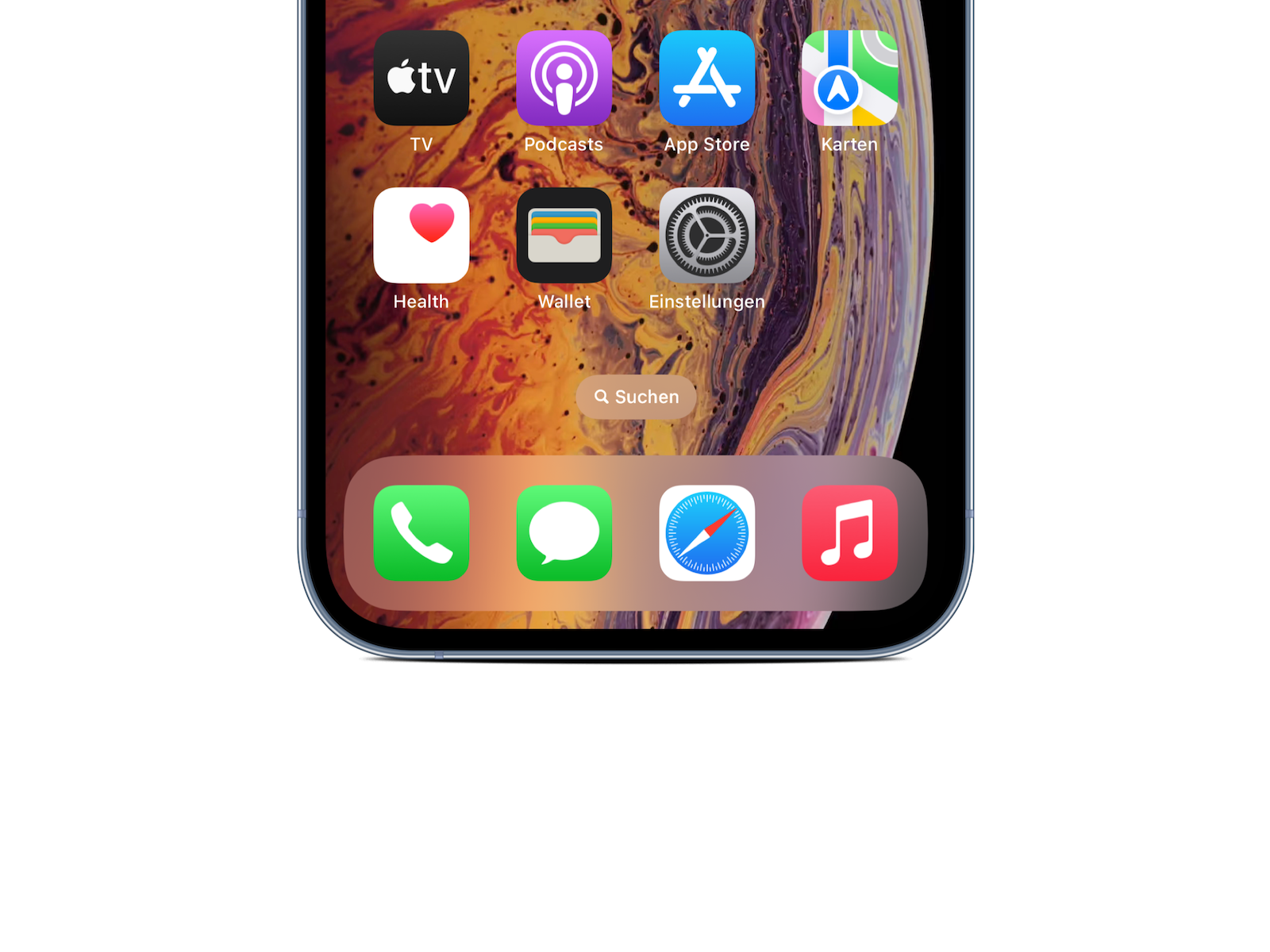
In iOS 16, Apple added a search bar to the iPhone's home screen, directly above the dock. Some people don't like the symbol. Although the feature is activated by default, it can also be removed if desired. We'll show you how to do this below.

Searching in iOS is easy: you just swipe down on the home screen or lock screen to bring up Spotlight Search, which lets you search for pretty much anything on your iPhone, including files, apps, messages, mail, contacts, and more. Despite the simplicity of invoking Spotlight Search, Apple seems to have decided that the gesture isn't obvious enough for new iPhone users.

How to remove the search bar from the iPhone home screen in iOS 16
Image: Apfelpatient

Remove search bar on iOS 16: Here's how

That's why the company added a search button on the home screen, right above the dock. The button is ubiquitous, replacing the dots that show you how many pages of the home screen are active. If you don't like the change or think it's redundant, you can remove the button using the steps below.

  • Open the “Settings” app on your iPhone.
  • Scroll down and tap Home screen.
  • Under “Search,” turn off the switch next to “Show on Home Screen.”
iPhone settings for the home screen under iOS 16
Image: Apfelpatient

That's it. Instead of the search bar, the dot symbol will now be displayed again, showing the number of your home screens. Are you looking for new accessories? Then take a look in our Amazon Storefront - there you will find numerous products from leading suppliers, also for HomeKit and Co.! (Image: Apfelpatient)

  • Visual reference: Copy & share motifs from images in iOS 16
Was this article helpful?
YesNo
Tags: iOSiOS 16
SendShareSend
Share

Our Amazon Storefront

A handpicked selection of products for iPhone, Mac and more – sorted by topic and updated regularly.

Shop Now

This post contains affiliate links (including Amazon). We earn a small commission on qualifying purchases – at no extra cost to you. Learn more on our Partner Program page.

Previous Post

iPhone 14: More details on color options and features

Next Post

iPhone 14 Pro: How iOS handles the new notch

Milan Jovicic

Milan Jovicic

Milan founded Apfelpatient in 2016 and has been responsible for all editorial content since 2018 – news, rumors, how-to guides and product reviews. Here, Apple devices aren't review units kept for two weeks, they're everyday tools: from iPhone to MacBook Pro, MacBook Air and iMac all the way to Apple Vision Pro, at least one device from every product category is in daily use, many of them replaced every year. Every menu path in a guide is checked on the device before it goes live.

Related posts

Apple Creator Studio: Apps, subscription, and clear AI limits

by Milan Jovicic
November 18, 2026 - 8:06 PM CET
Apple Creator Studio app icons: Final Cut Pro, Logic Pro, Pixelmator Pro, Keynote, Pages, Numbers, Freeform, Motion, Compressor and MainStage

Apple Creator Studio: Which apps are included in the subscription, what the fall update brings, what's missing from the paid version, and where the AI limits lie.

Read moreDetails

WhatsApp hacked: How to protect your account

by Milan Jovicic
November 18, 2026 - 3:39 PM CET
WhatsApp hacked: App Store page of WhatsApp Messenger on the unfolded iPhone Duo

WhatsApp hacked? The latest scams, how to recover your account, and which settings permanently protect it with a password.

Read moreDetails

HomePod Surround: Set Up Four HomePods with Apple TV 4K

by Milan Jovicic
November 14, 2026 - 00:09 CET
HomePod surround: TV with Apple TV 4K, two HomePods at the front beside the screen and two HomePod mini as rear speakers

HomePod surround with Apple TV 4K: which HomePods work, how to position them, and how to set up the surround group and audio return channel.

Read moreDetails

iPhone Duo: How to pair and use Apple Pencil

by Milan Jovicic
November 12, 2026 - 1:51 PM CET
Folded iPhone Duo in a dark case on a grey stone surface with a white Apple Pencil on top – iPhone Duo with Apple Pencil

Apple Pencil on the iPhone Duo: Which stylus fits, how to pair it via cable, and what happens to the stylus after a restart.

Read moreDetails

Apple Watch Ultra: How to customize the action button

by Milan Jovicic
November 12, 2026 - 01:42 CET
Apple Watch Ultra Action button: watch with titanium case and light Ocean Band lying on a gray stone surface, the orange button on the side of the case in the foreground

Apple Watch Ultra: How to assign the action button to workout, flashlight, voice memo and more – including quick switching and siren.

Read moreDetails
Load More

Categories

  • Apple Insights
  • Apple Rumors
  • Apple News
  • Apple Tips & Tricks
  • iPhone news, rumors and tips
  • Mac and MacBook News
  • Reviews
Make Apfelpatient a preferred source One click – and you'll see us more often on Google

About APFELPATIENT

APFELPATIENT brings you the latest Apple news, product updates, guides, reviews and tips across the entire Apple ecosystem — from the iPhone to the Mac to the Apple Vision Pro. From the first rumors to confirmed news: researched responsibly.

Follow Apfelpatient

Facebook Instagram YouTube Threads Threads

Company

  • About Apfelpatient
  • Contact
  • Author Profiles

Community

  • Netiquette
  • Push notifications
  • RSS feed

Legal

  • Legal Notice
  • Privacy Policy
  • Terms of Use
  • Cookie settings
  • Affiliate Program

Resources

  • Sitemap

© 2026 Apfelpatient. All rights reserved.

No result
View All Results
  • Home
  • News
  • Rumors
  • Tips & Tricks
  • Reviews
  • Insights

© 2026 Apfelpatient. All rights reserved. Site map

Change language to Deutsch